Take stall applications for individual dates on your public market listing. Your organiser team can review applications and add accepted businesses to the roster for the selected date. You can do this on any organiser plan.
Open Applications for a Date
- In Your Markets, open the market.
- Choose Stall Applications in the market menu.
- Choose the Event date you want to open.
- Choose Open Applications.
The market needs to be listed and verified by Stallee, and the date needs to be scheduled and upcoming. Dates that are further away appear on the public page as soon as you open applications for them. To stop taking new submissions early, choose Close Applications. Your team can keep reviewing applications already received.
See What Applicants Submit
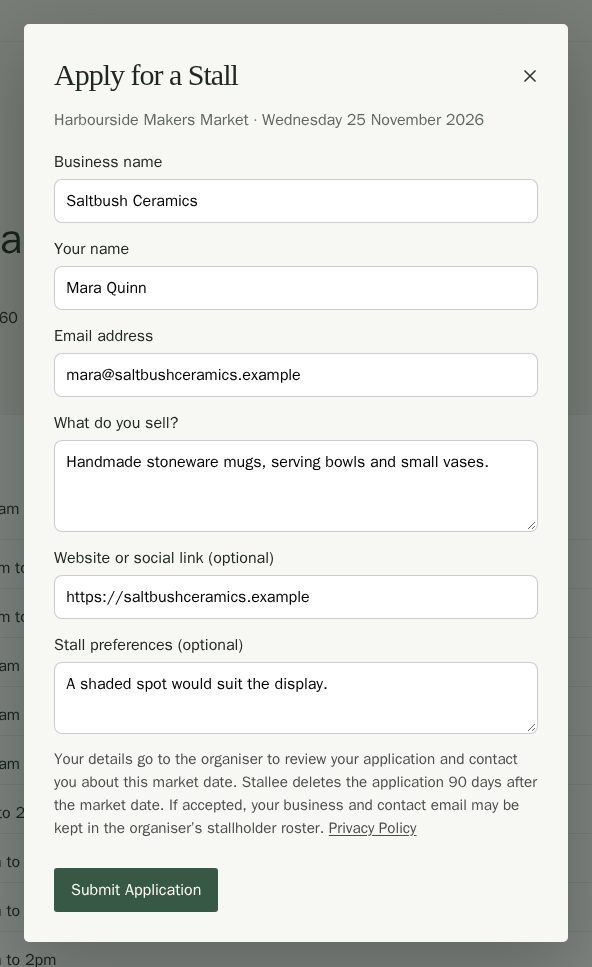
On the public listing, a stallholder chooses Apply for a Stall beside the open date. They enter their business name, name, email and what they sell. They can include a link and stall preferences. They can submit without signing in and see a receipt on screen. If you use an external application link, it still appears under For Sellers.
Review Applications
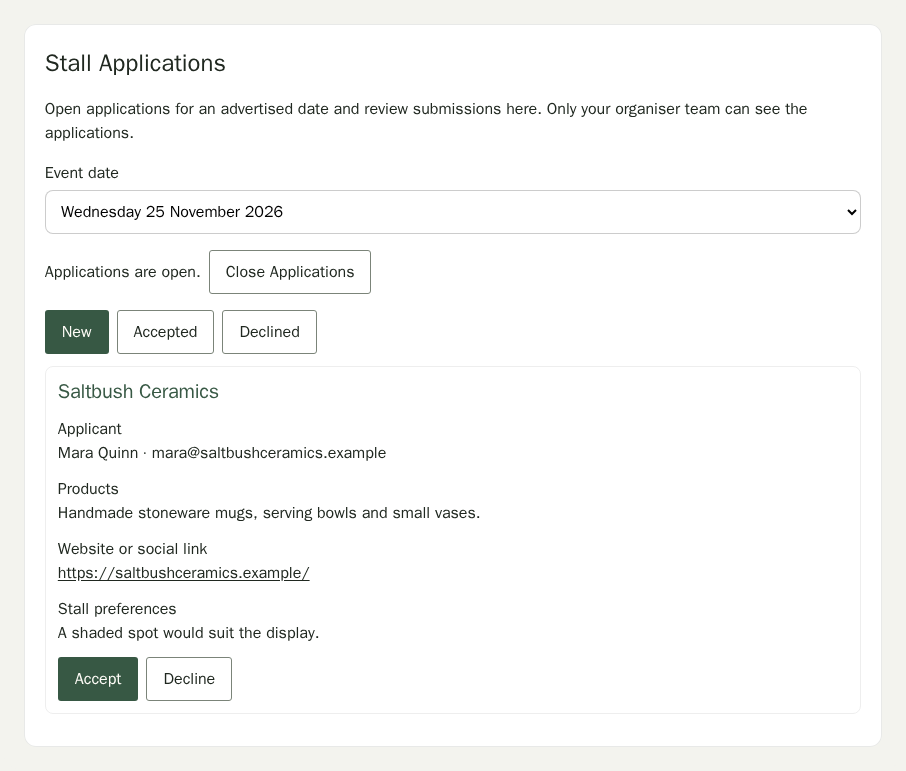
- In Stall Applications, choose the event date.
- Choose New to see applications awaiting a decision.
- Choose Accept or Decline on the application.
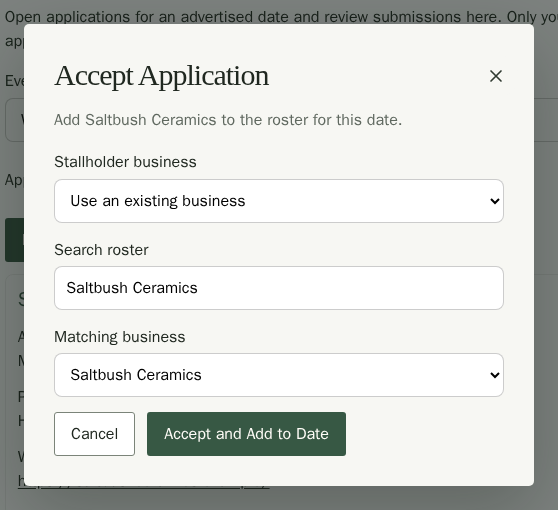
When accepting, choose Use an existing business to search your roster and select a match. Choose Create a business if you need a new roster entry. Select Accept and Add to Date to finish. You can then find the business in Stallholders by Date.
To reserve the accepted business a place, open Stallholders by Date and choose Confirm Booking beside their name.
To turn down an application, choose Confirm Decline. Review decisions under Accepted and Declined. Applicants see their receipt when they submit. Contact them yourself about your decision.
Application details stay private and Stallee deletes applications 90 days after the market date. An accepted business remains in the stallholder roster. Acceptance does not grant permission for floorplan update emails.