The Sales page shows what your shop has sold online: sales, orders, the average order and refunds for a period, compared with the period before, with a chart by day, the split between shipping and pickup and between Stripe and Square, and your best sellers. It also downloads your orders as a spreadsheet. If your shop is registered for GST, it also adds up the GST recorded on orders each quarter. The examples follow Mara Quinn of Saltbush Ceramics.
Read Your Sales
- Choose Sales in the menu. It opens on the last 30 days.
- Choose Today, 7 Days or 30 Days, or Custom and pick a start and end date, then Apply.
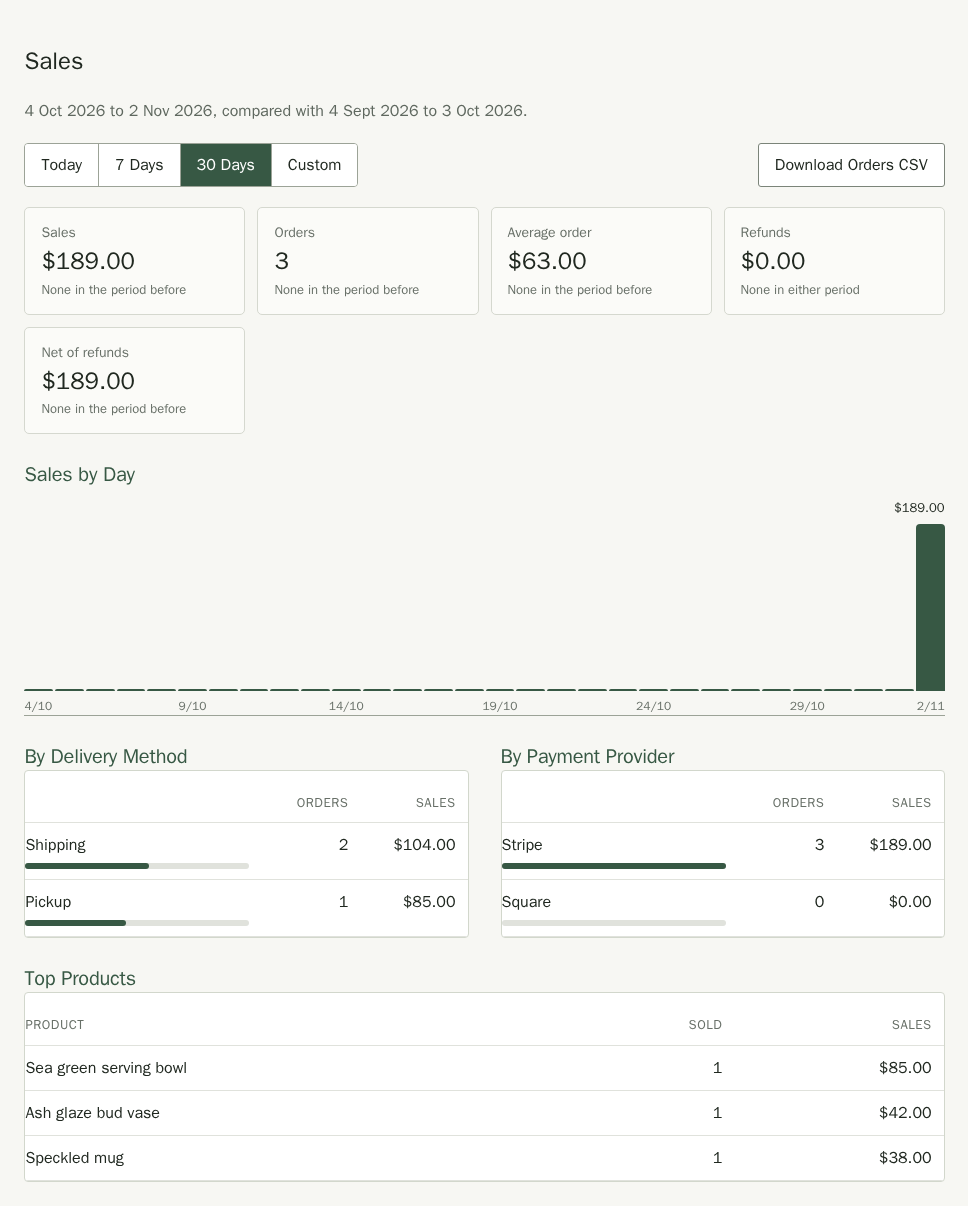
Orders, the average order and your best sellers are counted after discounts, and leave out cancelled orders. Money from a cancelled order still nets out through its refunds.
Sales is the money customers paid in the period, including shipping and any GST, on the day they paid. A custom order counts its deposit when the deposit is paid and its balance when that is paid. Refunds are refunds made in the period, whichever period the order was from, and Net of refunds is sales less refunds. Days run on your shop's time zone, set in Settings.
Hover over a bar, or press Tab to move through the bars, to see each day's sales and orders. With a screen reader, each bar announces its date, sales amount and order count. You can also use your screen reader's table navigation to read the same figures in the Sales by Day table. The delivery and payment splits announce each group's share of sales.
The figures for the period before are shown under each tile, so you can see how the period compares.
On a narrow screen, scroll a table sideways inside its frame to read all its columns. With a keyboard, press Tab to focus the frame, then use the arrow keys to scroll.
Download Orders for Your Bookkeeper
Choose Download Orders CSV to save every order paid in the period as a spreadsheet, one row per item, with the customer, the item's price and quantity, and the order's subtotal, shipping, shipping discount, discount, GST, total and refunds. It opens in Excel or Google Sheets and imports into accounting software such as Xero.
Order subtotal and Shipping are the amounts before any discount. Discount is what a discount code or automatic discount took off the items, and Shipping discount is the postage a free-delivery discount waived. For an order paid in full, subtotal less discount, plus shipping less shipping discount, is the order total, with any GST already inside it.
If a period has more than 20,000 orders, the page and the file show the first 20,000 only. The page says so, and the last row of the file reads "Showing the first 20,000 orders; narrow the date range for a complete export". Choose a shorter period to get every order. The Customers download stops at the 10,000 most recent customers in the same way.
Read Your GST Summary
If your shop is not registered for GST, the Sales page says so and links to Online Sales, where an owner or admin can turn on Registered for GST. The quarterly table appears only when the switch is on; a shop that is not registered sees no GST figures. The table is named for your shop's tax and its periods follow your Shop Country in Online Sales, which for an Australian shop is GST in business activity statement quarters. A New Zealand shop sees GST in the periods it chose in Online Sales (every month, every two months or every six months) across a financial year that runs from April to March, and the table is then named GST figures by period with a Period column in place of Quarter.
GST Summary shows, for each quarter of the financial year, the GST on sales, the GST on refunds made in that quarter, and the net GST, alongside the orders, sales and refunds, to help with your business activity statement. The figures are as recorded at checkout: a refund carries its share of the order's GST, and a custom order's balance counts in the quarter it was paid. Choose a Financial year to see an earlier year.
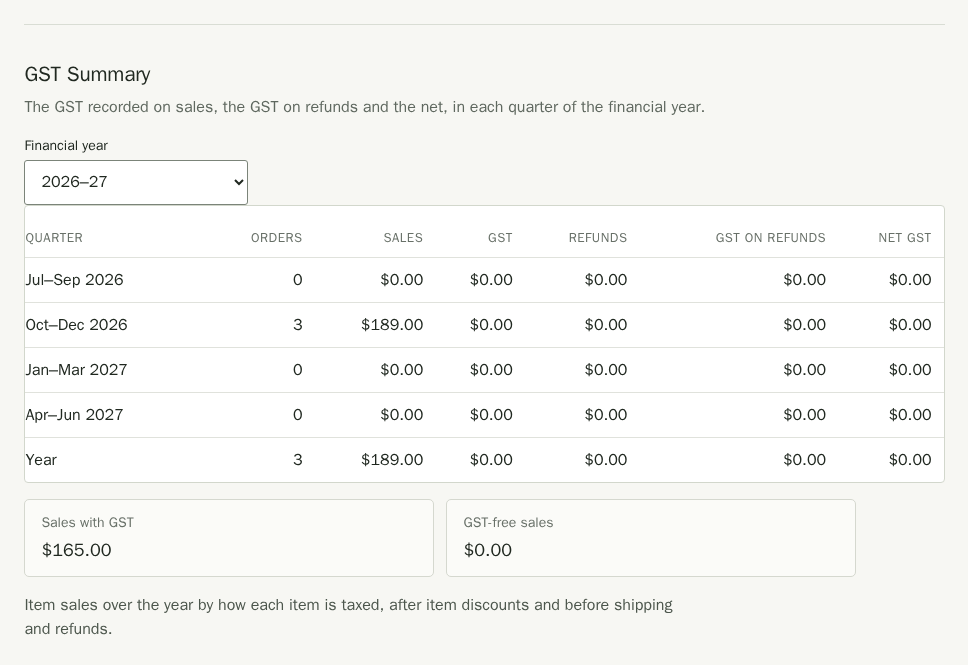
Under the table, Sales with GST and GST-free sales add up what the items on your orders came to over the year, by how each item was taxed when it was sold. They are after item discounts and before shipping and refunds, and orders that were cancelled are left out.
A shop in the United Kingdom or the EU sees the same page as VAT Summary, with VAT in calendar quarters (January to March, and so on) and a Calendar year to choose in place of the financial year. Its three figures are Sales with VAT, Zero-rated sales and VAT-exempt sales, so you can fill in a VAT return. An EU shop also sees a note that sales to buyers in other EU countries above the EU-wide threshold are reported through the One Stop Shop (OSS), and that Stallee does not file OSS returns.
A shop in the United States sees Sales Tax Summary. It groups the sales tax recorded on each order, which the payment page added on top of the prices, by the month, quarter or year you chose in Online Sales, across the calendar year. Below the table, Taxable sales and Exempt sales split your item sales for the year, and the sales tax on a refund is taken pro rata from the order's tax.
GST is recorded when Registered for GST is on in Online sales. Orders placed before you turned it on, or while it was off, show no GST. A custom order carries GST on both payments: the deposit and the balance each include their share, and the order's GST is the two added together (a GST-free piece carries none). Check the figures with your accountant; they are a summary of your orders, not tax advice.