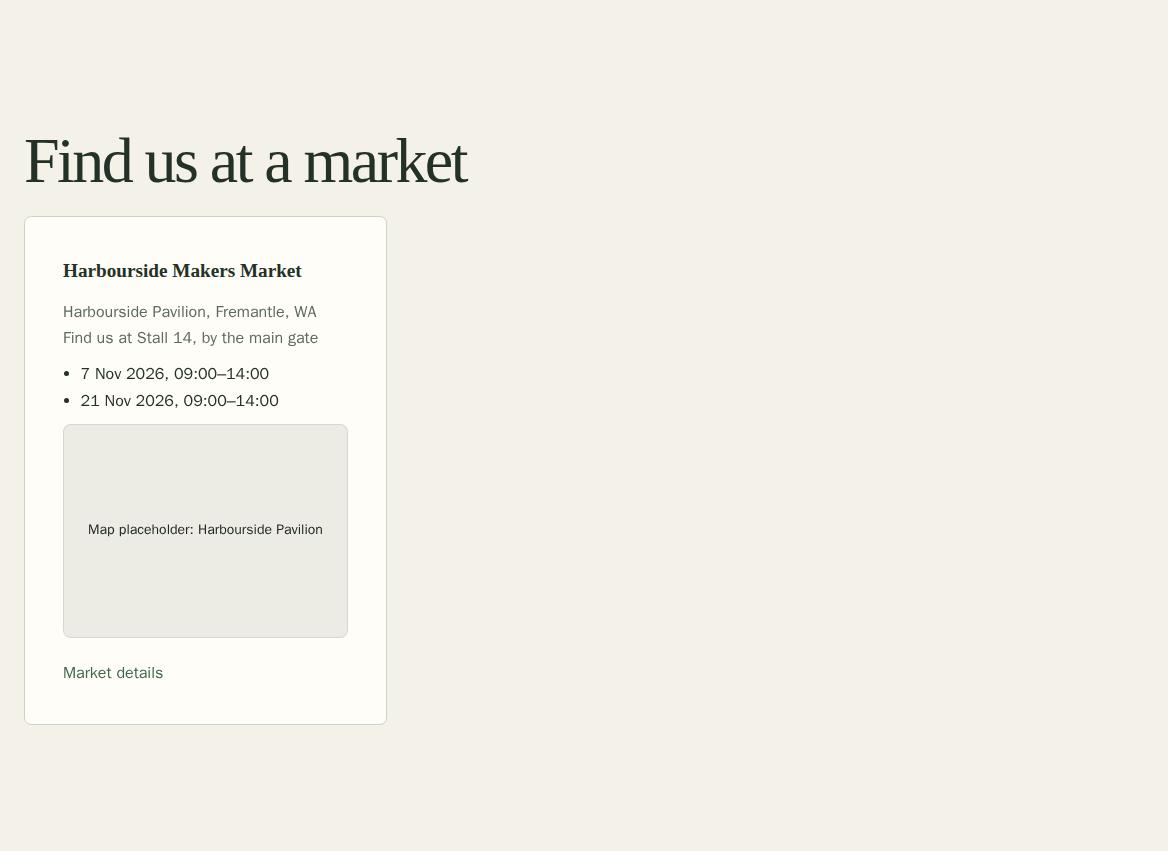
If you trade at markets, the Markets page links your shop to the market in the Stallee directory. Customers then see where to find you, and on which days, in the Upcoming markets section of your site, headed Find us at a market unless you choose your own words. Market organisers publish the dates, so they stay up to date without any typing from you. This guide follows Mara Quinn adding the Harbourside Makers Market in Fremantle to Saltbush Ceramics.
If you are getting ready for your first market, read Start a Market Business in Australia for ABN, insurance, permit and tax steps.
Only owners and admins can change your markets. You can list up to 25 directory markets. Market pages in the directory never list the shops that attend, so customers only find you through your own site.
The page has two parts. Our Own Markets, at the top, is for markets and events you run or sell at that are not in the directory. Below it, Markets You Attend links your shop to markets in the directory.
Your Own Markets and Events
Use Our Own Markets for a market that is not in the directory, or an event of your own, such as Saltbush Ceramics' studio open day. It is available on every plan, and anything you list shows in the same Upcoming markets section of your site.
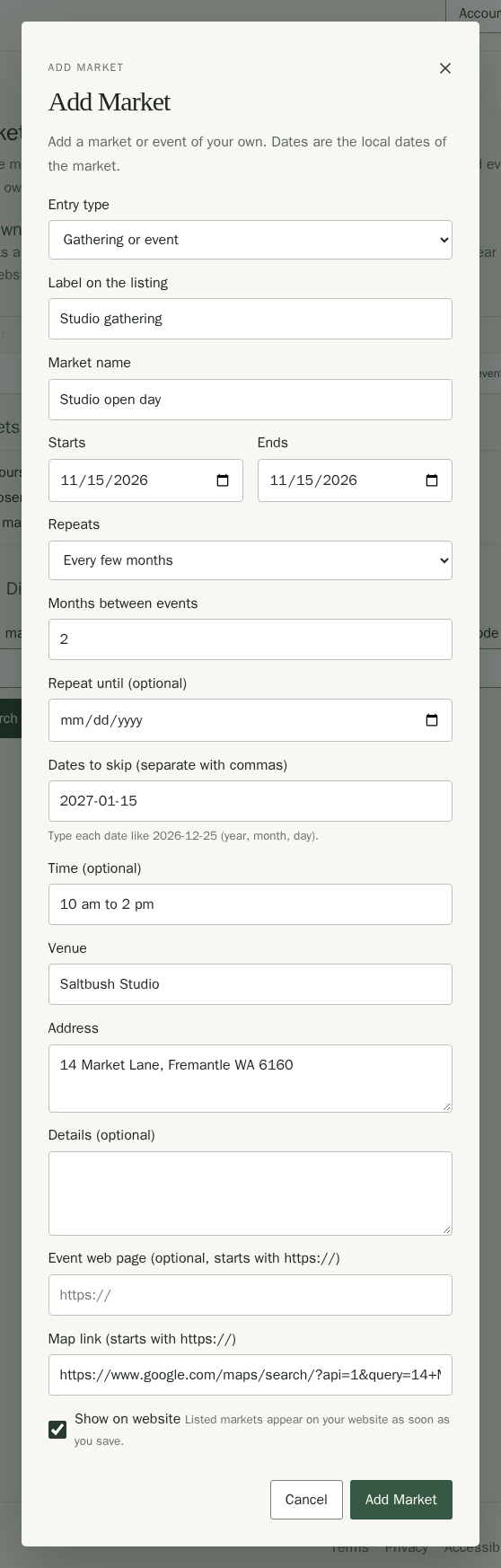
- Open Markets in the menu, under Shop website, and choose Add Market under Our Own Markets.
- Fill in the Market name, when it Starts and Ends, the Venue and the Address. Dates are the local dates of the market. The time, details, event web page and map link are optional, and links must start with https://.
- Choose Gathering or event in Entry type for meetups and other events. You can write the word that appears on its card in Label on the listing.
- If it happens again, choose how in Repeats: every week, every fortnight, monthly on a set day, such as the third Saturday, or every few months. Add Repeat until (optional) to end the schedule, and list any Dates to skip, such as a month the market closes, like 2027-01-15.
- Tick Show on website when you want customers to see it, then choose Add Market.
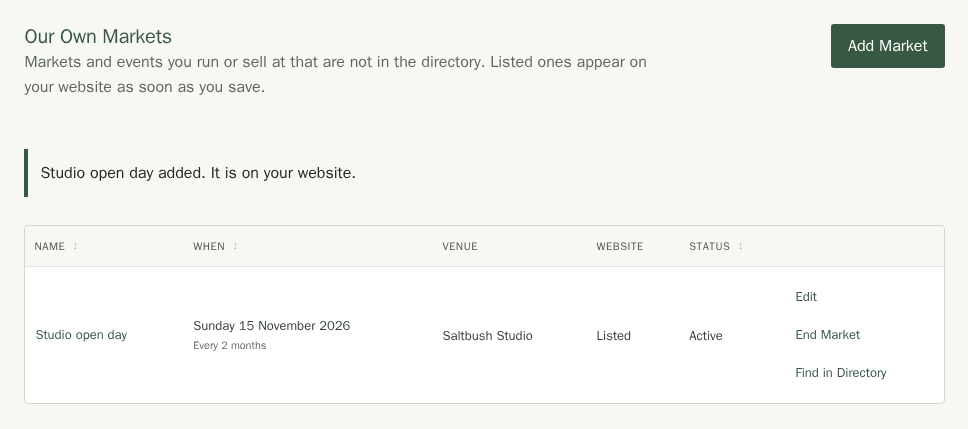
A market you list shows on your site as soon as you save it. You do not need to publish your site. A market stays hidden until you tick Show on website. Dates use your shop's time zone, and a market that has passed drops off the site by itself.
The list shows each market's next date, venue and whether it is Listed or Hidden on your site.
- Choose a market's name or Edit to change it. Your changes show on your site as soon as you save.
- Choose End Market to take it off your site. It stays in the list, and Reopen brings it back.
- Choose Find in Directory to look for the same market in the directory, so its dates stay up to date by themselves.
Your own markets never change a directory listing. A market you list here does not link you to the organiser's dates, and an organiser never sees it.
Browse the Public Directory
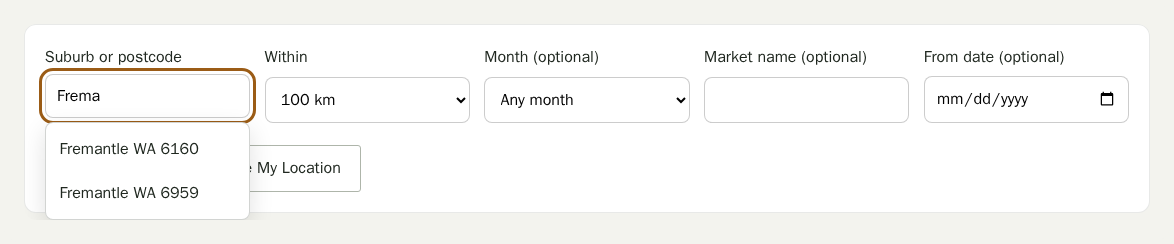
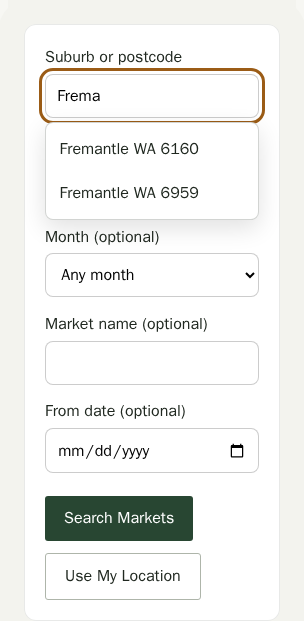
In the public market directory, type at least two letters of a suburb or a full postcode in Suburb or postcode. Choose a matching place to search nearby markets. You can also use the arrow keys and Enter, or press Escape to keep typing. The directory remembers the place and distance you choose in this browser.
Find Your Market
- Open Markets in the menu, under Shop website.
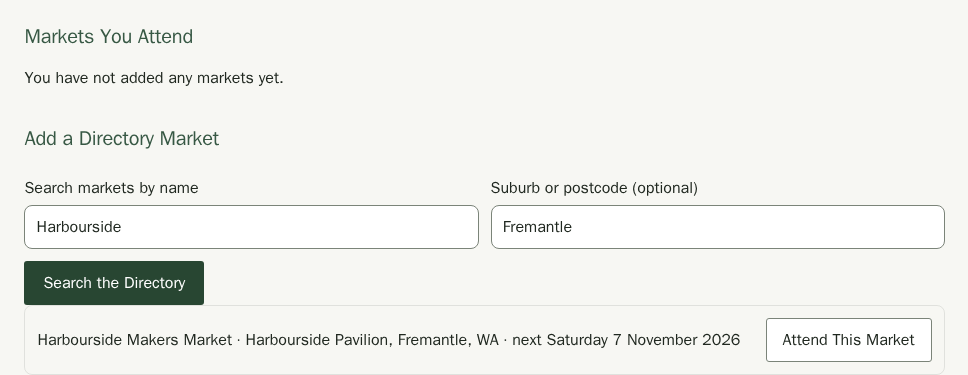
- Under Add a Directory Market, type part of the market's name in Search markets by name.
- If you like, add a suburb or postcode in Suburb or postcode (optional) to narrow the search.
- Choose Search the Directory. Each result shows the venue, the place and the next date.
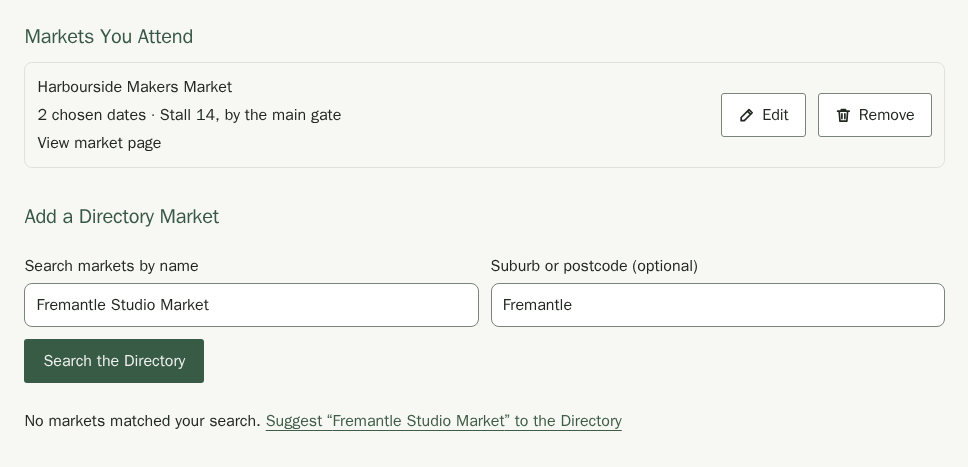
If your market is not listed, a search with no results offers a link such as Suggest “Harbourside” to the directory. Fill in the suburb or postcode first, so we can place the market. Stallee support checks each suggestion before the market is listed. Your shop can have up to five suggestions waiting for review. If you reach the limit, wait until Stallee support has checked one before suggesting another.
Choose the Dates You Attend
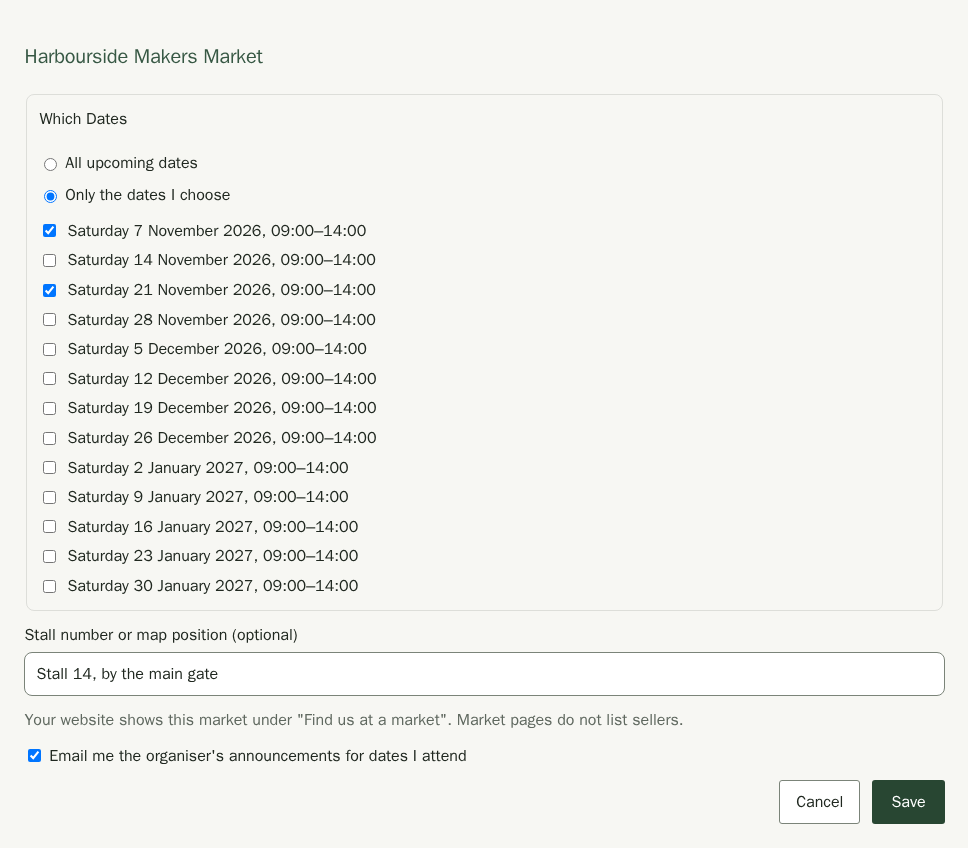
- Choose Attend This Market next to the market.
- Under Which Dates, choose All upcoming dates if you trade at every market day, or Only the dates I choose and tick each day you will be there.
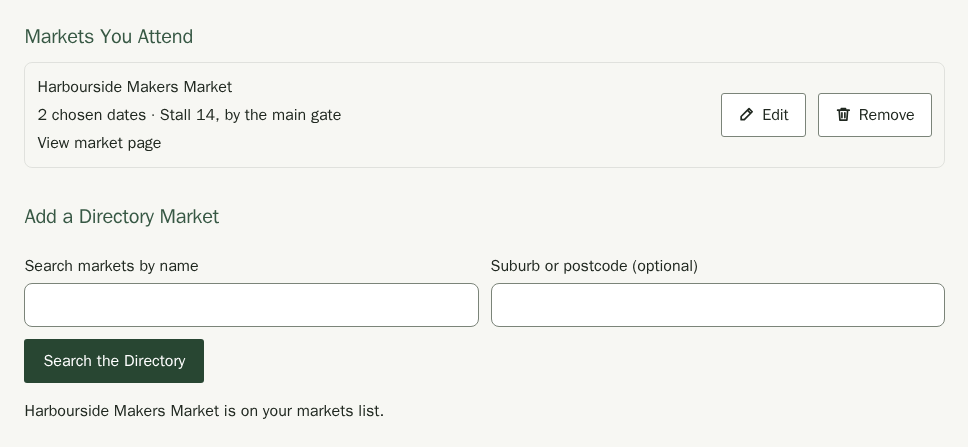
- Optionally fill in Stall number or map position, such as Stall 14, by the main gate. It shows on your site next to the market.
- Tick Email me the organiser's announcements for dates I attend if you want to hear about schedule changes and news.
- Choose Save. Choose Cancel to leave without saving.
Manage Your Markets
Your markets appear under Markets You Attend. Each one shows how many dates you chose and your stall number or map position.
- Choose Edit to change the dates, stall number or announcement emails.
- Choose Remove to take the market off your list. It disappears from your site too.
- Choose View market page to see how the market presents itself in the directory.
When an organiser posts an announcement or a schedule change, it also appears on this page under Announcements from Your Markets.
Stop Announcement Emails
Open the link after Stop these emails in an announcement email. The link opens a confirmation page. Choose Stop Announcement Emails there to turn them off for that market. Opening the link alone leaves your choice as it is.
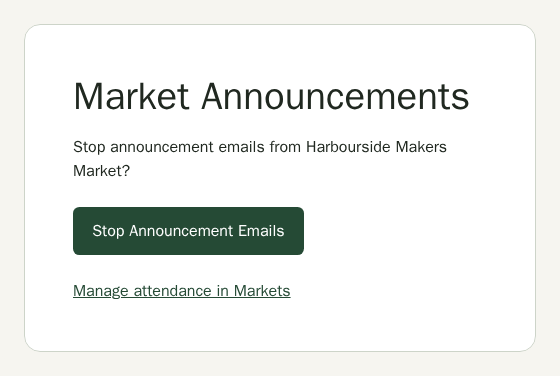
If the link has expired or has already been used, open Markets in your workspace. Choose Edit beside that market to change its announcement email setting.
Ask to Manage a Market Listing
If your market is already in the directory without an organiser, sign in to your organiser account, open its public page and choose Claim This Market. The Stallee team checks each request. You can have one request waiting at a time, across every organiser account you belong to. Once it has been decided you can ask for another.
Edit a Market You Organise
A market you create yourself shows Awaiting Stallee verification until the Stallee team has checked it. It is listed in the directory as normal. Verification opens email to stallholders: consent requests and floorplan updates are sent only for verified markets. A market whose claim the team approves is verified straight away.
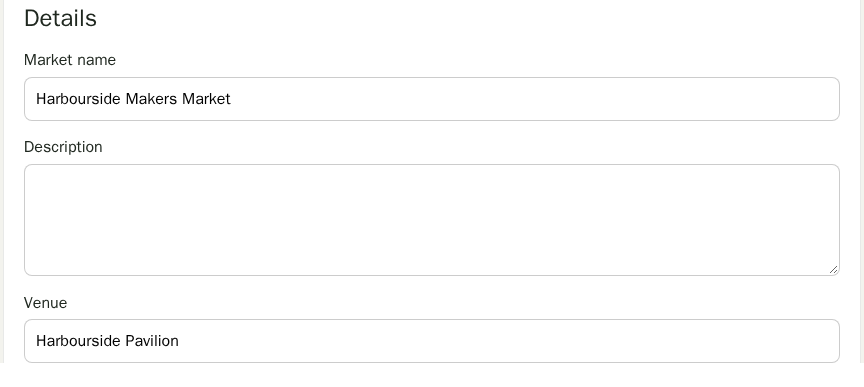
If you also organise a directory market, open your organiser workspace, choose Your Markets and then Edit beside the market. Each part of the market, such as Details, Dates and Site Map, has its own page in the menu under the market's name. Keep Market name and Venue on one line. Put longer notes in Description.
You can upload a picture or PDF of the stall layout as the site map. Pictures appear on the market page. PDF site maps download when someone chooses the link.
Add a Logo and Cover Image
A logo and a cover photo help sellers and visitors recognise your market. Open the market and choose Logo and Cover in the menu under its name.
- Under Logo, choose a PNG, JPEG, WebP or GIF file. A square logo at least 64 pixels wide works best.
- Choose Upload logo.
- Under Cover image, choose a wide photo of the market, at least 600 pixels wide.
- Choose Upload cover image.
Large images are made smaller for you. To change an image, choose a new file and then Replace logo or Replace cover image. To take one off, choose Remove Logo or Remove cover image.
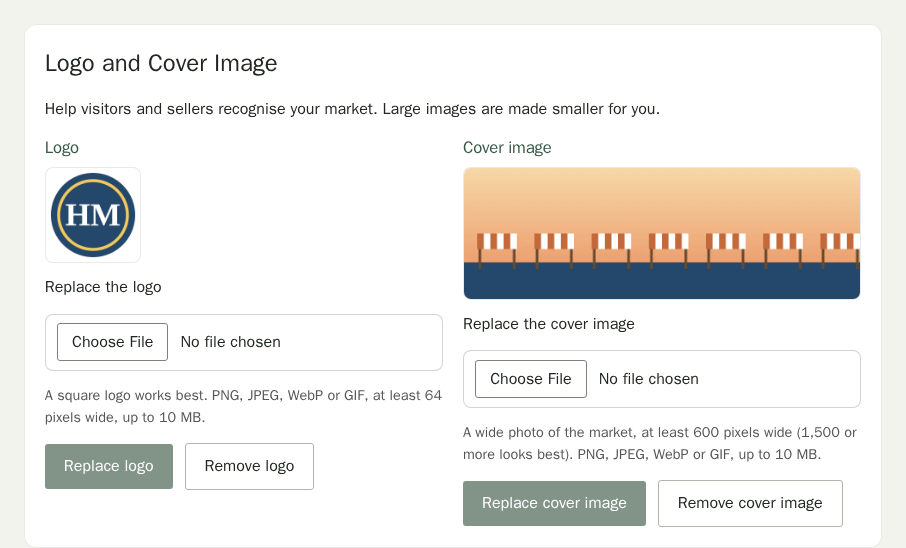
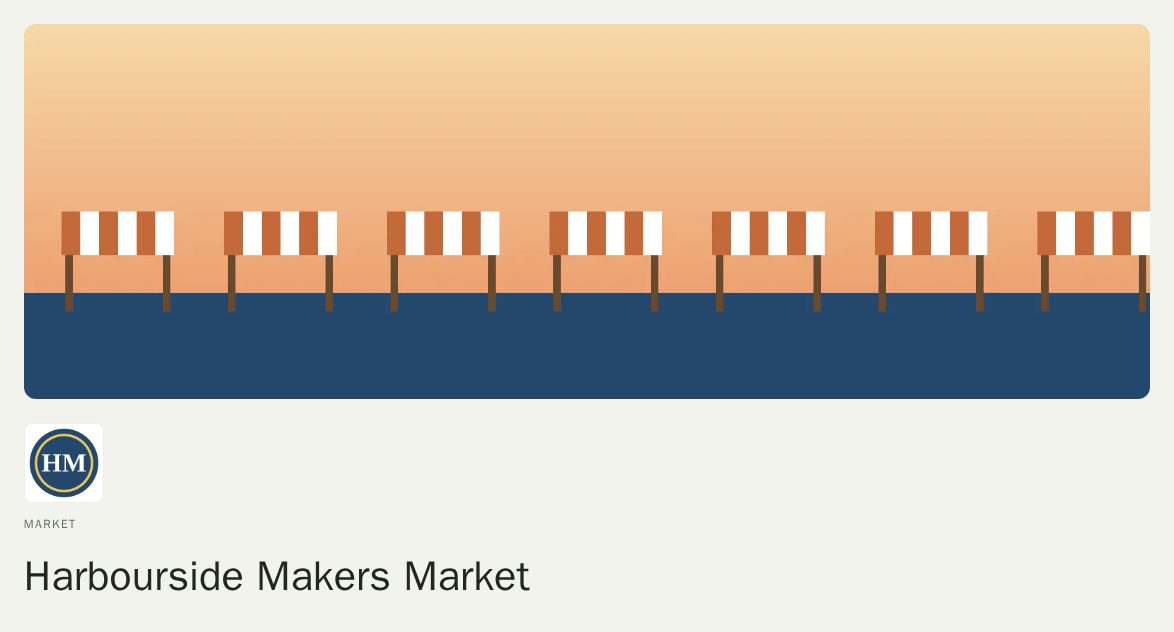
The cover runs across the top of the market page, with the logo above the market's name. The logo also appears beside the market in directory search results and on the Stallee home page. When someone shares a link to the market page, the cover image shows in the preview.
See It on Your Site
Once your site is published, each market you attend appears in Find us at a market with its venue, your stall number, the dates you chose, a map of the venue and a Market details link. The map comes from the market's listing in the directory, so there is nothing to set up. Dates that have passed drop off by themselves. The Upcoming markets section itself, its heading and how it looks, is set in Site Design. Your own markets appear in the same section as soon as you list them.