Subscribers lists the people who joined your newsletter from your site. Stallee collects them and keeps proof that each one agreed; it does not send your newsletters. Connect your newsletter service when available, or export the list for your own email tool. Only owners and admins can open this page, because it holds your customers' email addresses. It is on every plan.
Add the Signup to Your Site
- Open Site Design and choose the page you want, such as Home.
- Add a section and choose Newsletter signup.
- Change the Heading, the Text under it and the Button Label (it reads Subscribe if you leave it empty).
- Save your changes and choose Publish Site.
Visitors see an Email address box, an optional Your name box and a tick box that reads “I agree to receive emails from” followed by your shop's name. They must tick it. The form is protected from automated signups in the same way as your contact form.
If visitor verification cannot load, the signup form shows an error and the signup button stays unavailable. No signup has been sent. Ask the visitor to reload the page and try again.
How People Confirm
Australian law (the Spam Act) says you need a person's consent before you email them marketing. To make sure the address belongs to them, Stallee uses double opt-in:
- The visitor submits the form and sees a thank-you message.
- We email them a confirmation from your shop, with your logo and colours. The email has a Confirm Subscription button that works for seven days.
- They open the link and choose Confirm Subscription. Their status changes from Pending to Subscribed.
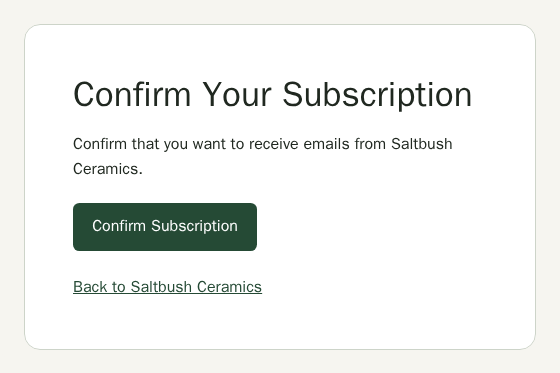
Someone who never confirms stays Pending. Do not email Pending people. If the same address signs up again within ten minutes, we do not send a second email.
See Your Subscribers
- Open Subscribers in the menu, under Sell.
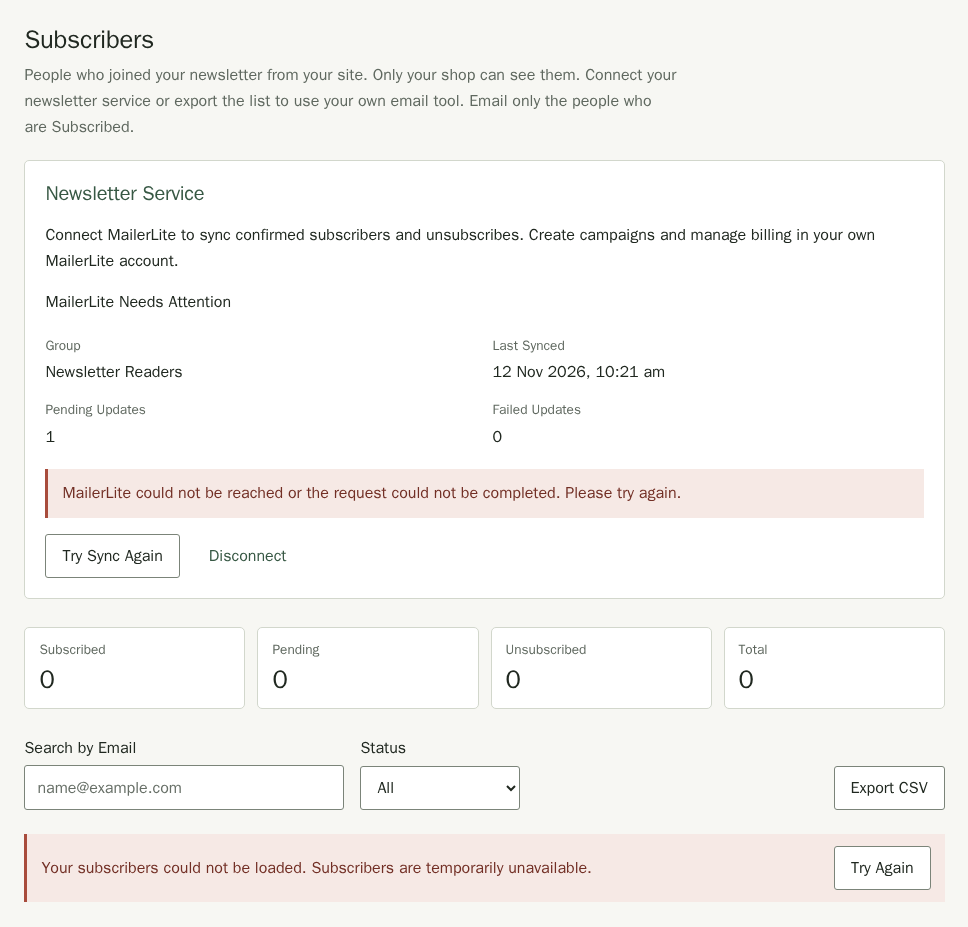
- The counts at the top show how many are Subscribed, Pending and Unsubscribed.
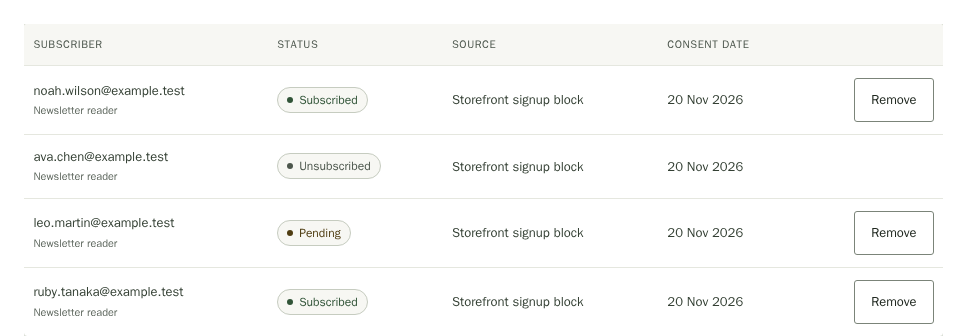
- Each row shows the email address, name, status, where they signed up and the date they agreed. Type in the search box to find an email address, or choose a status to filter the list.
Use Next Page and Previous Page below the grid to browse 25 subscribers at a time. Changing the search or status filter returns you to the first page. If a page cannot load, choose Try Again.
Connect Your Newsletter Service
If Newsletter Service is available in Subscribers, you can connect MailerLite. Stallee syncs confirmed subscribers to your chosen group. You create campaigns and manage billing in MailerLite.
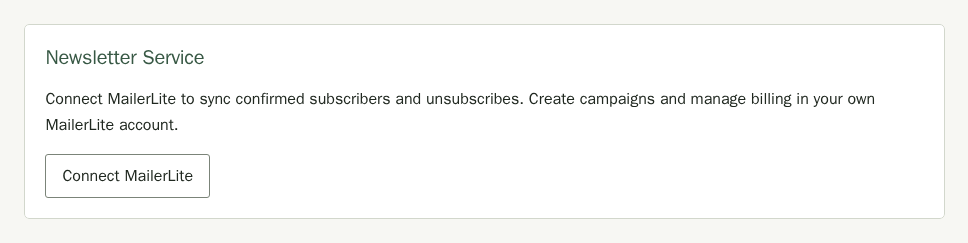
- Choose Connect MailerLite.
- Use the MailerLite account for this shop. Follow MailerLite's API key instructions to create a key, then paste it into MailerLite API Key.
- Choose Load Groups, then choose the exact MailerLite Group for this shop. A dedicated group makes it easier to manage your shop's subscribers separately.
- Review that group's automations in MailerLite. Adding subscribers may send emails through those automations. Tick the acknowledgement only when you have reviewed them and understand what will happen.
- Choose Connect.
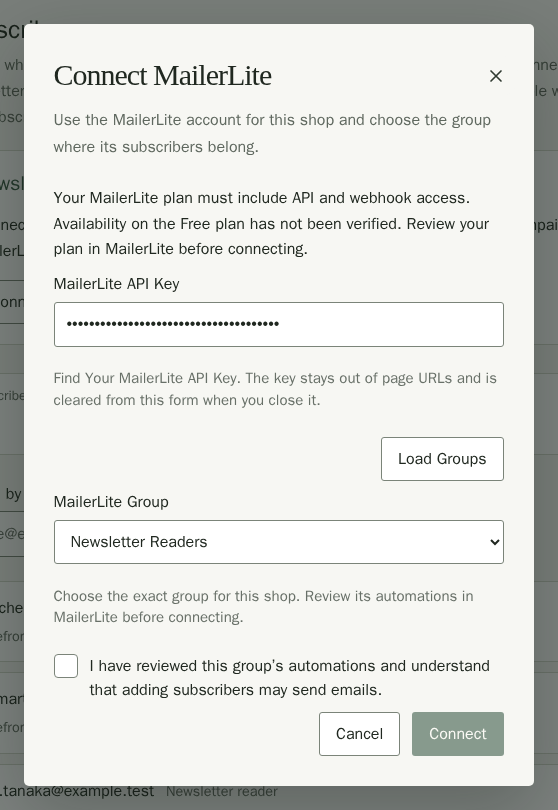
Confirmed subscribers are queued for syncing and should appear in MailerLite within minutes. Pending and Unsubscribed people are not added. Closing the setup clears the key from the form. Connecting again later requires the key again.
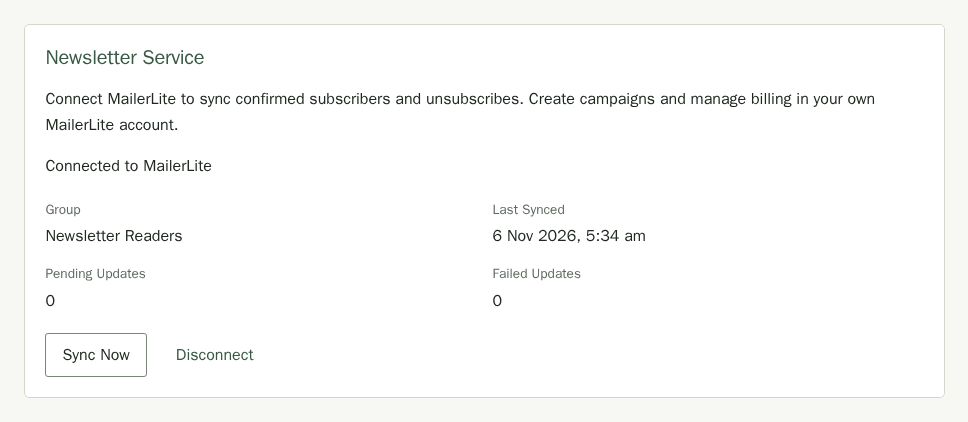
Removing someone in Stallee sends their unsubscribe to MailerLite. Unsubscribes received from MailerLite also update Stallee. A MailerLite opt-out, bounce or deletion is not automatically reactivated by syncing. Signing up and confirming again in Stallee does not clear a MailerLite opt-out. Check both lists before sending a campaign.
Resolve a Sync Problem
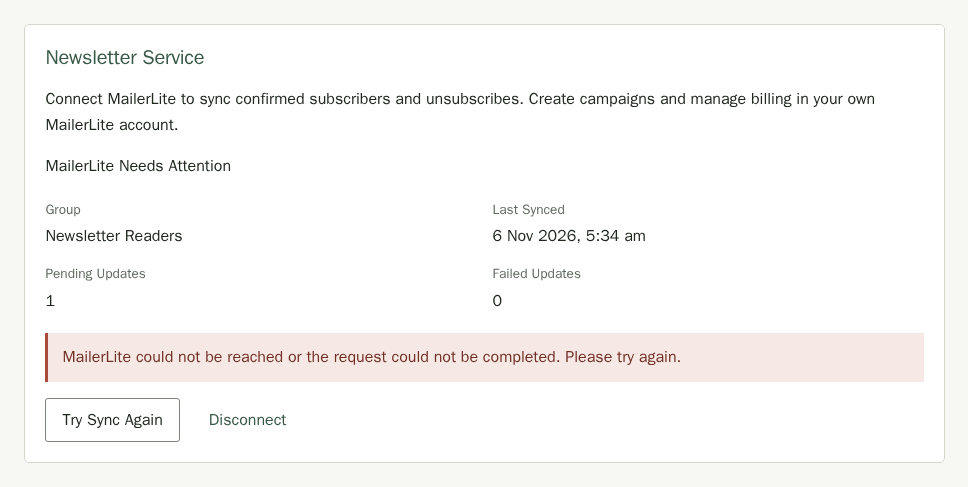
- Check the message under Newsletter Service and the pending and failed update counts. Your subscribers remain in Stallee when MailerLite is unavailable.
- If you see Checking remaining subscribers, a scan is still running. Allow it to finish before checking the final counts.
- For a plan or subscriber limit, review your account in MailerLite. For an invalid key, disconnect and connect again with a valid key.
- Once the problem is resolved, choose Try Sync Again. You can also choose Sync Now to request a sync. Allow a little time for updates to finish.
Disconnect Your Newsletter Service
- Choose Disconnect.
- Review the pending and failed counts. Manage those contacts and their subscription status in MailerLite after disconnecting.
- Choose Keep Connected to cancel, or Disconnect MailerLite to continue.
If Stallee says it could not remove its webhook, your connection is still disconnected. Open MailerLite's Integrations settings and remove the Stallee webhook there.
Export Your List
- Choose Export CSV. Your browser downloads a file with the columns Email, Name, Status, Consent date and Source.
- Open it in a spreadsheet, or import it into your email tool. Import only the rows whose Status is Subscribed.
Unsubscribe and Remove People
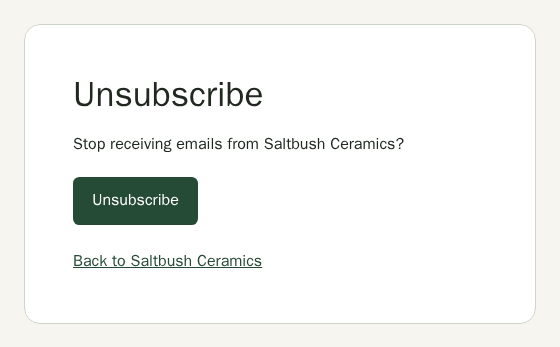
The confirmation email and the page a person sees after confirming both have an Unsubscribe link. They open the link and choose Unsubscribe. They stay on your list as Unsubscribed so you can see they opted out.
To unsubscribe someone yourself, choose Remove beside them and confirm. They can rejoin by signing up and confirming again.
Use an AI Assistant
If you have connected an AI assistant in Settings, it can list subscribers and export the list. Removing someone is a two-step change it shows you first.