Collections give a group of products its own page, with an introduction, cover image and product order. You can include products by their existing collection label, by automatic rules, or both. The examples follow Mara Quinn at Saltbush Ceramics, who makes a Gifts collection.
Create a Collection Page
- Open Collections and choose New Collection.
- Under Products to show, choose the group of products the page is for, such as Gifts. The list holds the collections your products are already in. For a group no product uses yet, choose Add a new group… and type its name, then add products to it from each product.
- Enter the customer-facing Page title. Stallee makes the Page address from it: a title of Summer Mugs gives
/products/collections/summer-mugs. To change it, choose Edit Address; the address uses lowercase letters, numbers and hyphens. If another collection already uses the address, Stallee says so beside the field when you save. - Add your introduction in Description. Start a line with # for a heading or - for a list item.
- If you want a cover, choose a file under Collection cover image (optional), then give it a useful Cover image description for people who cannot see the image.
- If you want search results to say something different from the page, fill in Search title (optional) and Search description (optional). Left blank, search results use the page title with your shop name and the opening words of the description.
- Choose a Product order and choose Save Collection.
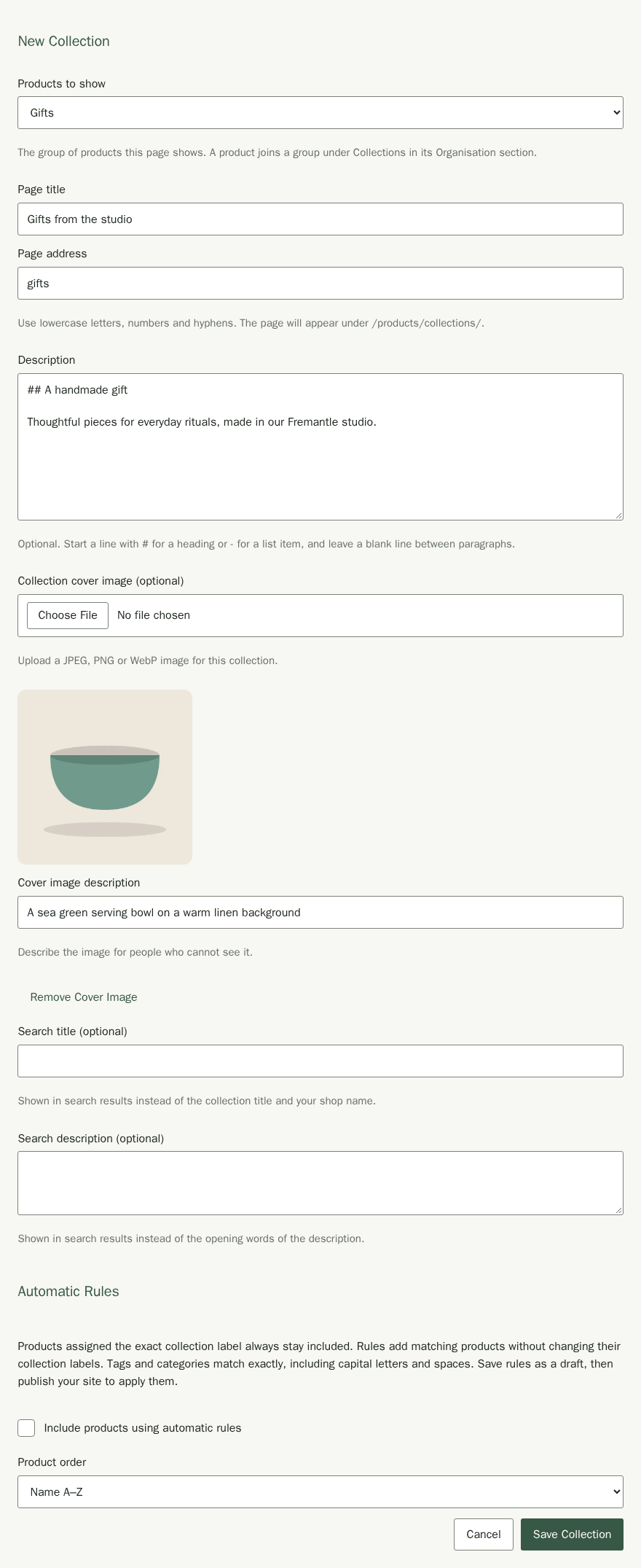
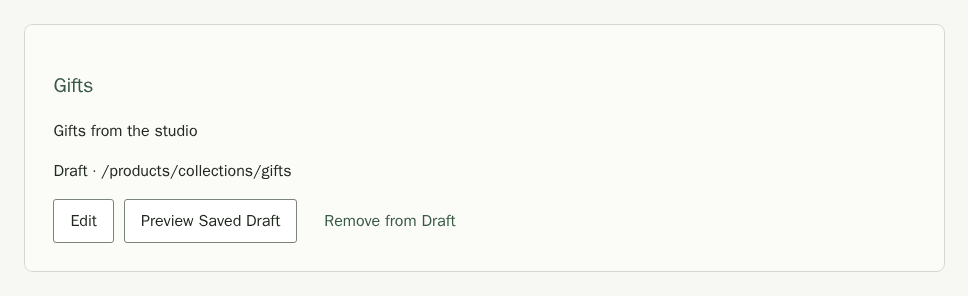
Saving keeps the page private until you publish your site. To change a saved collection, choose Edit on its card. This does not rename collection labels already assigned to products. See Products for those labels.
Include Products Using Automatic Rules
- Edit the collection and tick Include products using automatic rules.
- Set Match conditions to All conditions if a product must match every rule, or Any condition if one match is enough.
- Choose a Product field. For Tag or Category, start typing and choose one your products already use. Capital letters and spaces must match.
- For Online price, choose At most or At least, enter the Price amount and check the three-letter Currency, which is your shop's currency, such as AUD. An amount of 50.00 means fifty units of that currency.
- Choose Add Condition for another rule, up to eight, or remove a condition you no longer need. Choose Save Collection.
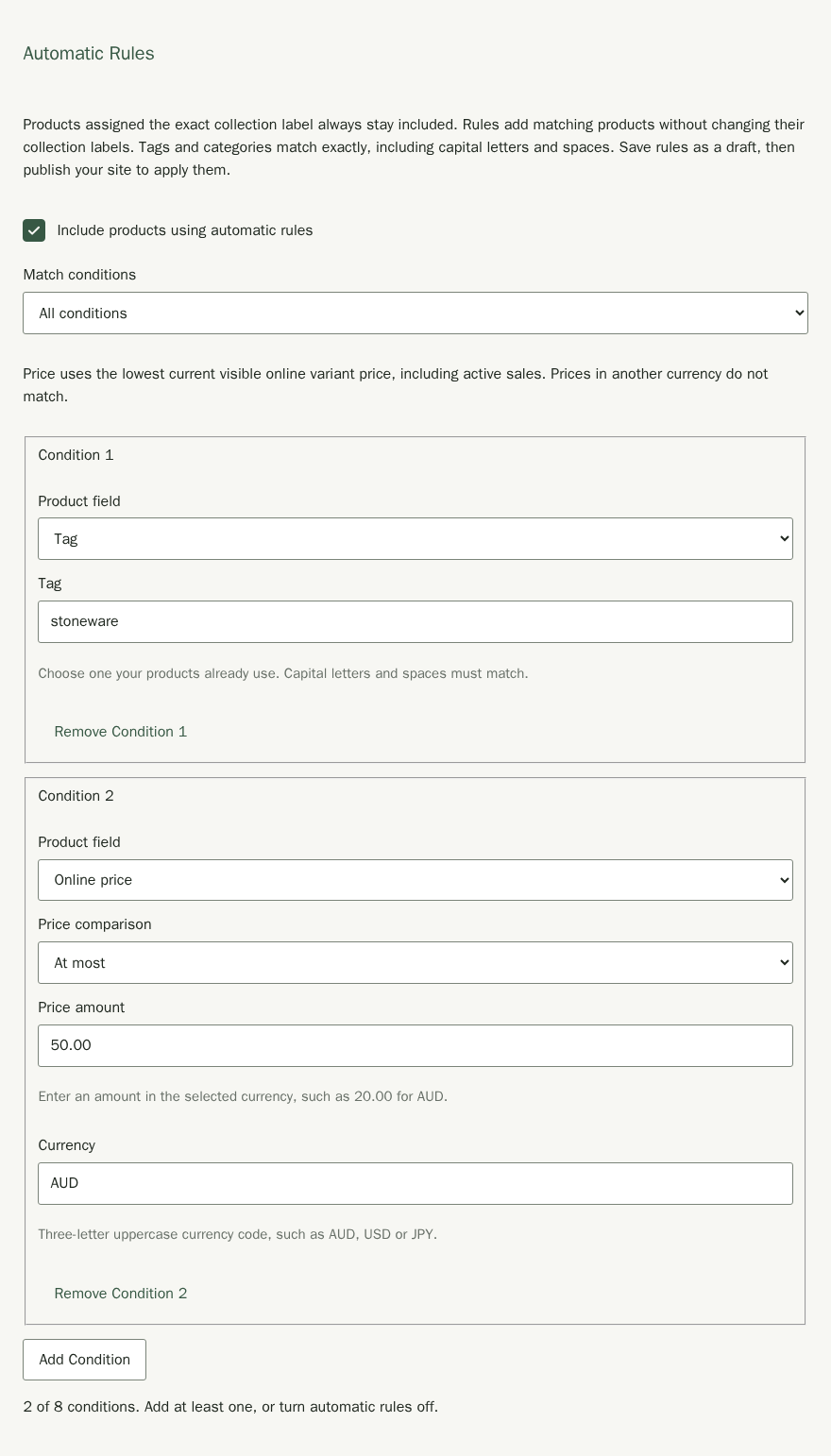
Price rules use the lowest current visible online variant price, including an active sale. For a product without variants, they use its current online price. Products manually assigned the exact collection label always stay included, even if they fail every rule. The Gifts-labelled Coastal dinner plates can therefore remain in this collection above $50. Automatic matches do not copy the collection label onto products.
Preview the Saved Draft
- Save any form changes first.
- Choose Preview Saved Draft on the collection card.
- Check the introduction, cover and matching products. Choose Close Preview to return to Collections.
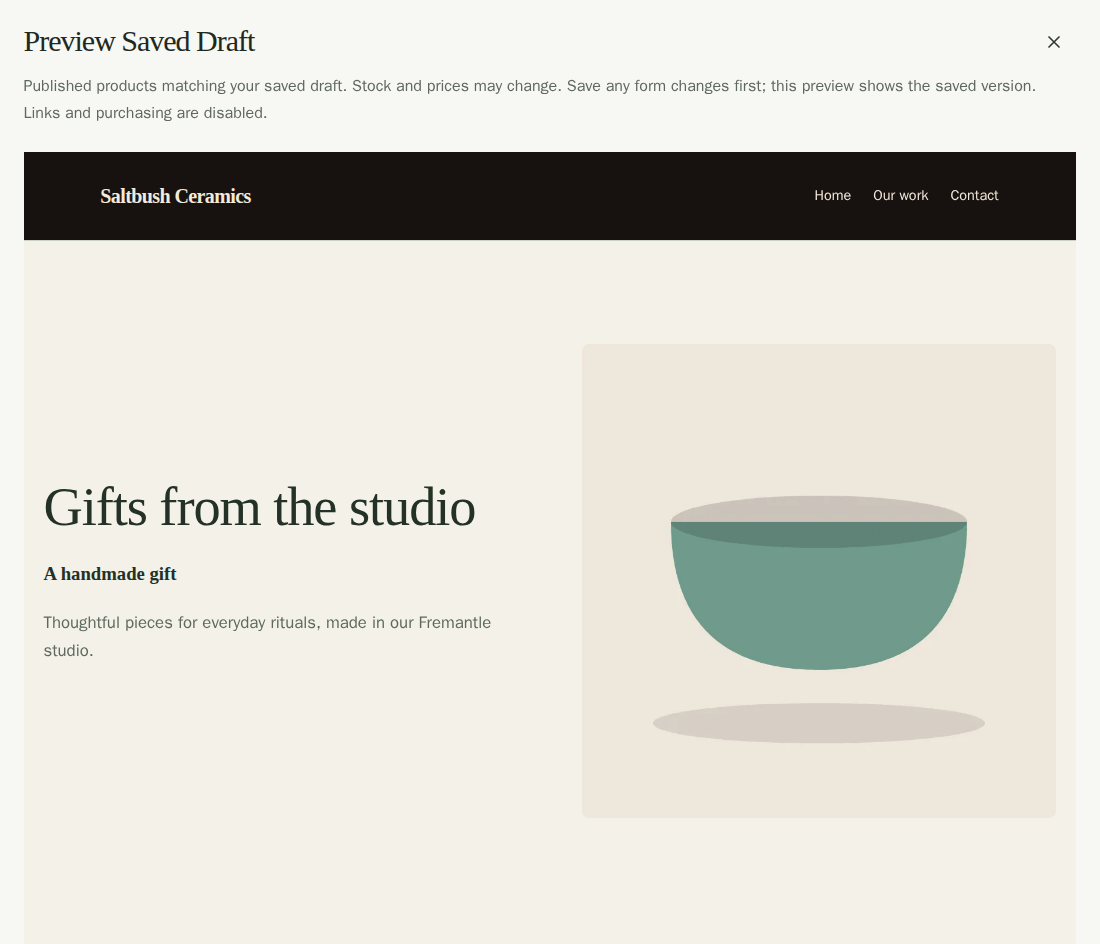
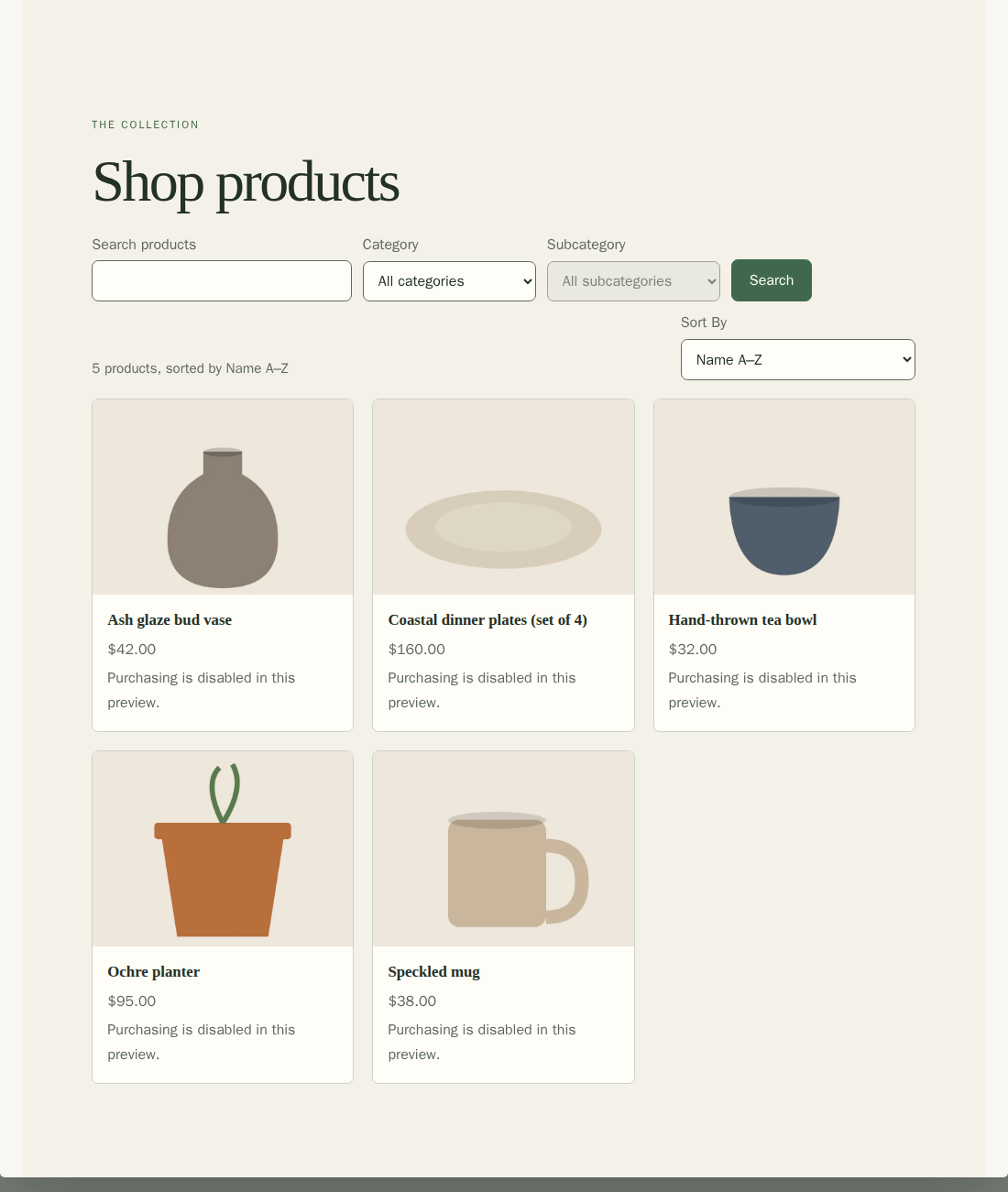
This private preview shows the saved version, with currently published products that match it. It does not publish changes. Stock and prices may change, and links and purchasing are disabled inside the preview. An unpublished product will not appear just because it matches a rule.
Publish a Collection Page
- Save your collection changes.
- Open Site Design and choose Publish Site.
- Review the confirmation and choose Publish Site. This also publishes other saved changes to your site.
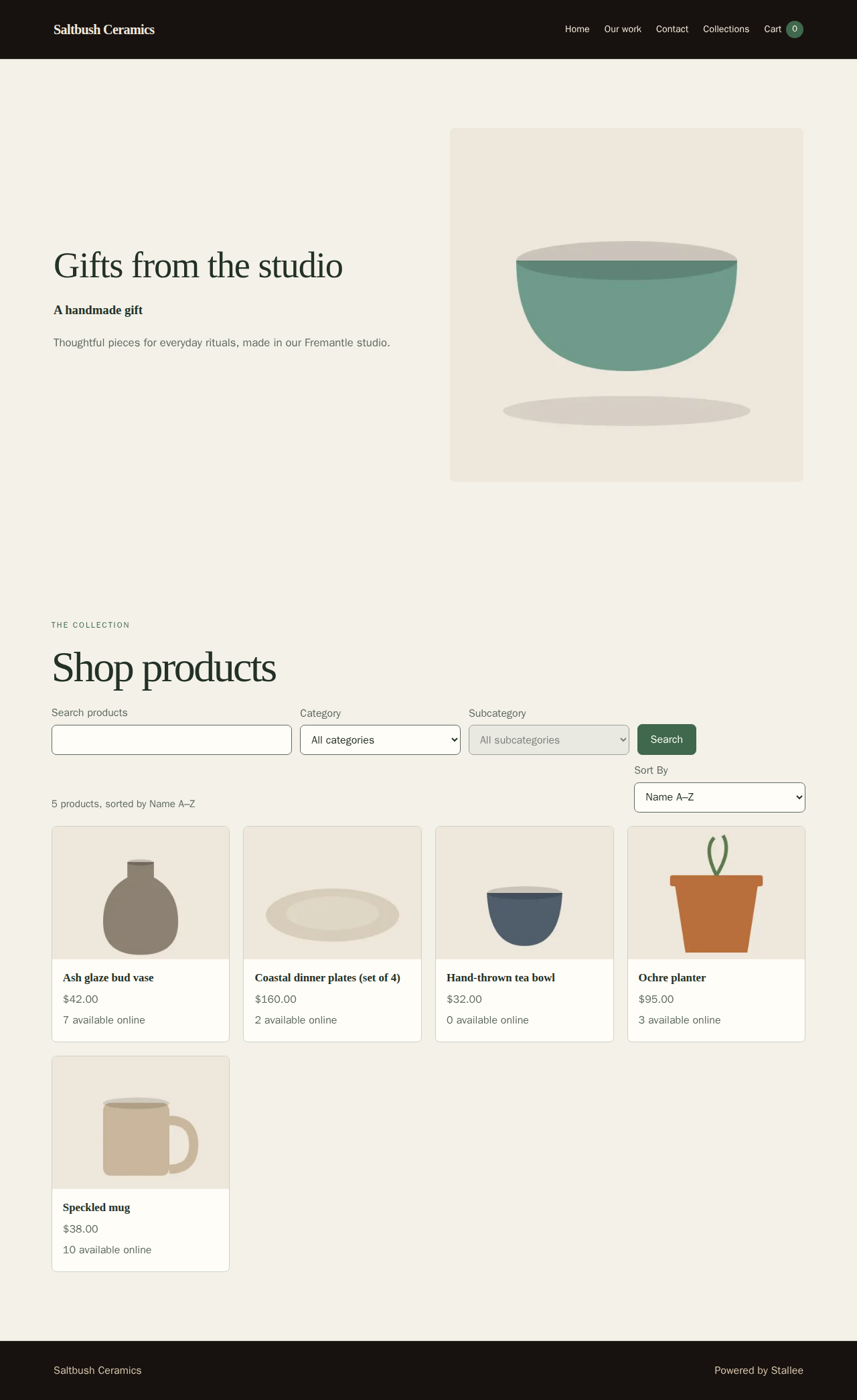
Customers can now open the page at /products/collections/gifts. Publishing your first collection adds Collections to the site navigation automatically. It opens an index of published collection pages. To show a collection in a Products section on another page, save the collection first, select it in Site Design, then publish the section and collection together.
Withdraw a Collection Page
- On the saved collection card, choose Remove from Draft.
- Read the confirmation. Choose Keep Collection to cancel, or Confirm Removal to remove it from your saved draft. When the editor closes after removal, keyboard focus moves to New Collection.
- Open Site Design and publish your site to withdraw the live page.
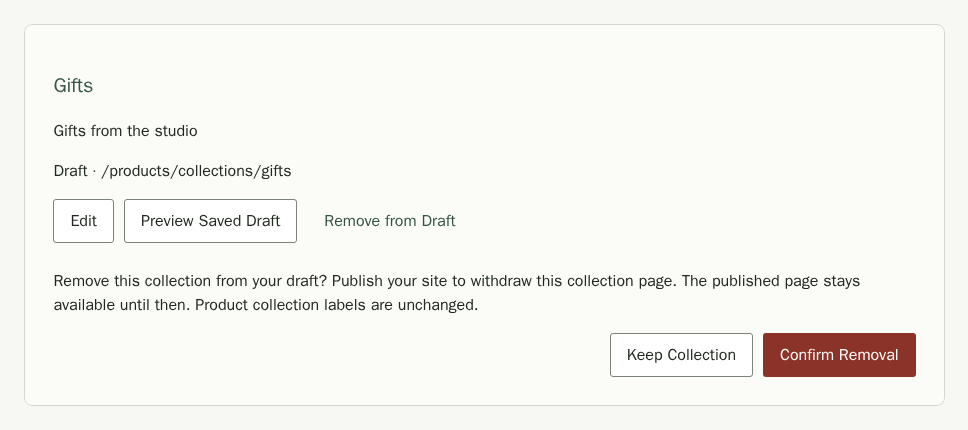
A previously published page stays live until that next site publication. Removing the page does not remove collection labels from products. If you have only started a new unsaved collection, choose Cancel to discard the form instead.
A version 7 backup keeps saved private collection drafts, published pages and their rules. Image files are not included, so keep your original cover images separately.