Open a saved product and expand Stock & Availabilityto see how many you have in each place, change the count and move stock around. To count several products at once, choose Recount Stock on the Products page. The places themselves are set up on the Stock Locations page under Products. Every change is saved as a record, so you can always see how a count got to where it is. The examples follow Mara Quinn, who runs Saltbush Ceramics and keeps stock at her Fremantle studio and online.
How Stock Works
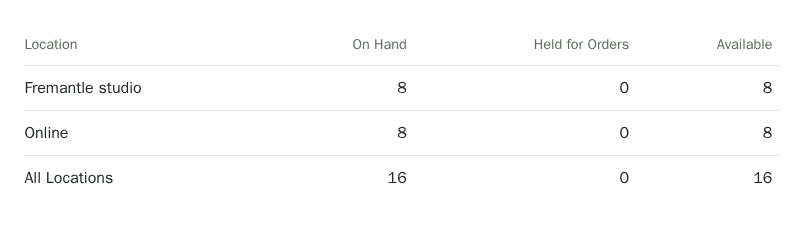
Stock is counted for each product in each location. A location is anywhere you keep stock, such as your studio, a market stall or a stockist. Three numbers appear for a product in a location:
- On Hand is how many you physically have.
- Held for Orders is how many are held for customers who are in the middle of checking out.
- Available is what is left to sell: on hand minus the units held for orders.
Your website sells only what is in your Online location. Anything you keep at the studio or a market stays out of customers' reach until you move it online. That way you never promise a customer something you have already sold at a stall. The Products list shows each product's counts too.
Low Stock Alerts and the Waiting List
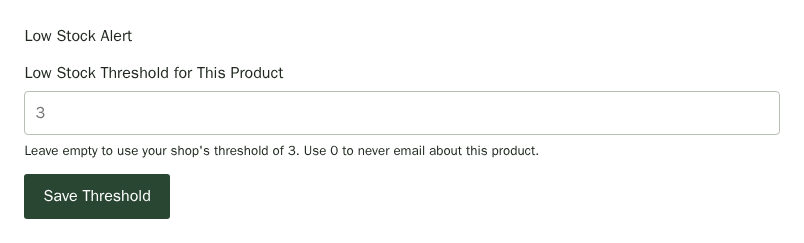
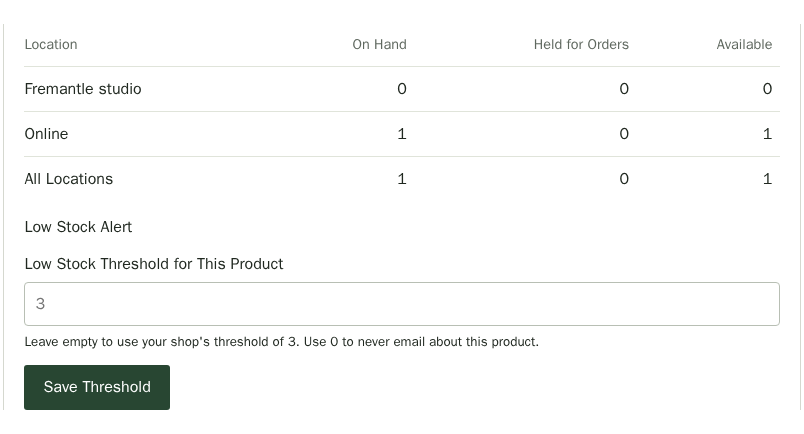
A product is low on stock when the number your website can still sell is at or below its threshold. The default is 3. Change it for the whole shop with Low stock threshold on the Online Sales page, or for one product with Low Stock Threshold for This Product in its Stock & Availability section. Use 0 to turn the alert off. The Products list marks these products Low Stock, and Low stock only in its filters shows just them. Home shows how many there are.
Choose Save Threshold to save this product's alert setting. This saves the alert level for this product only.
For a unique piece you will not restock, open it from the Products page and tick One of a Kind, then choose Save Product. Its stock counts and online availability work as usual, but Stallee leaves it out of low-stock warnings and emails. If you will restock the product, clear the setting and save again. Warnings then use its saved threshold.
Once a day, if the list has changed, Stallee emails the addresses on your Messages page one email, such as Low stock: 3 products, listing each product and how many are left online.
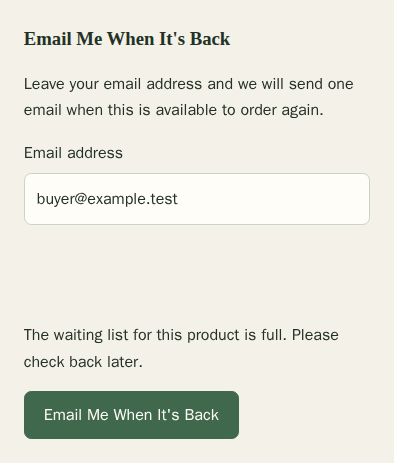
When a product is out of stock online, its page offers Email Me When It's Back. Each customer who leaves an address gets one email when the product can be ordered again, with a link to leave the list. Owners and administrators can open Waiting beside the product in the Products list to see the addresses and choose Export CSV. Use these addresses only for that email.
Each product can have up to 1,000 customers waiting. When the list is full, the product page asks customers to check back later. Customers who already joined keep their place.
Add a Stock Location
- Choose Products in the menu, then Stock Locations. You can also choose Stock Locations in Stock & Availability on any saved product.
- Under Add a Location, type a Location name, for example Fremantle studio.
- Pick a Location type: Market or pop-up, Online (for your website), Studio, Stockist (a shop that sells your work) or Other. Choose Online (for your website) for the place your website sells from.
- Choose Add Location.
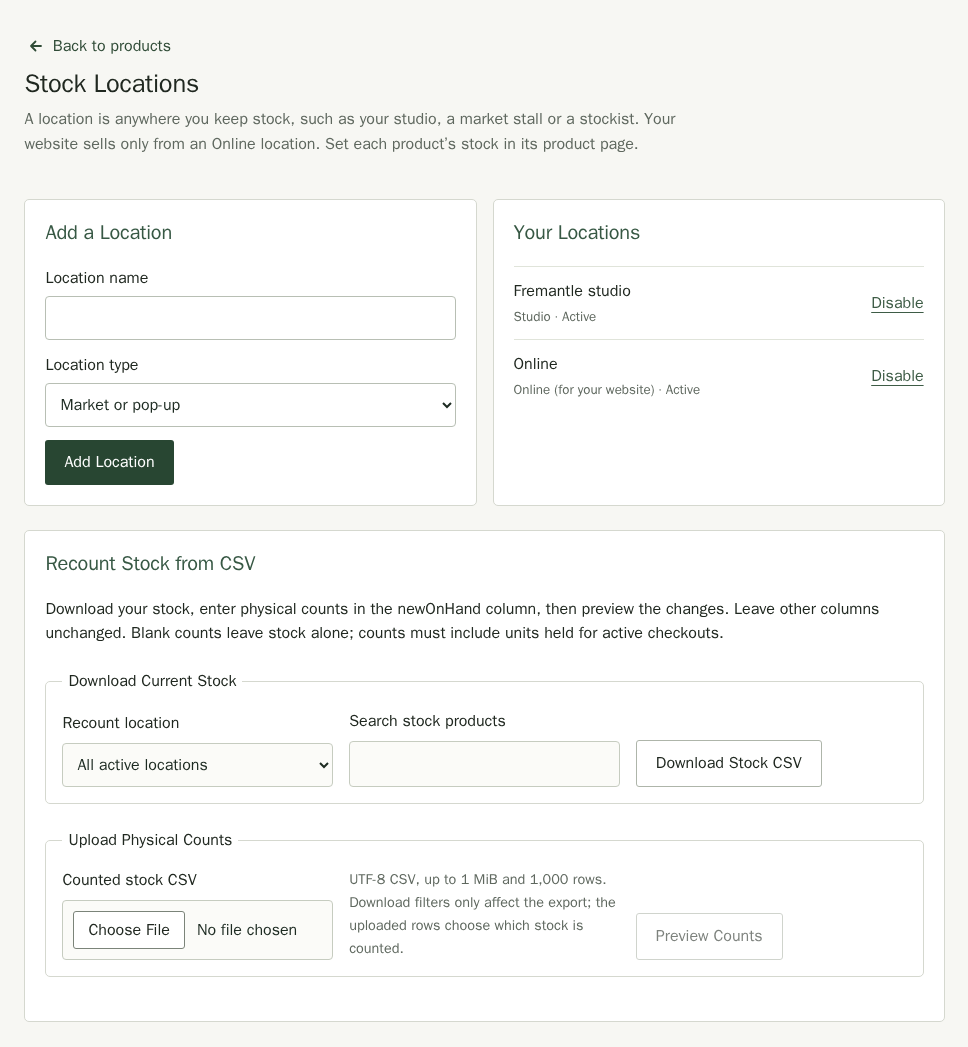
Choose Disable beside a location you no longer use. Its history is kept, and any stock still in it stays on the product until you move it.
Each consignment stockist (a shop that sells your work and pays you for what sells) has its own location, such as Harbour Gifts, so you can see the stock they hold. See Consignment.
See a Product's Stock
- Choose Products in the menu and open the product.
- Expand Stock & Availability. Stock shows for saved products only, so save a new product first.
The table lists each location with its On Hand, Held for Orders and Available counts. When you have more than one location, the last row, All Locations, adds them up.
Add or Count Stock
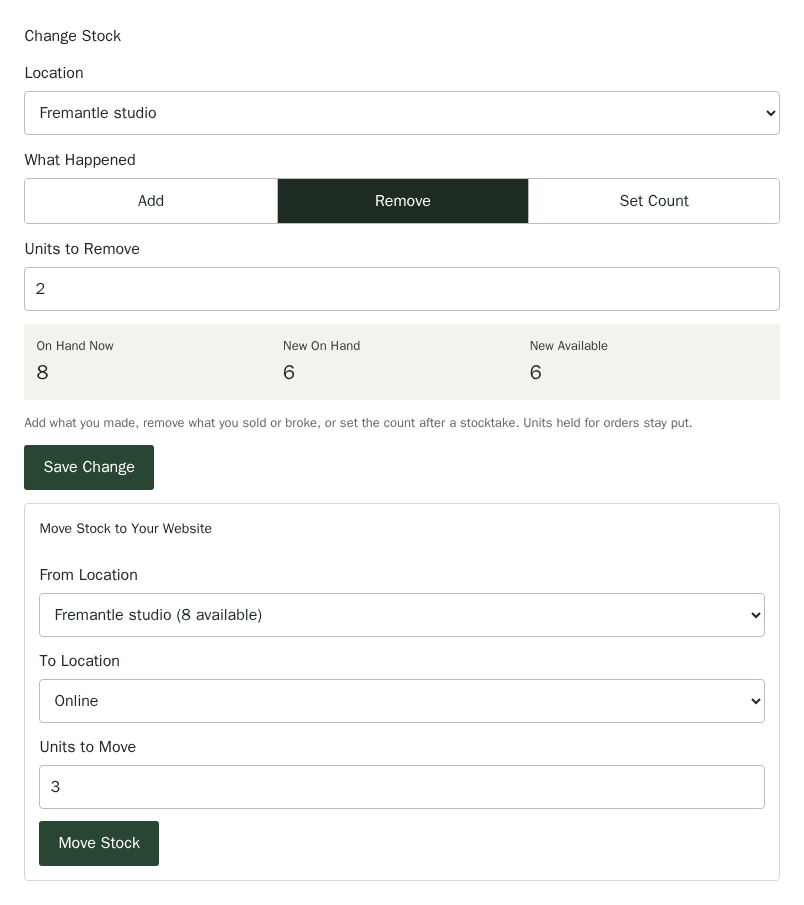
- In Stock & Availability, under Change Stock, pick the Location.
- Under What Happened, choose Add for what you made, Remove for what you sold or broke, or Set Count after a stocktake.
- Type the number of units. For Set Count, type the Counted Quantity you found.
- Check the preview. On Hand Now is what you have, and New On Hand and New Available are what you will have after saving.
- Choose Save Change or Save Stock Count.
When a change is more than half of what you have, such as going from 10 to 3, Stallee asks you to check it. Choose Confirm Change to save it, or Cancel to fix the number.
Save Change saves the stock change in this section. The Save Stock Count button saves a counted quantity. Use Save Product for changes to the product's name, price or other details.
Stallee will not let a change take stock below zero or use up units held for a customer's order. If units are held for orders, the form tells you how many and how many you can still remove.
Recount Stock from CSV
Download a stock list, enter your physical counts in a spreadsheet and review the changes before saving them. You can use this on Free with your usual stock permissions. The file includes physical products and individual variants. Digital downloads, custom-order products and parent products with variants are left out; count each size or colour on its own row.
- Open Products, then choose Recount Stock.
- Choose a Recount location, or leave All active locations selected.
- To download fewer products, enter a name or product code in Search stock products.
- Choose Download Stock CSV.
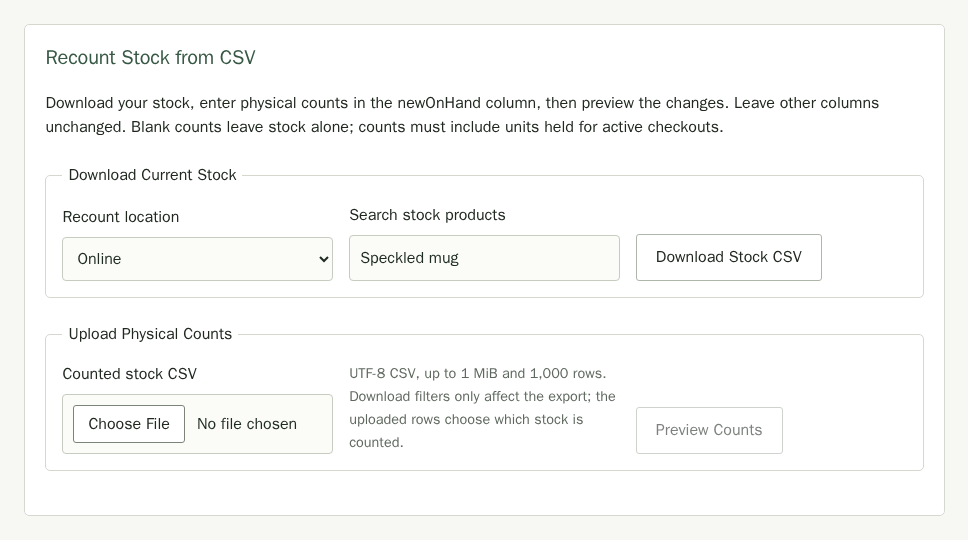
These filters choose what you download. The rows in the file you upload choose what you recount. Each file can contain up to 1,000 rows and be no larger than 1 MiB. Narrow the download if your stock list is larger.
- Open the downloaded CSV in your spreadsheet app.
- Enter each physical count in newOnHand. Include units held for active checkouts. Use a whole number from 0 to 1,000,000; leave the cell blank to keep that row unchanged.
- Save the file as a UTF-8 CSV. Keep the column headings and all other values unchanged, including productId, locationId, onHand and snapshot.
- Under Counted stock CSV, choose your saved file.
- Choose Preview Counts. Previewing changes no stock.
Check each product and location. Exported count is the count when you downloaded the file; Current is the count now. Compare these with New count and Change. The preview also shows reserved and available units. Mara counted 10 Speckled mugs online: the exported and current counts are both 11, so applying her count would remove one unit.
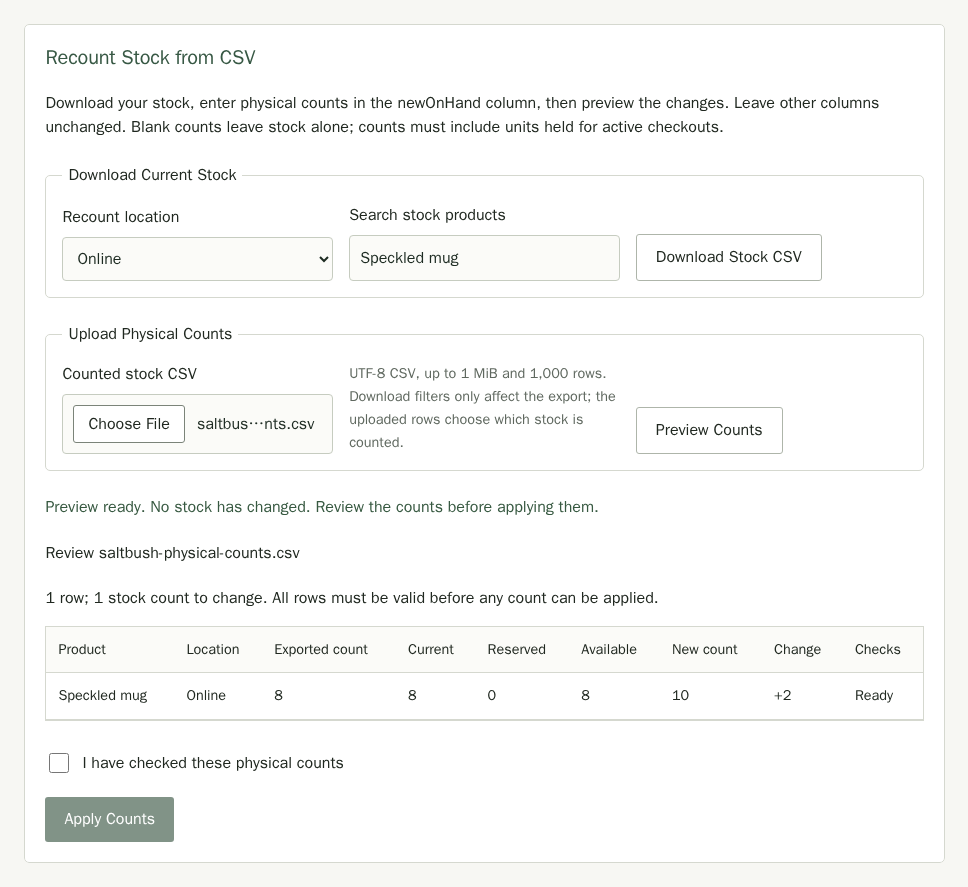
- Correct any row errors and upload the corrected file, then preview again. Every row must be valid; Stallee does not apply part of a file.
- Tick I have checked these physical counts.
- Choose Apply Counts to save the reviewed changes.
If stock has changed since the download, download a fresh CSV and enter your counts again. Stallee refuses stale counts and counts below units held for active checkouts. A file with no changes needs no action. Applied counts appear as Recount in each product's stock history.
Move Stock to Your Website
Move units to your Online location when you want customers to be able to buy them. You can move stock between any two locations the same way. The move box shows once you have two or more locations.
- In the Move Stock to Your Website box (it reads Move Stock when the destination is not an online location), choose the From Location the stock is in now, such as Fremantle studio. Each location shows how many are available there.
- Choose the To Location, such as Online.
- Type the Units to Move. You can move only what is available.
- Choose Move Stock.
Read the Stock History
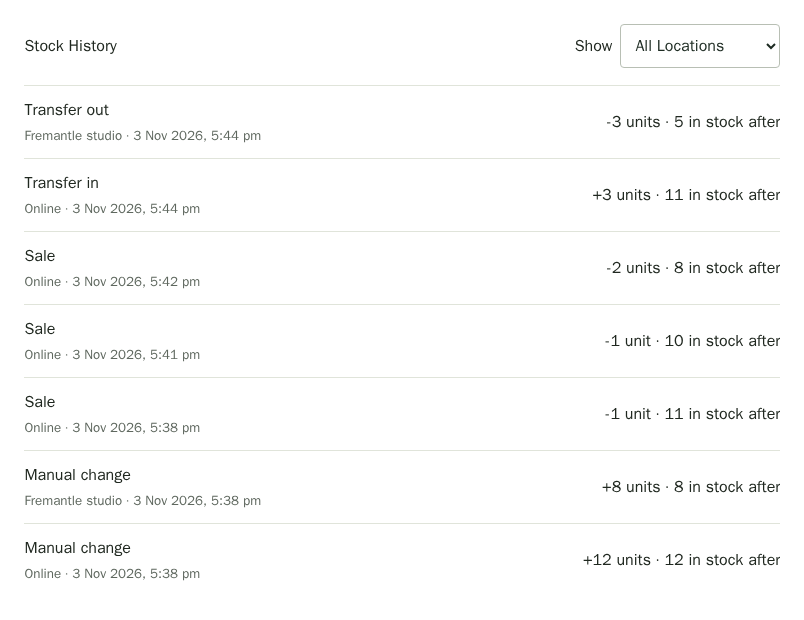
Stock History lists the latest changes to the product. Use Show to look at one location or All Locations. Each line shows the kind of change: Manual change, Recount, Sale, Transfer in or Transfer out. It also shows the location and when it happened, in your shop's time zone, how many units moved and how many were on hand after.
Stock Held at Checkout and Pausing Sales
When a customer starts to pay, Stallee holds their items so nobody else can buy them. That is why a product can show fewer available than you expect. The Online sales page lists those holds, lets you keep some stock back from your website and lets you pause online sales while you trade at a market.