Your Stallee account belongs to you, not to a shop, so one sign-in opens every shop you work on. This guide covers how to sign in, switch between shops, create another shop, connect a social sign-in, add a passkey and sign out of devices you no longer use. The examples follow Mara Quinn, who runs Saltbush Ceramics.
Sign In with an Email Link
Stallee has no passwords. Google and Facebook appear at the top when available. To use an email link, use the form below them.
- Go to Stallee at app.stallee.xyz.
- If you see the sign-up form, choose Already Have an Account? Sign In.
- Type your email in Email address and choose Email My Sign-In Link.
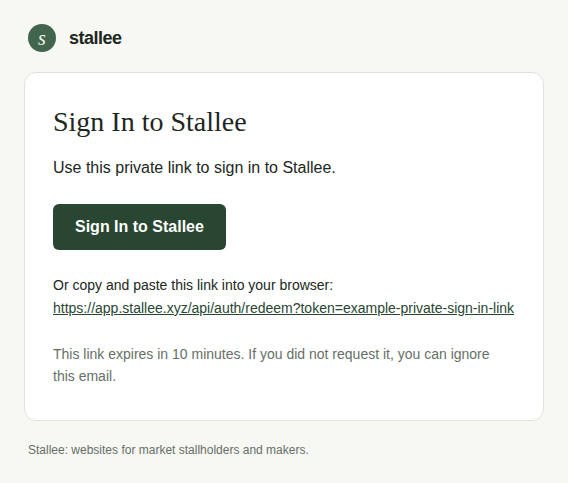
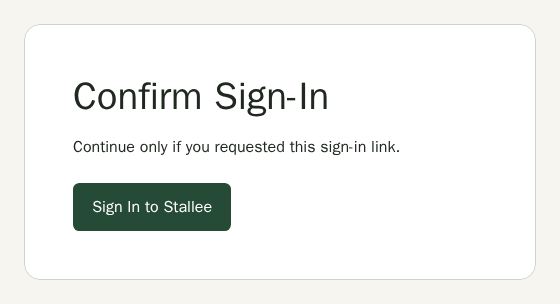
- Open the email and choose the link, then choose Sign In to Stallee on the confirmation page. Only continue if you asked for the link. It works once and expires after 10 minutes. If it has expired, ask for a new one.
The email shows the full address below the sign-in button. You can open that link or copy and paste it into your browser. Keep the link private.
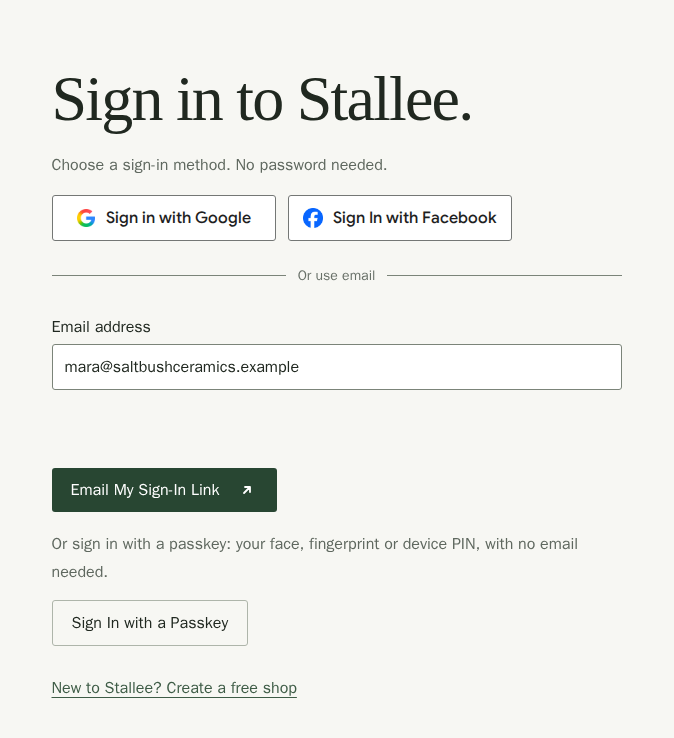
To sign in with a connected provider, choose its button at the top. After you finish with your provider, Stallee continues automatically. You do not need to repeat your name or accept the terms again. If your browser has JavaScript turned off, choose Continue to Stallee to finish. If you create an account with a provider, choose it first, then check your name and accept the terms when you return to Stallee. The email address comes from your provider and cannot be edited here. If no address is shared, create your account with email first, then connect the provider from Account. Google may confirm your email for you when you use a verified Gmail or Workspace account. Otherwise, Stallee emails you a confirmation link. Open it, sign in to Stallee, then choose Finish connecting Google or Finish connecting Facebook to start a fresh sign-in with that provider before setup continues. If you opened the email in a different browser or the link has expired, sign in with your email or passkey and connect the provider from Account. A social profile does not merge with an existing Stallee account just because the email addresses match.
If the email does not arrive, check your spam folder and make sure you used the address you signed up with. If you have not confirmed your first sign-up email, use the sign-up form to request a new link. You can request up to five links for the same email from your network in 15 minutes. If you reach that limit, wait before trying again; requests from another network do not use your allowance.
Sign In with a Passkey
If you have added a passkey, choose Sign In with a Passkey instead of waiting for an email. Your device or password manager asks you to confirm it is you, with your fingerprint, face or screen lock. The button only appears in browsers that support passkeys.
Choose or Switch Shops
If you belong to more than one shop, Stallee asks which one to open after you sign in. The shop you used last is listed first, and your role in each shop is shown beside its name.
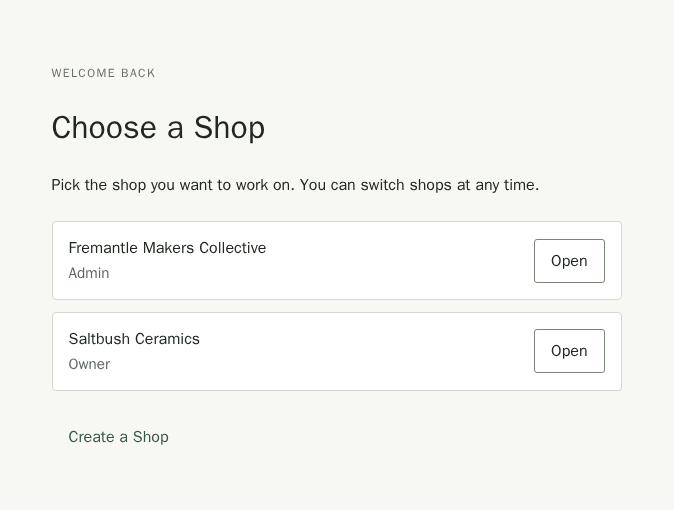
- Choose Open beside the shop you want.
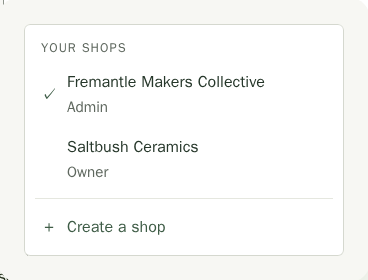
- To change shops later without signing out, choose the shop's name at the top right of any page. It opens the shop menu.
- Choose the other shop. A tick marks the shop that is open now. You stay signed in.
You are added to someone else's shop by invitation; see Team.
Create Another Shop
You can run more than one shop from one account, for example a second brand or a shop you set up for someone else. Each shop has its own products, website, plan, payments and team.
- Choose the shop's name at the top right of any page, then Create a Shop.
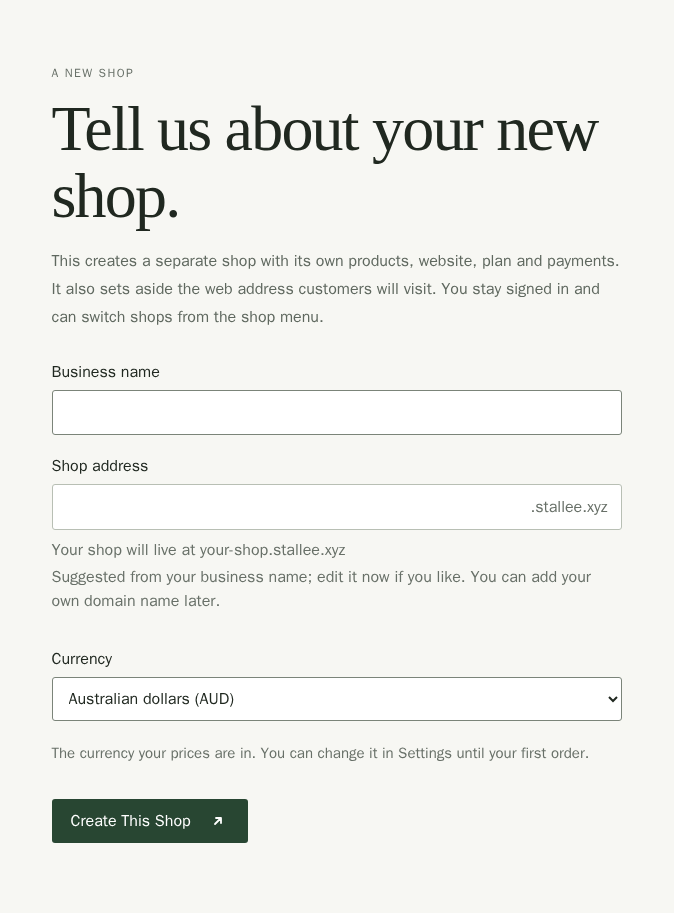
- Type the Business name. Stallee suggests a Shop address from it; change it now if you like. Check the Currency too.
- Choose Create This Shop. The new shop opens and you are its owner.
A new shop starts on the Free plan. To sell online or use your own domain, choose a plan for that shop; see Plans and billing. To hand the shop to its owner, invite them as an owner from Team.
A connected app or AI assistant, or an access key, works with the one shop that was open when you created it. Each shop has its own connection address in Settings, so you can add a separate connector for each shop in Claude.
Your Account Page
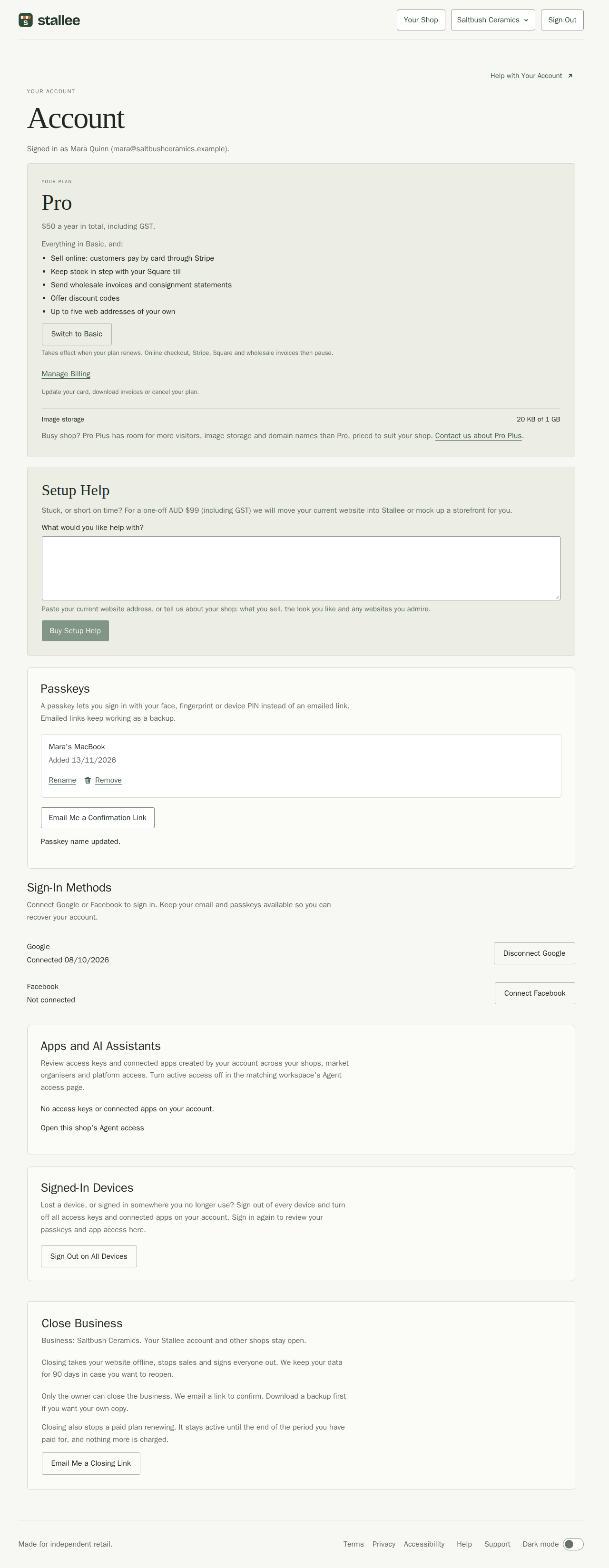
Choose Account at the top right of any page. It shows who you are signed in as, the shop's plan card (owners, admins and billing contacts), your connected sign-in methods, passkeys, app access and signed-in devices. Owners of the selected open shop also see a Close Business panel for that shop. Choose Your Shop in the same place to go back to the shop.
If Stallee Cannot Load Your Account
If a page opens with We Could Not Load Your Account, Stallee could not check who is signed in, usually because the connection dropped for a moment. You have not been signed out and nothing in your shop has changed. Choose Try Again. If it keeps happening, check your internet connection, then contact Stallee support.
Connect or Disconnect Google and Facebook
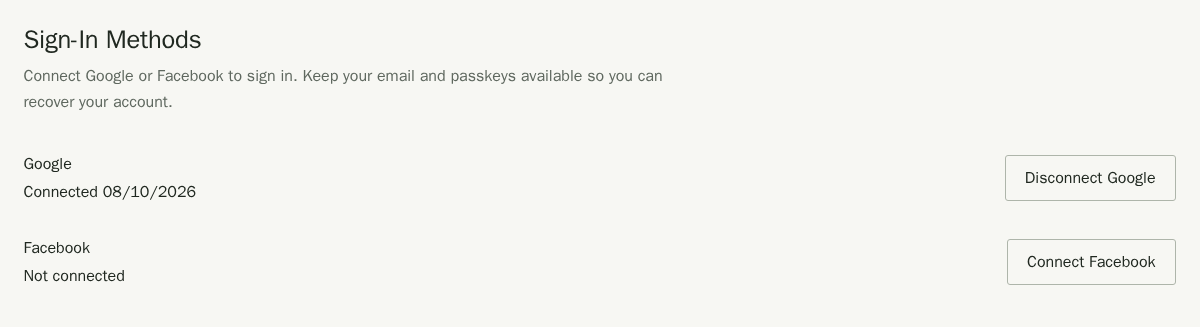
On supported merchant and market organiser accounts, you can connect a Google or Facebook account from Sign-In Methods. The profile stays separate from your Stallee account; connecting it gives you another way to sign in to the same account. You must be signed in to the Stallee account you want to keep. The same email address does not merge two profiles or Stallee accounts.
- Open Account and find Sign-In Methods.
- Choose Connect Google or Connect Facebook. Stallee emails a confirmation link to your account address.
- Open the link in the same browser, then choose Connect Google or Connect Facebook to continue to the provider. After you finish there, Stallee returns you to Account automatically.
- To disconnect an account later, choose Disconnect Google or Disconnect Facebook. Open the emailed link in the same browser, then choose Confirm Disconnect Google or Confirm Disconnect Facebook. Disconnecting signs you out everywhere, so sign in again with your email link or a passkey.
To change your plan or update your card, see Plans and billing.
To close a business, first select it from the shop menu, then find Close Business on Account. The closing link is emailed to your sign-in address, and you confirm once more before anything closes. Closing applies only to that shop; your personal account and other shops remain. See Closing your business.
Add a Passkey
A passkey lets you sign in with your face, fingerprint or device PIN instead of an emailed link. It is faster and harder to steal than a link.
- Open Account and find Passkeys.
- Choose Email Me a Confirmation Link and open the link sent to your sign-in address in the same signed-in browser within 10 minutes.
- Back on Account, choose Add a Passkey.
- Follow your browser's prompt to confirm with your fingerprint, face or screen lock.
- Stallee says Passkey added to your account. It names the passkey after your browser and device. Choose Rename to give it a name you will recognise, such as Mara's MacBook, then Save Name.
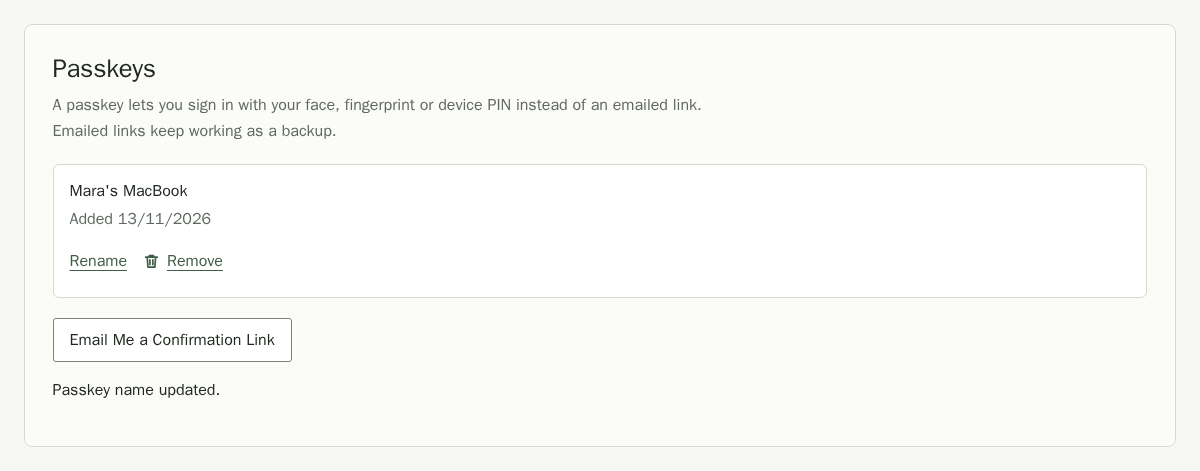
To remove a passkey, choose Remove beside it and confirm. It will no longer sign you in. Keep emailed sign-in links available as a way back in if you lose a device.
Sign Out
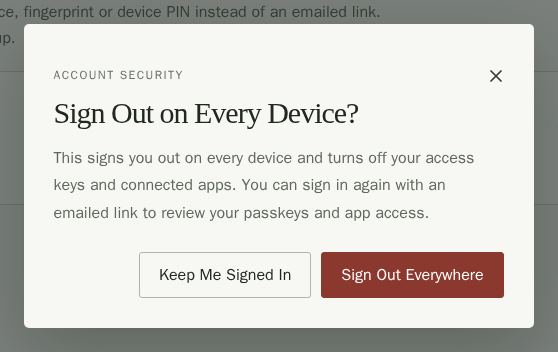
Choose Sign Out at the top right to sign out of this browser. If you lose a device, or signed in somewhere you no longer use, sign out of every device at once.
- Open Account and find Signed-In Devices.
- Choose Sign Out on All Devices.
- In the message, choose Sign Out Everywhere. This signs you out of Stallee on every device, including this one, and turns off every access key and connected app created by your account. Sign in again with an emailed link to review your passkeys and app access on Account. Choose Keep me signed in to cancel.