If you supply cafes, gift shops or other stockists (shops that sell your work), the Wholesale page lets you create a proper invoice at your wholesale prices. Stallee keeps a copy of every invoice you create. The examples follow Mara Quinn, who runs Saltbush Ceramics and sends an order to a stockist called Coastline Homewares.
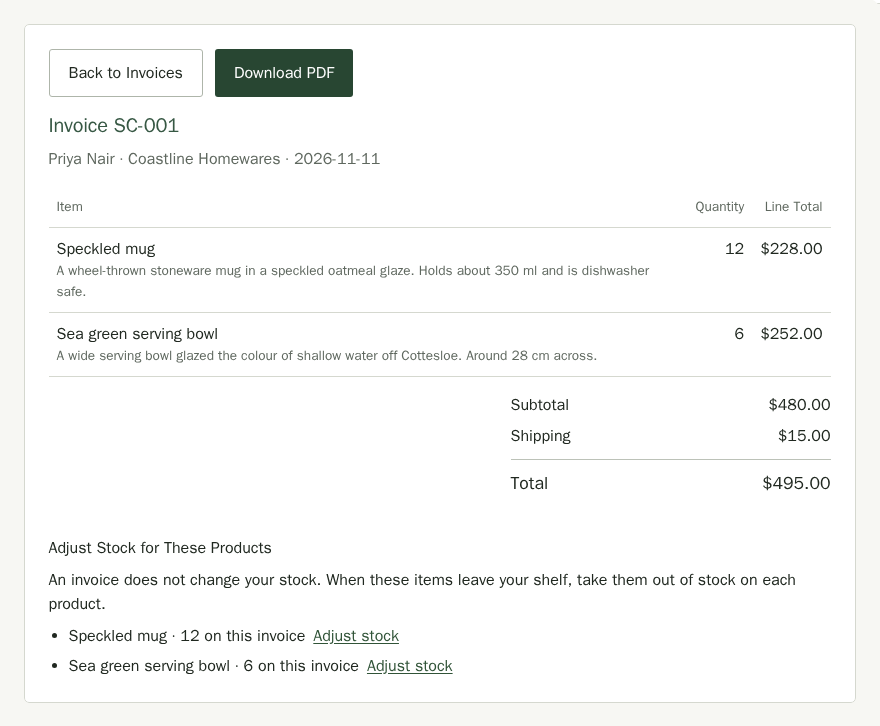
Wholesale invoices are separate from your website orders. Creating one does not change your stock and does not ask your customer to pay online. Each invoice lists its products under Adjust Stock for These Products, with an Adjust stock link to each product's stock, so you can take them out of stock when they leave your shelf. You send the invoice and collect payment yourself, by bank transfer. To leave stock with a shop and be paid only for what sells, use Consignment instead.
Set Wholesale Prices on Your Products
An invoice starts from each product's wholesale price, so set those first. Open a product on the Products page, tick Offer Wholesale Pricing and type the Wholesale Price. A product without one shows No wholesale price yet on the invoice form, and you type the price in there.
Add Your Invoice and Payment Details
Do this once. Your details appear on every invoice, and Stallee uses them to number your invoices.
- Choose Wholesale in the menu, then open Invoice and Payment Details.
- Fill in Your business name, Your address, Your phone and Your email.
- Type an Invoice prefix, such as SC-, and the Digits in invoice number. With a prefix of SC- and 3 digits, your first invoice is SC-001.
- Set the Default comments, for example “Payment due within 14 days”, and your Default shipping. Each new invoice starts with these, and you can change them for any one invoice.
- Enter the account customers pay into: Account name for payments, BSB and Account number. If your shop sells in a currency other than Australian dollars, you see one box instead, How to pay: type the account name and the bank details your customers need, in your own words.
- Add any Contact details and a Thank-you text, then choose Save Invoice Settings.
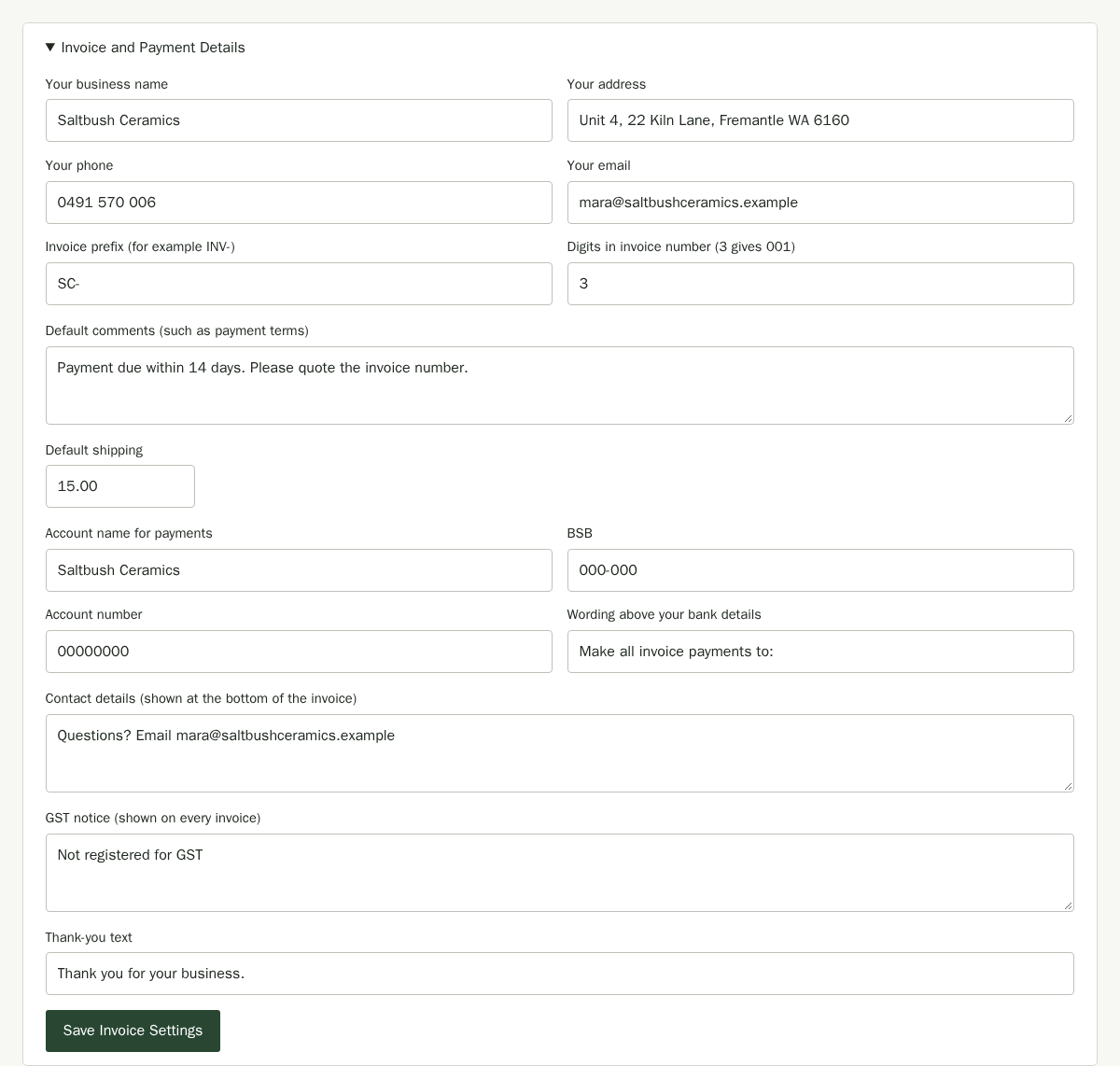
The GST notice appears on every invoice. Prices on Stallee wholesale invoices do not include GST and none is added, so GST added is always $0.00. A shop that is not registered for GST starts withNot registered for GST as its notice. If you turn on Registered for GST in Online Sales, new settings use the existing GST-exclusive notice. You can edit the notice on this page.
Create an Invoice
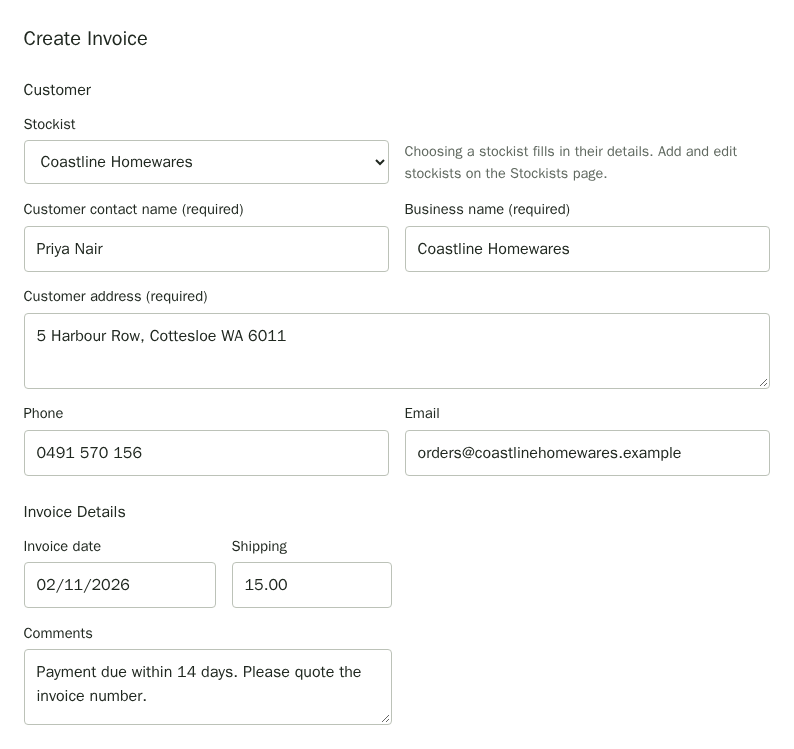
- Under Create Invoice, choose the Stockist to fill in their details, or type them: Customer contact name, Business name and Customer address are required, phone and email optional. Add and edit stockists on the Stockists page.
- Check the Invoice date, which starts as today, and the Shipping and Comments.
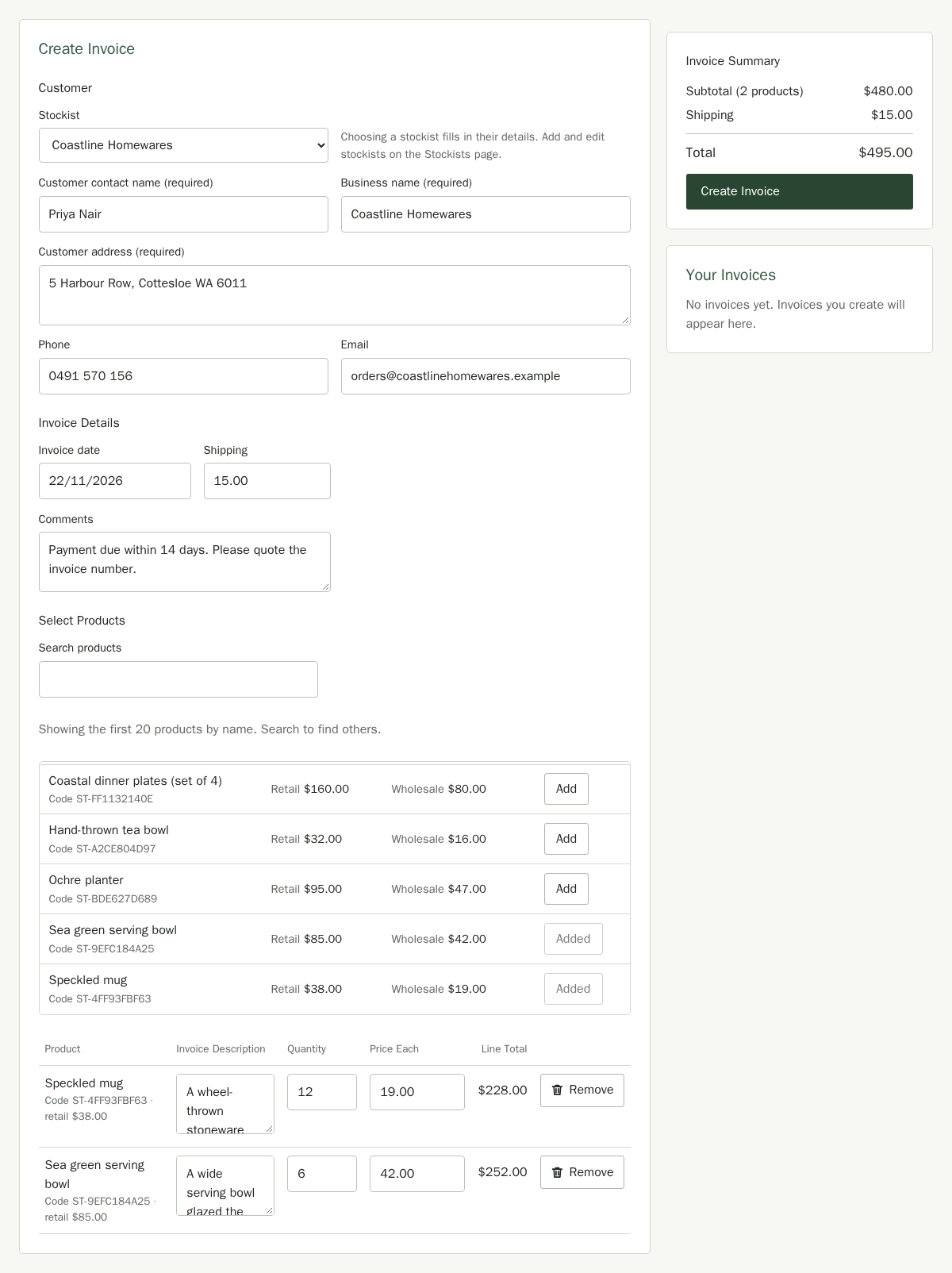
- Under Select Products, choose Add beside each product the customer ordered. Use Search Products to find others: until you type, the list shows the 20 products you invoiced most recently (or the first 20 by name if you have no invoices yet), and a search shows up to 20 matches. Each row shows the retail price and the wholesale price. An invoice can include up to 100 different products.
- The products you add are listed below the picker. For each one, set the Quantity, check the Price Each and edit the Invoice Description if you want different wording on this invoice. Choose Remove to take a product off.
- Check the subtotal, shipping and total in the Invoice Summary, then choose Create Invoice.
Confirm the Invoice
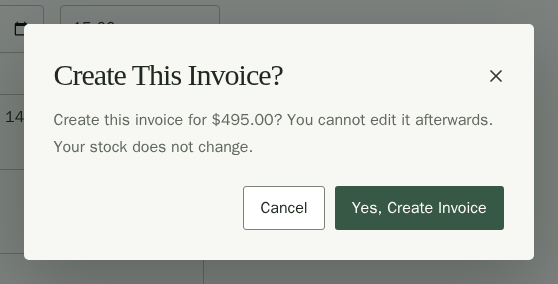
Stallee asks you to confirm before it creates the invoice, because you cannot edit an invoice afterwards. Check the total, then choose Yes, Create Invoice. Choose Cancel to go back and change something.
The invoice opens with its number, customer, date, totals and the items. Choose Download PDF to get a copy you can email or print.
Find an Invoice
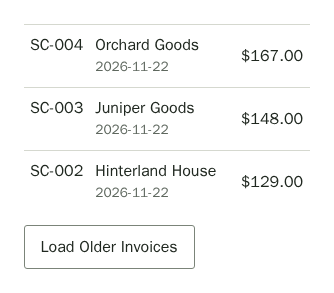
Your Invoices shows the newest invoices first, with their number, customer, total and date. Choose Load Older Invoices at the bottom of the list to see more. Choose any invoice to reopen it and download its PDF. Choose Back to Invoices to return to the list.