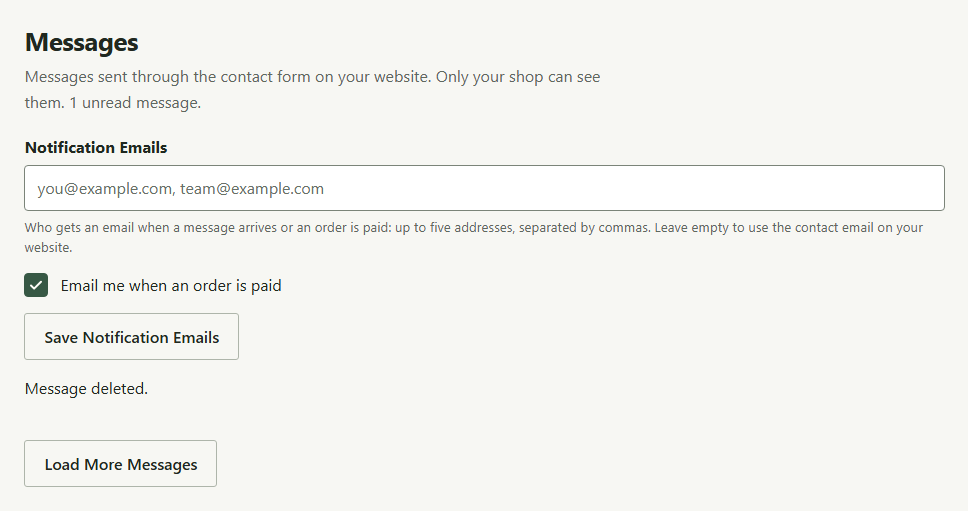
Messages collects the enquiries customers send from your site's contact form, and requests from overseas buyers for a shipping price. You can answer an enquiry with a quote the customer pays online. Only your shop can see them. Only owners and admins can open this page, because it holds your customers' contact details. This guide follows Mara Quinn answering enquiries at Saltbush Ceramics.
How Customers Contact You
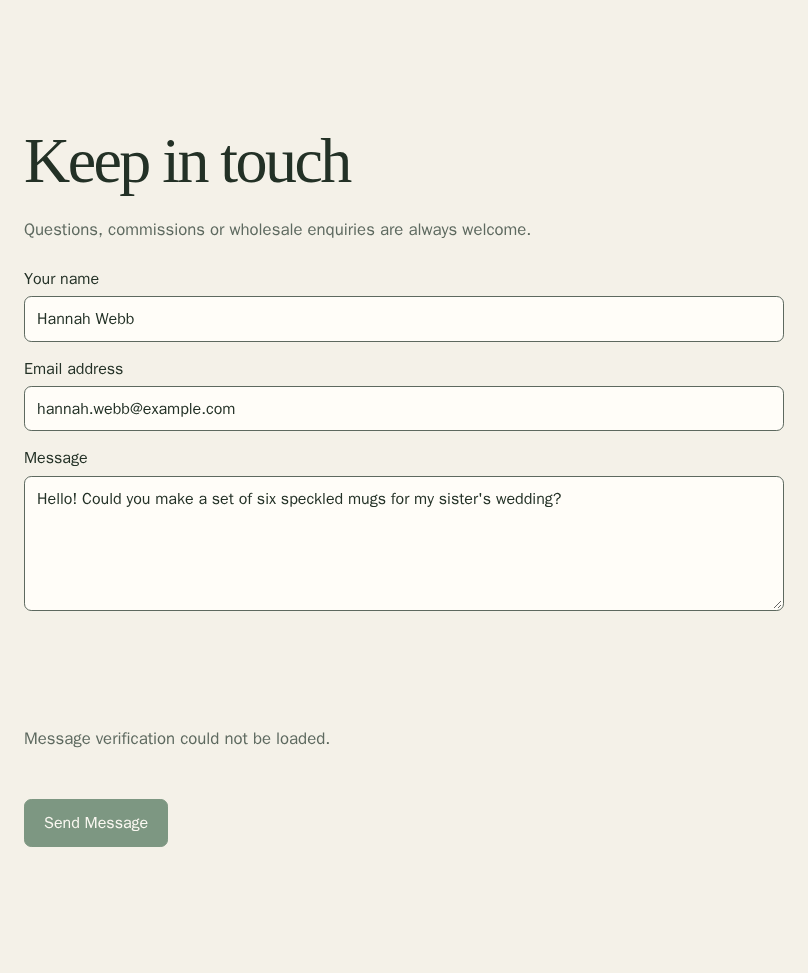
A Contact form section on your site, such as on your Contact page, shows a form. Customers fill in their name, email address and a message, and choose Send Message. The message appears in your inbox straight away, and we email you a notification.
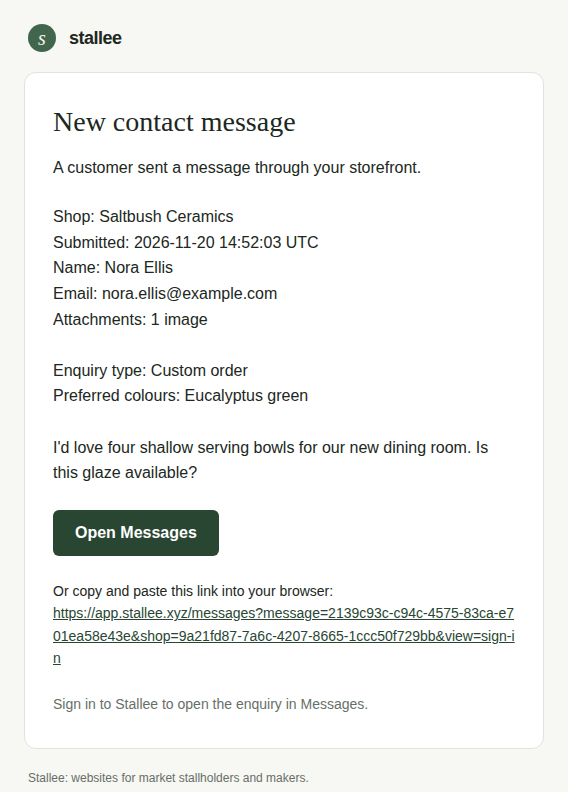
If your form asks for an enquiry type or extra questions, the message starts with the type and each answer, such as Enquiry type: Custom order. Images a customer attaches show under their message. Choose an image to open it full size. Only your shop's owners and admins can see these images, and they are deleted with the message. To set up the contact form and its questions, open the page in Page Settings.
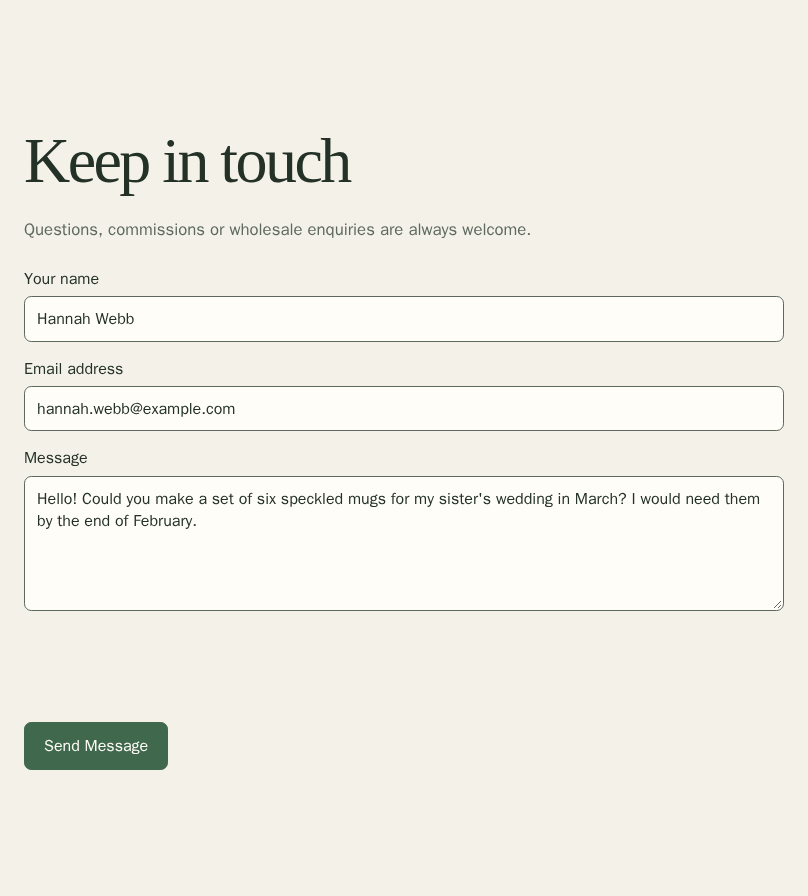
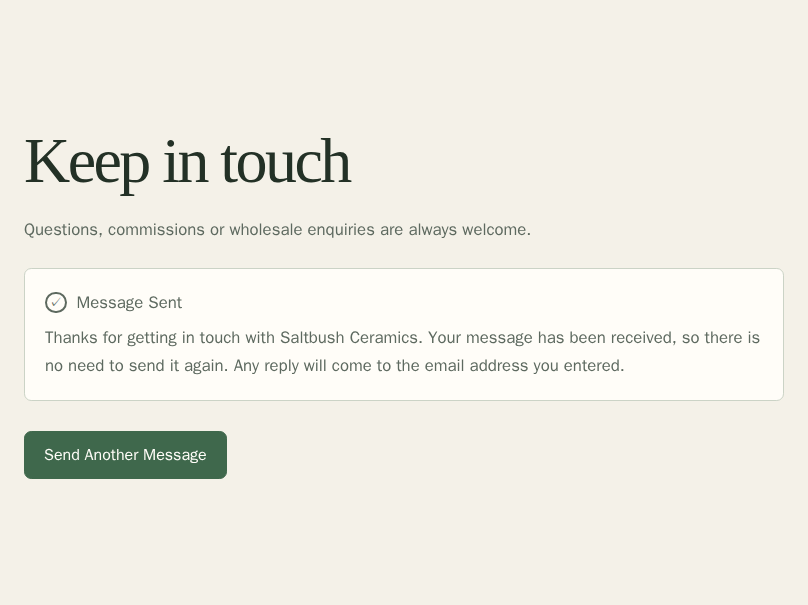
Once the message is sent, the form is replaced by a Message Sent confirmation that names your shop, so the customer knows it arrived and does not send it twice. They can choose Send Another Message to start a new one. If a message cannot be sent, the form keeps what the customer entered and says what to do.
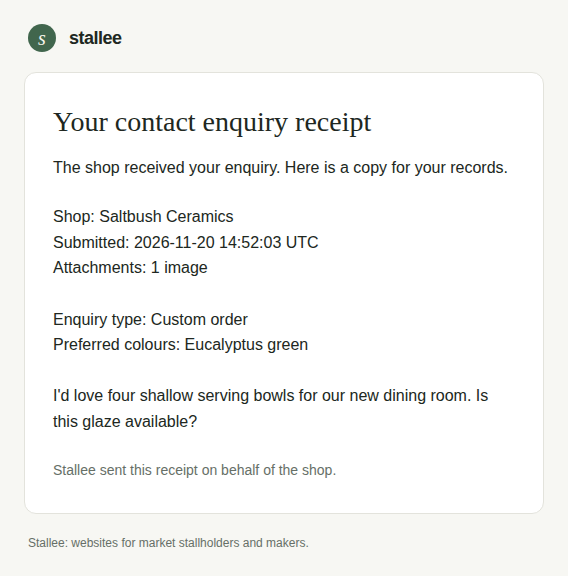
Stallee also emails customers a receipt when their enquiry is received. It includes your shop name, the time they sent it in UTC, a copy of their message and any extra answers, and a count of attached images. If the email takes a while to arrive, they can rely on the on-screen confirmation.
If you let overseas buyers ask for a shipping price from the cart, those requests arrive here too, marked Quote Request. They list the country, destination and items. Turn this on under Delivery, Tax and Stock on the Online sales page.
If visitor verification cannot load or fails on a contact form or quote request, the form shows an error and its send button stays unavailable. The enquiry has not been sent. Ask the customer to reload the page and try again. The error clears when verification recovers, and they can send their enquiry.
Open a Message Notification
A contact notification shows the customer's name and contact details, when they sent the enquiry in UTC, and their message. If they selected an enquiry type, answered extra questions or attached images, the email shows the type, answers and image count. Open the enquiry in Messages to see the private images.
International shipping quote emails alert you to a new request. Open Messages to see the customer's details, destination and items.
- Choose Open Messages in the email, or copy the link shown underneath it into your browser.
- Sign in to Stallee if asked. The contact notification link takes you to the enquiry in Messages. If Stallee asks you to switch shops, choose Open followed by the shop name.
Read and Reply
- Open Messages in the menu, under Shop website. The newest message is first, and the number of unread messages is shown at the top.
- Messages you have not dealt with are marked New. Each shows who sent it, when, their email address and what they wrote.
- Choose the customer's email address to reply from your own email program. Stallee does not send your replies, so they come from your usual email address.
- Choose Mark as Read when you have dealt with a message. Choose Mark as Unread to flag it again.
- If there are more than 25 messages, choose Load More Messages at the bottom.
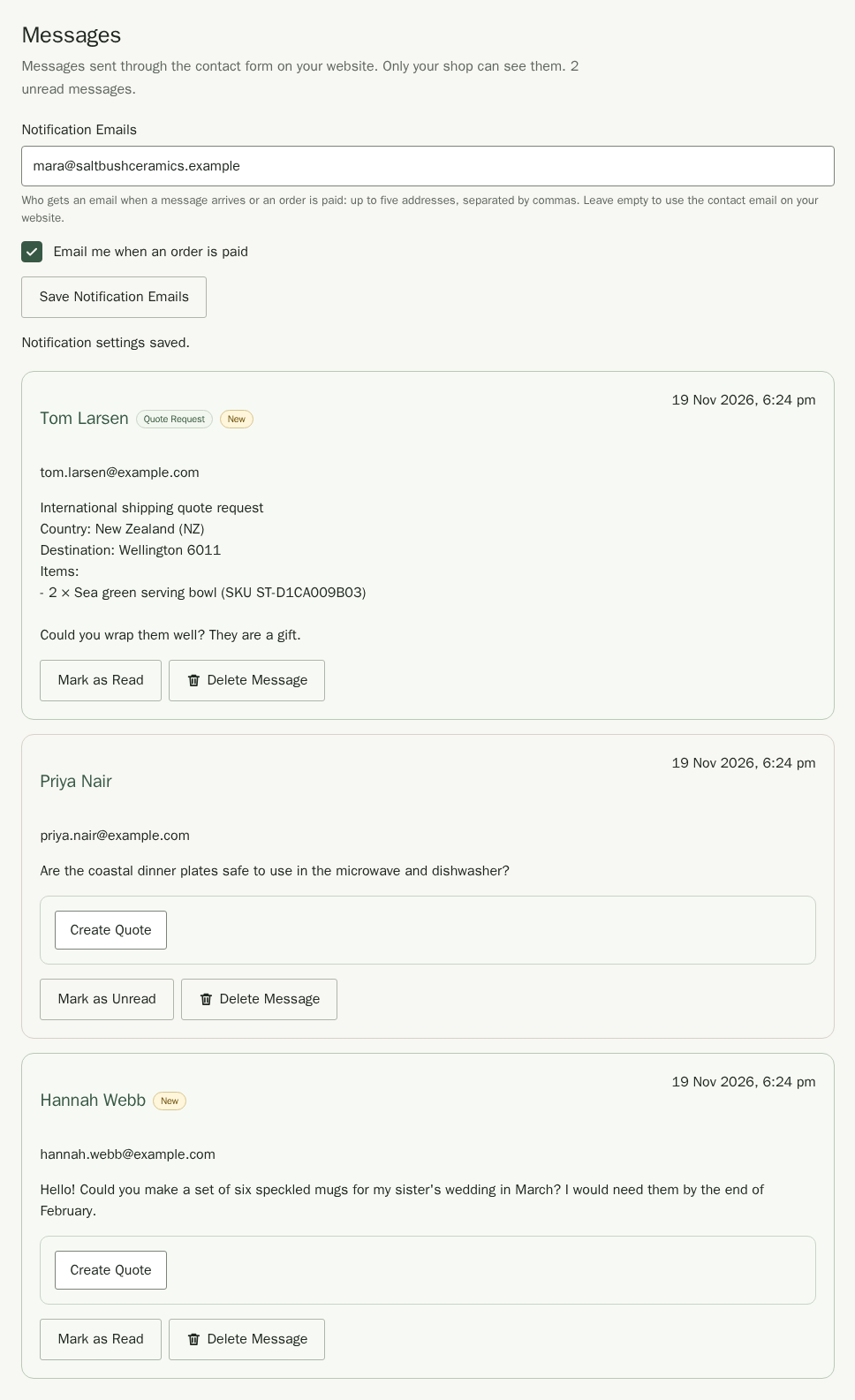
Times show in your shop's time zone. You can change it in Settings.
Send a Quote
When a customer asks for something made to order, you can answer with a quote they pay online. The quote starts from their message, so their name and email address are already filled in.
- Choose Create Quote under the message.
- Type a Title for the work, and describe it in What Is Quoted. The customer sees both.
- Type the Price you have agreed. Use the price your customer pays, as you do for your products.
- Under Payment, choose Pay in full, or Deposit now, balance when ready and the Deposit Percentage to take now.
- Choose Collection or Delivery. For delivery, type the Delivery Charge you are quoting, or leave it at 0 for free delivery. Add anything else the customer should know in Collection or Delivery Terms.
- Set Valid For (Days): how long the customer has to pay.
- Check the amounts under Review Before Sending. It shows the total, what the customer pays now, any balance, and the last day they can pay.
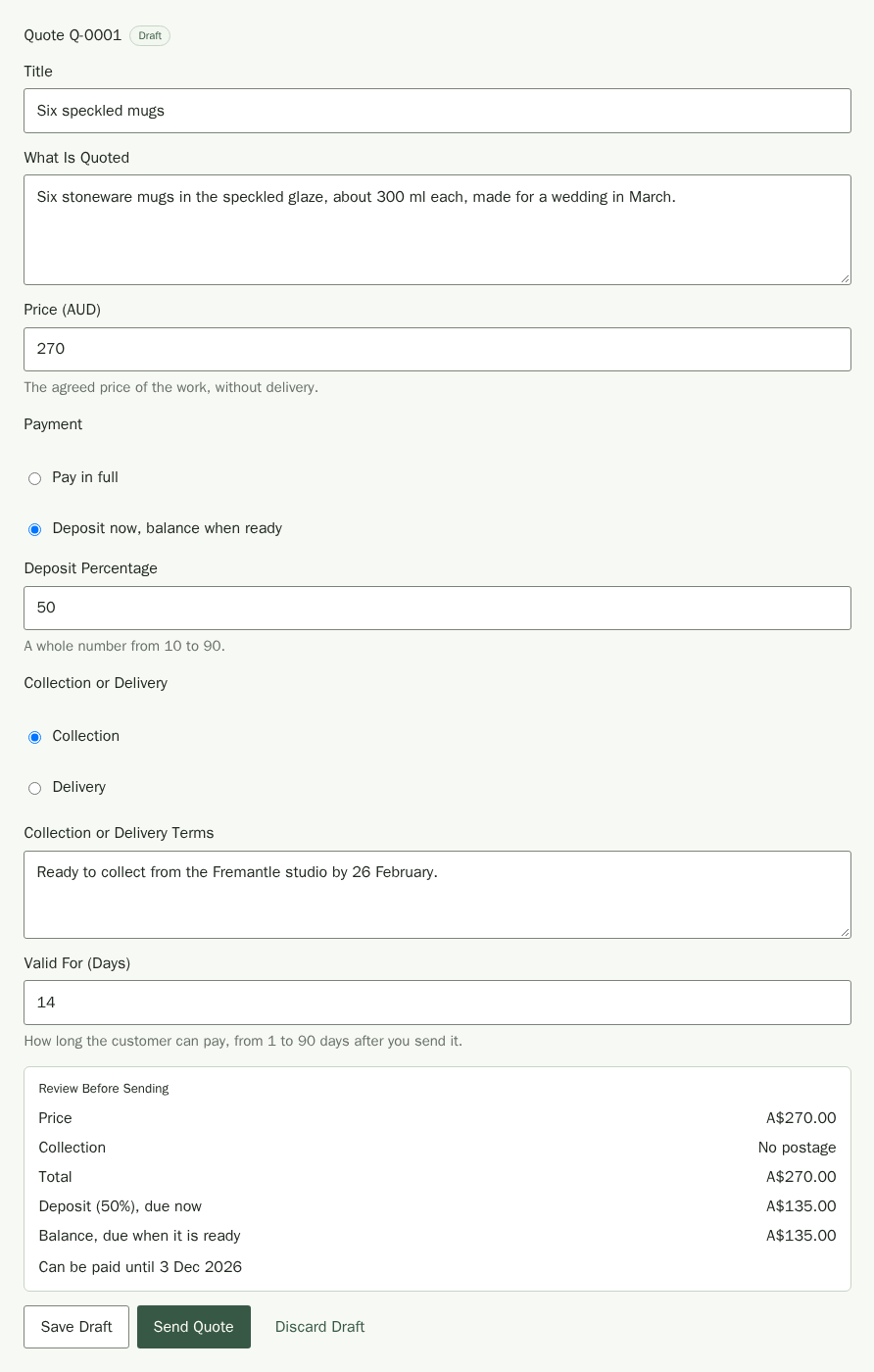
Choose Save Draft to keep working on it later, or Discard Draft to remove it. When it is right:
- Choose Send Quote.
- Check the email address and the amount due now, then choose Send Quote again.
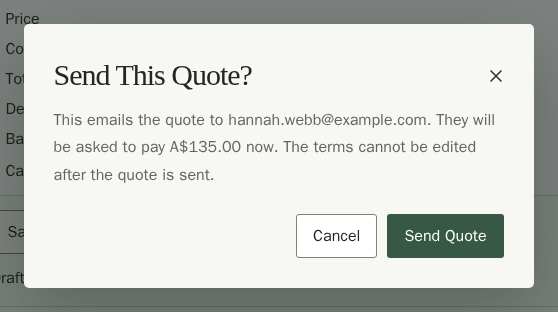
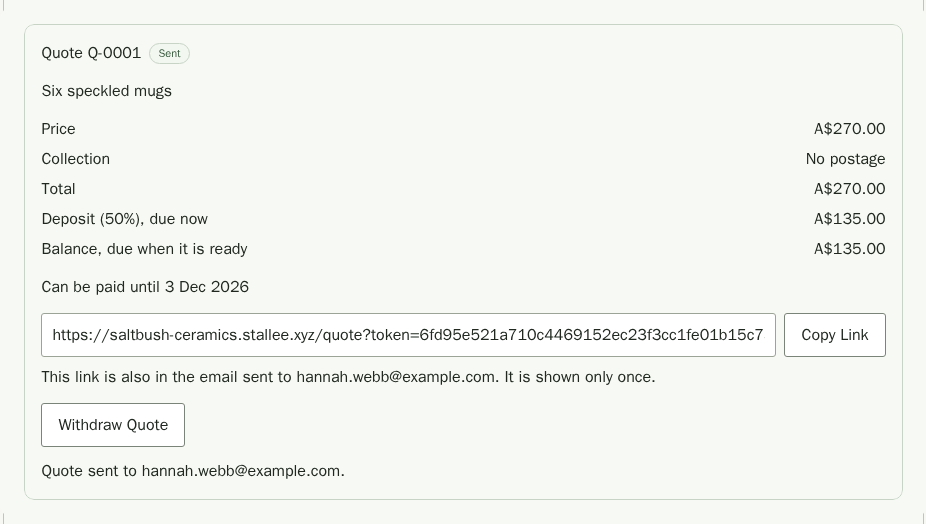
We email the customer the quote with a private link. The link is also shown once under the message, with Copy Link, in case you want to send it yourself.
What the Customer Sees
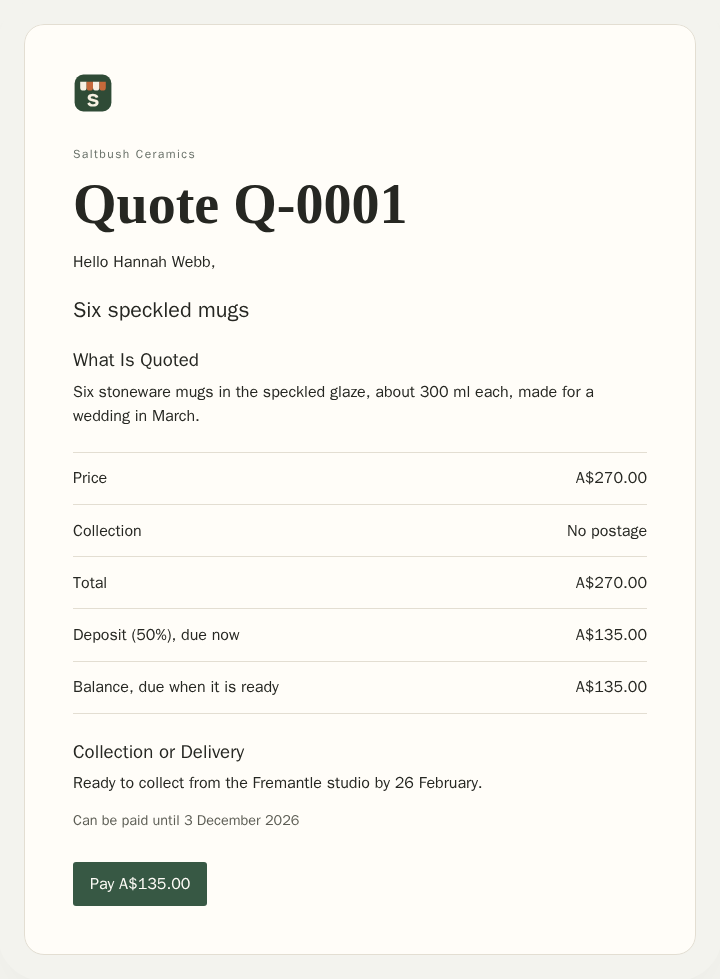
The link opens a private page on your site with the work, the amounts and your terms. The customer chooses Pay and pays on your Stripe or Square payment page. The link stops taking payment after the last day shown.
Follow a Quote
Each quote shows where it stands under its message: Draft, Sent, Expired, Withdrawn, Deposit Paid, Paid or Needs Attention.
- When the customer pays, the quote becomes an order. Choose View Order to open it in Orders. The order names the quote and links back to the message.
- A quote paid with a deposit is a custom order. Charge the balance from the order when the work is ready, as you do for a made-to-order product. A quote paid in full has nothing left to charge.
- To change or cancel a sent quote, choose Withdraw Quote. The customer's link stops working, and you can choose Create Quote to send a new one. You cannot withdraw a quote while the customer has the payment page open, or after they have paid: refund the order instead.
- An expired quote can no longer be paid. Create a new quote for the same message if the customer still wants the work.
A message can have one open quote at a time.
Choose Who Gets Notified
By default we email the contact address in your site's contact form, which you edit in Page Settings. To send notifications somewhere else, or to more people:
- Type up to five email addresses in Notification Emails, separated by commas.
- Choose Save Notification Emails.
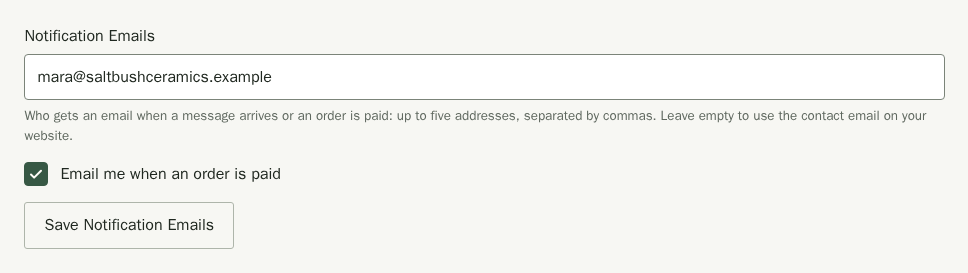
To go back to the default, clear the field and save it again.
The first of these addresses is also where customers’ replies to your order emails go.
Get an Email When an Order Is Paid
The same addresses get a New order email each time a customer pays: the items, the totals, whether it is for delivery or pickup, the customer’s name and a button that opens the order. A custom order emails you when the deposit is paid and again when the balance is settled. Replying to the email replies to the customer.
To stop these emails, untick Email me when an order is paid under the notification emails and choose Save Notification Emails. Message notifications keep arriving.
Delete a Message
- Choose Delete Message under the message.
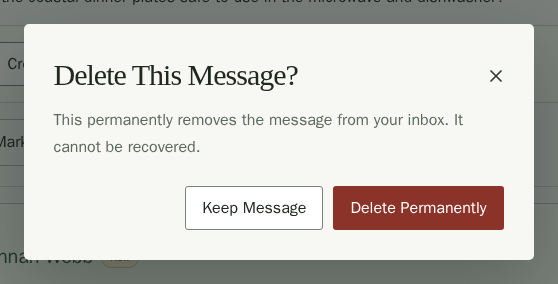
- In the box Delete This Message?, choose Delete Permanently. Choose Keep message to cancel.
If you clear every message on the current page, choose Load More Messages to see any older messages.