Square payments let customers pay for online orders into your own Square account, at the Square location you choose. Customers pay on Square's secure payment page, so card details never reach Stallee. Square charges its own fee, 2.2% for online payments in Australia. Stallee takes nothing from each sale. The examples follow Mara Quinn, who runs Saltbush Ceramics.
If you also use Square at your stall, retail price edits in Stallee sync to each matched Square variation. A scheduled sale price is sent when it starts, and the retail price is restored when it ends. Square market-location prices stay as Square location overrides.
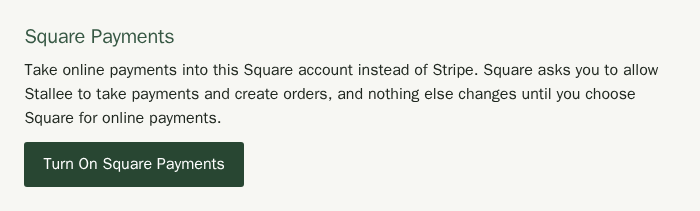
Turn On Square Payments
If you already connected Square to share stock, Stallee has permission to see and update your items. Taking payments needs more, so Square asks you to approve once more. Nothing else changes until you choose Square for online payments.
- Choose Payments in the menu. If Square is not connected yet, choose Connect Square in the Square panel and approve the connection.
- In the Square Payments part of that panel, choose Turn On Square Payments.
- Sign in to Square if asked, and allow Stallee to take payments and create orders. Use the same Square account you connected.
- Square sends you back to Payments, where the panel says Square payments are turned on.
Choose Where Square Records Website Payments
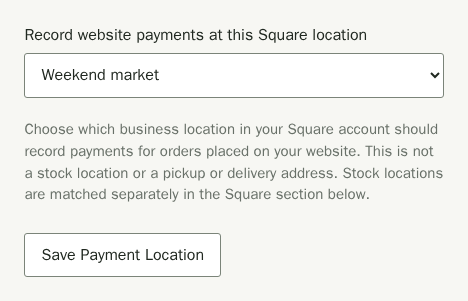
Payments for orders placed on your website are recorded at one business location in your Square account. Pick the one that takes card payments and uses the same currency as your shop. Locations that cannot are greyed out and say why. This is not the stock location Square items are matched to, and it is not a pickup or delivery address.
- Under the provider cards, find Record website payments at this Square location. Beneath it, a note explains the setting.
- Choose a location from the list, such as Weekend market.
- Choose Save Payment Location. The page says Saved. Website payments will be recorded at the Square location you chose. Afterwards the note beside the list says website payments are recorded at that location, and the button stays off until you pick a different one.
Square then says Ready. If it says Not ready yet, the note beside it names the next step, such as turning on Square payments, choosing where Square records website payments, or finishing the plan. If a location you saved can no longer take card payments, the page asks you to choose another and save it.
Start Taking Square Payments
Choose Use Square on the Square card at the top of the Payments page when you are ready. See Choose Stripe or Square for online payments. Your storefront's Pay button then sends customers to Square's payment page.
What Customers and Stock Do
- The customer pays on Square's page for exactly the order total, including postage. GST is included only if your shop is registered for GST in Online Sales. When it is on, products marked GST-free remain excluded.
- Stallee holds the stock while they pay, as it does with Stripe. If they do not pay in time, Stallee removes the unpaid Square link and puts the stock back.
- Your Square account shows the payment. Your stock still moves once, so Square's stock counts are not changed twice.
If Square Asks You to Reconnect
If you remove Stallee's access from inside Square, Stallee stops new Square checkouts. Choose Connect Square on the Payments page to approve again, using the same Square account. Orders paid earlier are unchanged.