The Import Products page brings products into Stallee from outside. Choose From a File if you already sell on Shopify, Squarespace or Etsy, or keep your products in a spreadsheet: you can import them from a file instead of typing them again, and you can change prices, stock, tags and status on many products at once by importing a Stallee export. Choose From Square to match or import the items in your Square account. Only an owner or admin can import. The examples follow Mara Quinn, who is moving Saltbush Ceramics over from Shopify and also sells at markets with Square.
What Comes Across
Each product brings its name, description, category, tags, price, product code and photos. The product code is the short code that identifies a product; other platforms call it a SKU. A product that comes in choices, such as sizes or colours, comes across with every choice, and each choice keeps its own price, product code and stock. Your product list shows these choices as variants. Stallee keeps up to three options, such as Size, Colour and Finish, on a product.
New products arrive as drafts, so customers do not see them until you publish them.
Photos are copied from the web addresses in your file, so they must be public. A photo that cannot be fetched does not stop the product from importing; it is listed in the results so you can add it yourself. Stock is set at your Online location, so you need exactly one Online location (see Stock Levels and Locations). Prices are in your shop's currency. An Etsy export in a different currency is refused.
Start from a Sample Spreadsheet
If you are not moving from another platform, fill in Stallee's own spreadsheet instead.
- Choose Import Products in the menu, then choose Download a sample spreadsheet. You get a file named stallee-products-sample.csv.
- Open it in a spreadsheet program such as Excel, Numbers or Google Sheets. The first row names the columns; leave it as it is. Choose What Each Column Means on the page to see what goes in each one.
- Replace the example rows with your own products, one row for each. Only Name and Price are needed; leave any other cell empty.
- Save the file as a CSV (in Google Sheets, choose File, Download, then Comma-separated values), then import it as described under Import the File below.
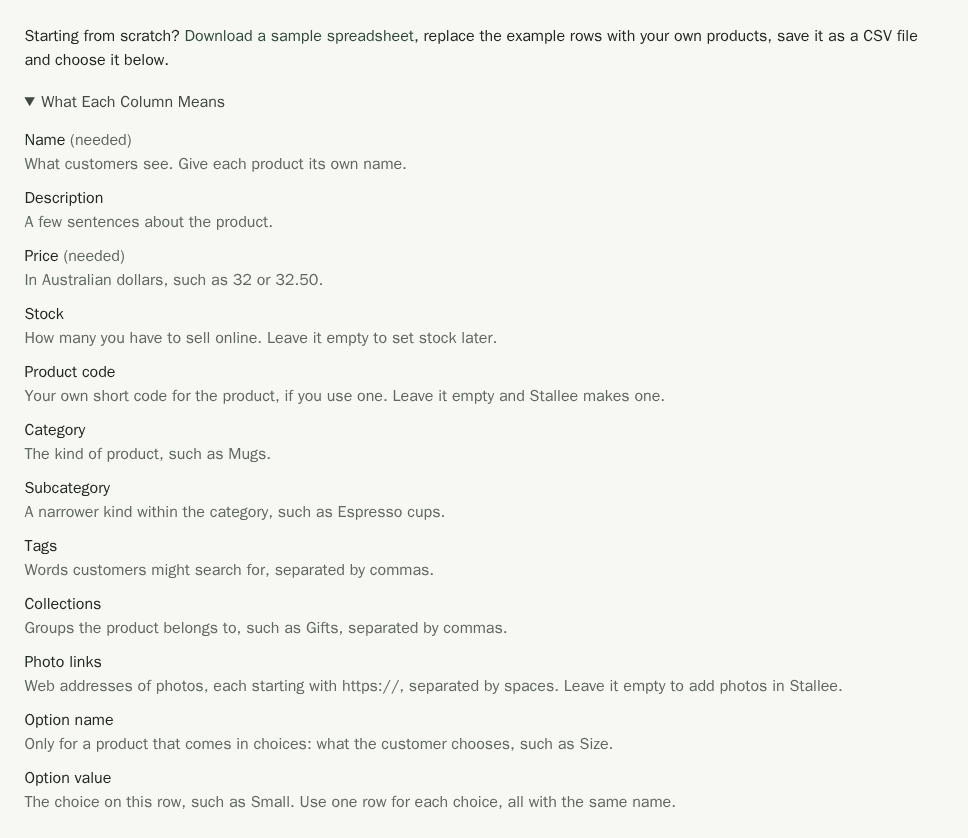
For a product that comes in choices, such as a bowl in Small and Large, use one row for each choice. Give every row the same Name, put what the customer chooses, such as Size, in Option name and the choice itself, such as Small, in Option value. Each row has its own price, stock and product code. The sample's Ocean Bowl rows show this.
Products from a spreadsheet always arrive as drafts. Open each one, add its photos if you left Photo links empty, and publish it when it is ready.
Export Your Products
Export from the platform you are leaving:
Shopify
- In Shopify, choose Products, then Export.
- Choose All products, then CSV for Excel, Numbers, or other spreadsheet programs.
- Choose Export products and save the file.
Squarespace
- In Squarespace, choose Commerce, then Inventory.
- Choose Export and save the file.
Etsy
- In Etsy, open Shop Manager, then Listings.
- Choose Download CSV and save the file.
Import the File
- Choose Import Products in the menu (or Import Products on the Products page), then make sure From a File is selected.
- Under Product file (CSV), choose your file. Stallee tells you which platform it came from and how many products it found.
If Stallee says it does not recognise the columns in the file, the file is not one of the exports above. Choose Download a sample spreadsheet in the message, copy your products into the sample's columns and import that instead.

A table shows every product with its number of choices, price, stock, number of photos and what it will become. The Problems column lists anything that needs your attention. A product with a problem in red is skipped; the others still import. Notes in black, such as a shortened description, do not stop a product.
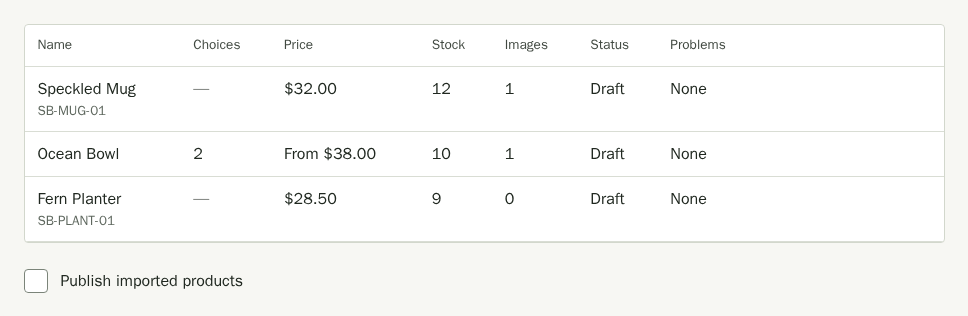
- Tick Publish imported products if you want products that were live on the other platform to go live in Stallee. Leave it off to import everything as a draft, and publish them when you are ready. Products that were drafts or hidden stay drafts either way. The box is shown only when the file says some products were live. It starts unticked each time you choose a file, including when you replace a file you have already previewed. A Stallee spreadsheet's products always arrive as drafts.
- Choose Import with the number of products, such as Import 3 Products. Keep the page open while the progress line counts up.
Read the Results
When the import finishes, you see how many products were created, how many were already in your shop and how many failed. Importing the same file again is safe: a product whose product code is already in your shop is reported as already there and is not added twice. A product with no product code is matched by its name.
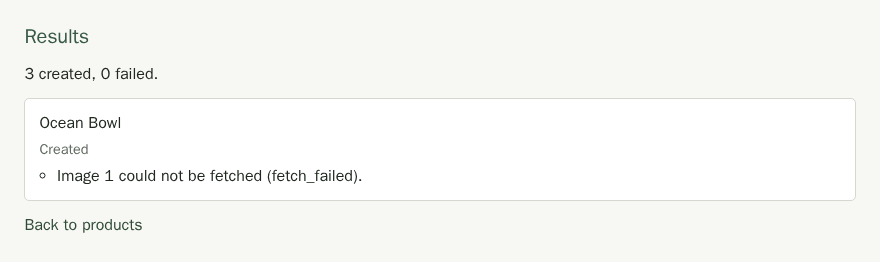
The failure count includes rows skipped in the preview. If any rows failed, choose Download Failed Rows to get the row numbers, product names where available and reasons. Fix the problems in your original file and import it again. Products that already came across are skipped.
Update Prices and Stock in Bulk
To change many products at once, start from a Stallee export. On the Backups page, download your CSV export and open products.csv in a spreadsheet. Change the prices, tags, collections, category, subcategory or status, and add a stock column for the counts you want. Then import the file as above.
Stallee matches each row to a product by the id column, then by the product code in the sku column. It changes only the price, wholesale price, tags, collections, category, subcategory, status and stock, and never a product's name or description. A column you remove leaves that field alone. If a row matches no product or has neither an ID nor a product code, it is counted as failed.

Import from Square
If you also sell at markets with Square, bring your Square items into Stallee so both shops share one set of products. Stallee keeps the main stock count: Square never changes it without you checking.
- Choose Import Products in the menu, then From Square.
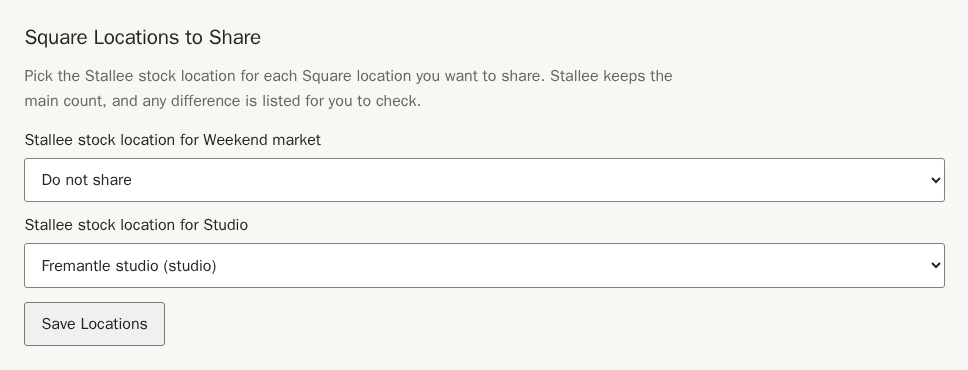
- Under Square Locations to Share, pick a Stallee stock location for each Square location you want to share, then choose Save Locations. Leave the others on Do not share. If the list has no stock locations, add one first on Stock Levels and Locations.
Match Square Items to Your Products
Under Square Items, every option in your Square account is a row with its product code, price and the Stallee product it is matched to, or Not matched. Search by item name or product code, open Filters to show only matched or unmatched items, and choose a column heading to sort. The list shows 25 at a time; choose Load More Square Items to fetch more from Square.
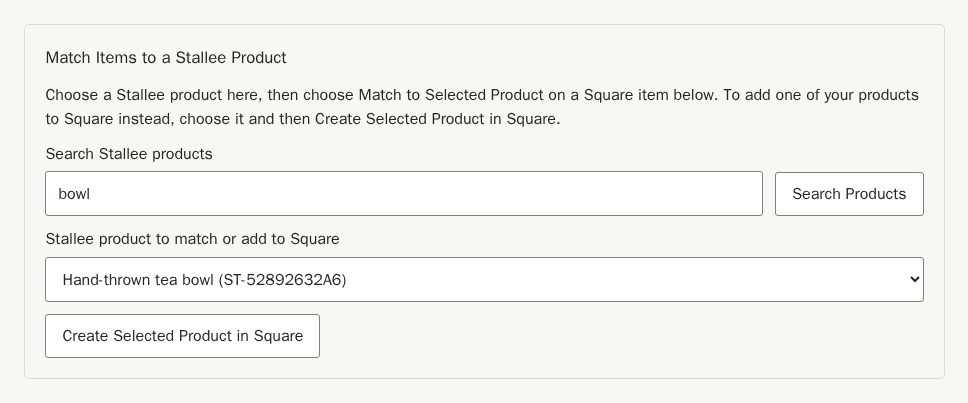
- Under Match Items to a Stallee Product, choose a product in Stallee product to match or add to Square. Use Search Products to find it first. If you search again before an earlier search finishes, the picker keeps the results from your latest search.
- Choose Match to Selected Product on the Square item it belongs to. If an item is only in Square, choose Import as Market-Only to add it to Stallee as a product you sell in person. A Square item with several options, such as a mug in Small and Large, shows one row for each option; choose Import Item on any of them to bring in all its options as one product with a choice for each.
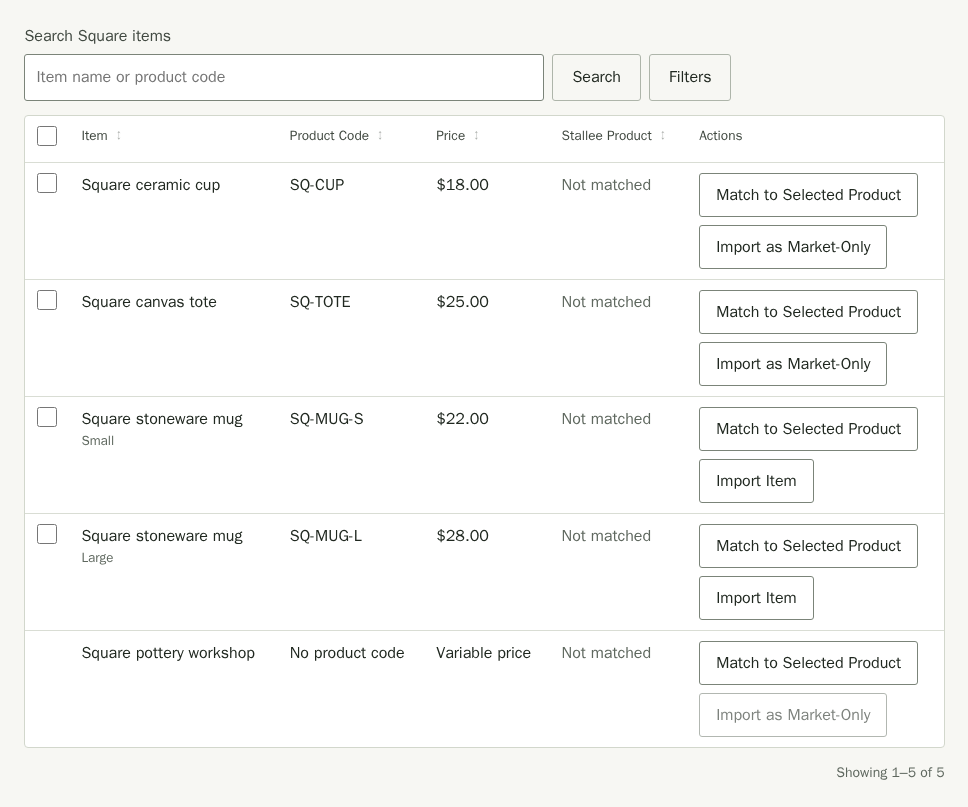
Stallee copies the price into its catalogue once, when you import. After a Square variation is matched, retail price edits in Stallee sync to its base price in Square. A scheduled sale price is sent when the sale starts, and the retail price is sent again when it ends. If a count in Square later differs from Stallee's, Stallee lists it for you to check on the Payments page.
Market Prices in Square
If a product has a market price (see Products), Stallee uses it at your market Square locations: those you share with a stock location of the type Market or pop-up. When you choose Create Selected Product in Square, the new Square item charges the market price there and the retail price everywhere else. When you import an item that already has its own price at a market location in Square, Stallee keeps that price as the product's market price. Stallee price updates change only the variation's base price, so Square's market-location price stays as a location override. If the market price changes, update its location price in Square too.
Bring All Your Square Items Across at Once
If your products are already in Square, you can add them all to Stallee in one go instead of one at a time. An item with one option becomes a Stallee product with its Square name and price. An item with several options, such as a mug in Small and Large, becomes one product named Stoneware mug with a choice for each option, named like Stoneware mug — Small. Each choice keeps its own Square price, product code and stock. If you import only some of an item's options now, the rest are added to the same product when you import them later. In your product list the item shows once, with its number of choices, which the list calls variants. See Products for how they work.
- Share at least one Square location first, as above, if you want your Square stock counts to come across too.
- Under Import Many Items at Once, choose where the new products appear: At markets only keeps them off your website until you publish them, and Online and at markets lists them in your online shop straight away.
- Leave Use Square's stock counts as opening stock ticked to start each product with the stock Square has at each shared location.
- Choose the items. Tick the box beside each Square item you want, or tick Select all items on this page for the 25 shown. To choose every item not yet matched, on every page, choose Select All Items Not Yet Matched. A line under the buttons says how many items are selected across every page.
- Choose Import Selected Items, which shows the number of items, such as Import 4 Selected Items. Stallee shows its progress, then tells you how many products it added and anything it left out.
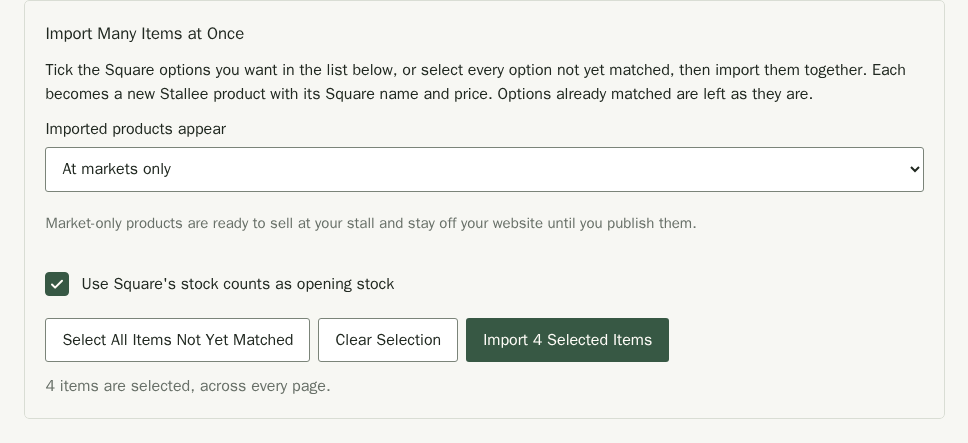
Items already matched to a Stallee product are left as they are, so it is safe to run an import again after adding more items in Square. Square items with a variable price are skipped: give them a fixed price in Square first. Square does not send photos or descriptions, so add those to each product before customers see it online.
To go the other way, pick a product that comes in choices in Stallee product to match or add to Square and choose Create Selected Product in Square. Stallee adds one Square item with a variation for each choice, and matches each choice to its variation. A single choice cannot be created on its own: choose its product instead.