The Google product feed is a file of your products that Stallee serves from your own domain name. Google Merchant Center, Google's tool for product listings, can fetch that file on a schedule you set. The examples follow Mara Quinn, who runs Saltbush Ceramics.
Turning the feed on makes Stallee serve the file and nothing more. Stallee does not send anything to Google, create or manage your Google account, or set up your shipping. Being in the feed does not mean Google has approved your account or any product. Google decides that, and its own reports in Merchant Center show whether it fetched the file and why it accepted or rejected each product.
Before You Start
- Connect your own domain name, wait until it is live and make it your main address. See Website Address.
- Publish your site and turn on online sales. See Online Sales.
- Open a Google Merchant Center account and set up your shipping and returns there. Stallee does not put shipping in the feed, and Google can refuse products until you have set it.
- Have the real brand, GTIN and manufacturer part number for each product, or know that it has none. The next section explains these.
Add Google Details to a Product
Google asks for facts that a product page does not always show. Stallee keeps these separate from the product, and it never fills them in for you. A product with details left out is not put in the feed, so nothing is guessed.
- Open a product from Products and expand Specialist Features.
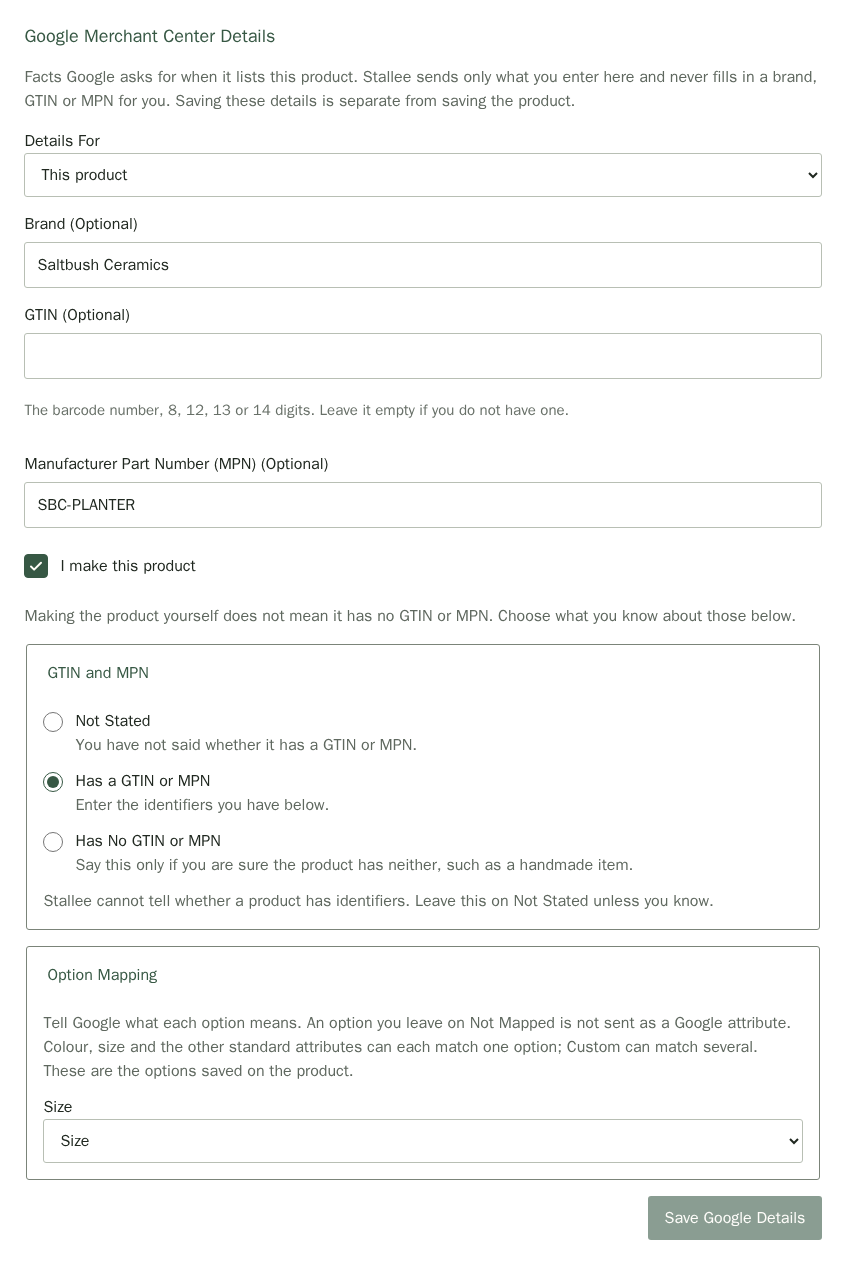
- Under Google Merchant Center Details, type the Brand: the name people know the product by. Use your shop's name only if you make the product and nobody else sells it.
- If the product has a barcode from its maker, type it in GTIN as digits only. Leave it empty if there is no barcode. Never make a number up: Google refuses a GTIN that is not a real one, including numbers that start with 02, 04, 05, 2, 98 or 99.
- Type the Manufacturer Part Number (MPN). This is the maker's own code for the product. If you make it yourself, choose a code of your own, such as SBC-MUG-01, and keep using it.
- Tick I make this product if you are the maker.
- Under GTIN and MPN, choose what you know: Has a GTIN or MPN when you have entered one or both, Has No GTIN or MPN only when you are sure the product has neither, or Not Stated.
- Choose Save Google Details. This saves only these details. It is separate from Save Product, and Stallee asks you to save or discard them before you save the product.
Choose Between a GTIN and an MPN
Making a product does not mean it has no GTIN or MPN, and a blank box does not mean either. Stallee cannot tell which is true, so you say.
- You resell a branded product. Use the brand on the packaging and the maker's GTIN. If there is no GTIN, use the maker's MPN. Do not invent one, because Google may refuse the product.
- You make and sell it yourself with your own brand. Enter your shop's name as the Brand, give the product an MPN of your own, tick I make this product and choose Has a GTIN or MPN. Stallee leaves out a branded product you make if it has no MPN, because Google expects one.
- You are certain there is no GTIN and no MPN. Choose Has No GTIN or MPN and leave both boxes empty. If you are not certain, leave it on Not Stated: the product stays out of the feed until you decide.
Stallee checks that a GTIN has 8, 12, 13 or 14 digits, a correct last digit and a start Google accepts. A number can pass these checks and still not belong to your product, and Stallee cannot tell, so copy it from the packaging or your supplier.
Set Up Options and Variants
Google lists every variant of a product, such as a Small and a Large planter, as its own item. Each variant needs its own details, and Google needs to know what each option means.
- Open the product, expand Specialist Features and find Google Merchant Center Details.
- Under Option Mapping, choose what each option is for Google, such as Size for an option named Size. Colour, Size and the other standard choices can each match one option. Custom can match several. A variant whose option is left on Not Mapped is left out of the feed.
- Choose Save Google Details.
- Under Details For, choose a variant such as Small. Its own GTIN and MPN appear, with the same choices as the product.
- Enter the details for that variant and choose Save Google Details. Repeat for each variant.
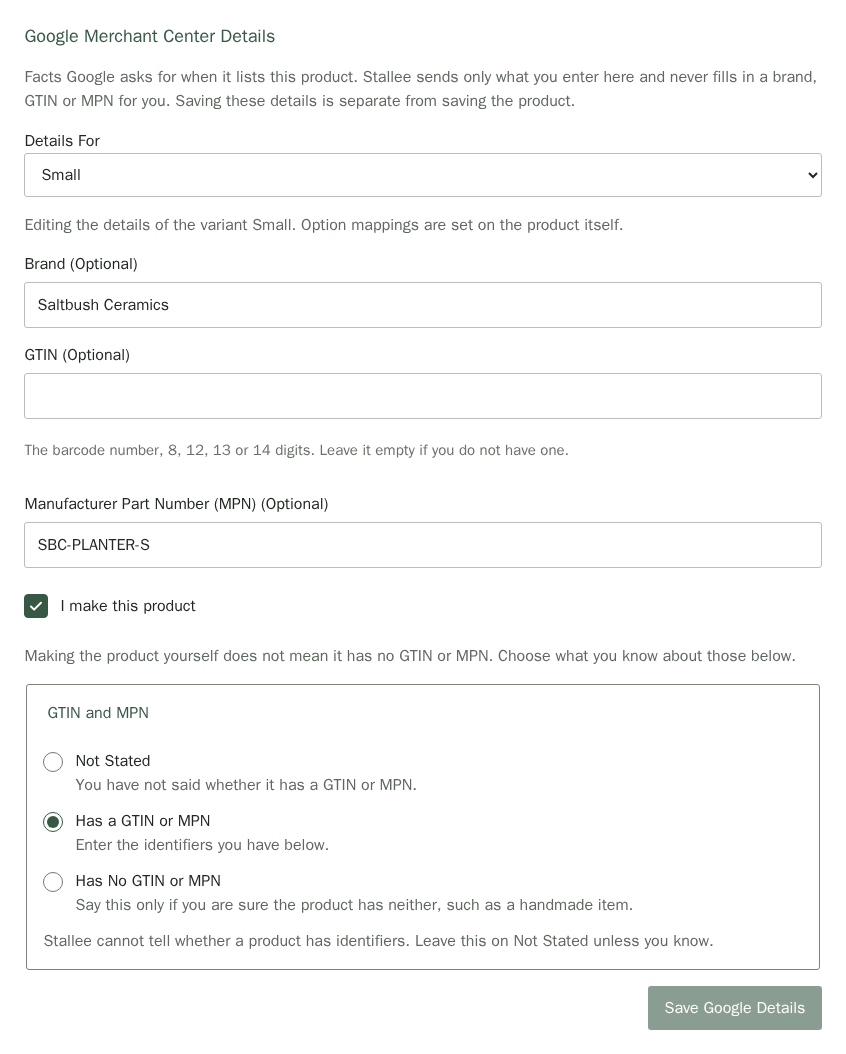
Each variant needs its own MPN or GTIN, because two variants are two different products to Google. Do not copy one variant's code to the next.
Turn On the Feed
- Open Settings and find Google Product Feed.
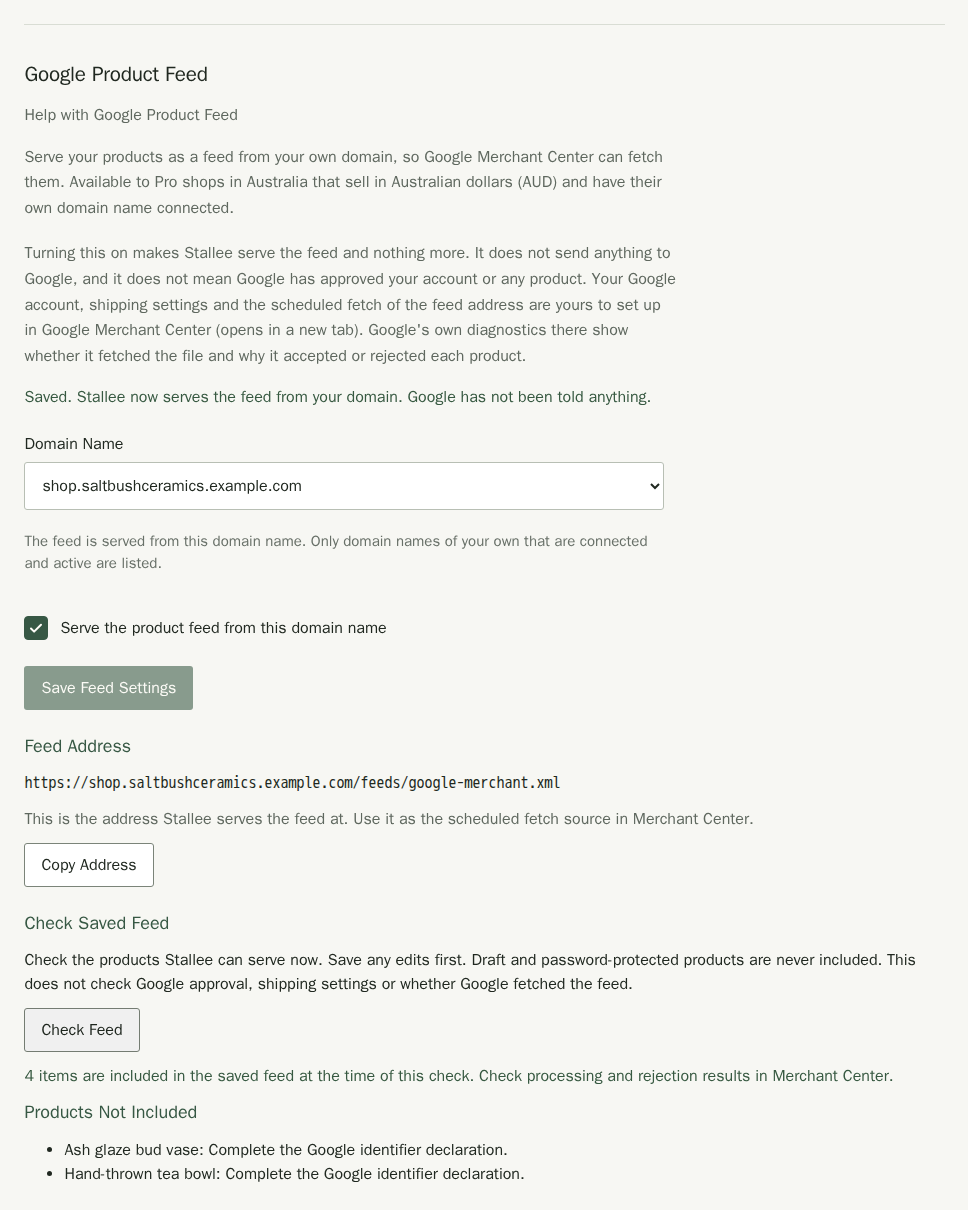
- Under Domain Name, choose the domain name the feed is served from. It must be your own domain name that is live and set as your main address in Website Address. Stallee does not save the setting for any other domain name.
- Tick Serve the product feed from this domain name.
- Choose Save Feed Settings.
- Under Feed Address, choose Copy Address. This is the address you give Google.
Check What Is in the Feed
Before you set anything up in Google, check what Stallee will serve. Save any product changes first, then choose Check Feed. Stallee reads your saved products and tells you how many are in the feed. Under Products Not Included it names each product it left out and what to fix, such as a missing brand or an option that is not mapped.
Draft products and password-protected products are never in the feed. Digital downloads, custom orders and products priced on request are left out too. The check does not ask Google anything, so it cannot tell you whether Google approved a product.
Set Up Google Merchant Center
These steps happen in Google's own tools, and their screens can change. Use Google's help for the current steps.
- In Merchant Center, create or open your account and add your shipping and returns.
- Add a product source that fetches a file on a schedule, and paste the feed address you copied. Google offers daily, weekly or monthly fetches.
- Open Merchant Center's diagnostics. They show whether Google fetched the file and why it accepted or rejected each product.
After you change a price, stock or details, Google shows the change the next time it fetches the feed. Check Merchant Center for its schedule and for the latest fetch.
Turn Off the Feed
- Open Settings and find Google Product Feed.
- Untick Serve the product feed from this domain name and choose Save Feed Settings.
Unpublishing a product, protecting it with a password or deleting it takes it out of the feed. Google still shows it until its next fetch, so remove it in Merchant Center if it must come down at once.
Backups and the Feed
A version 11 backup includes your saved Google details for each product. Restoring any backup switches the feed off and clears its web address, so review the restored products and turn it on again. See Backups.