Closing your business takes your shop offline and signs everyone out. Only the shop owner can do it, and it needs a link that we email to you, so it cannot happen by accident. It closes only the business you have open. Your personal Stallee account and your other shops remain. This guide follows Mara Quinn closing the books on Saltbush Ceramics.
Before You Close
- Download a Backup if you want your own copy of your products, site and settings. See Backups.
- Pack and send, or refund, any open orders. Customers cannot buy once the shop is closed. See Orders.
Close Your Business
- Check the shop name at the top of the page. If needed, open the shop menu and choose the business you want to close.
- Open Account at the top right, then find Close Business. Check that it names the right business.
- Choose Email Me a Closing Link. We send a link to the email address you signed in with. It works once and expires in 10 minutes.
- Open the email and choose the link.
- Stallee opens Account with a final question, Close This Business Now? Choose Close This Business to go ahead, or Keep It Open to change your mind.
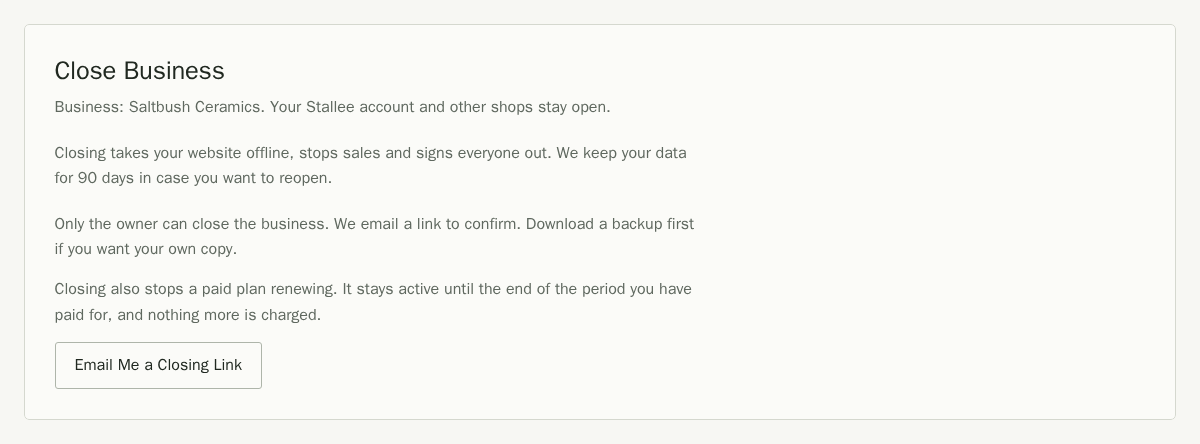
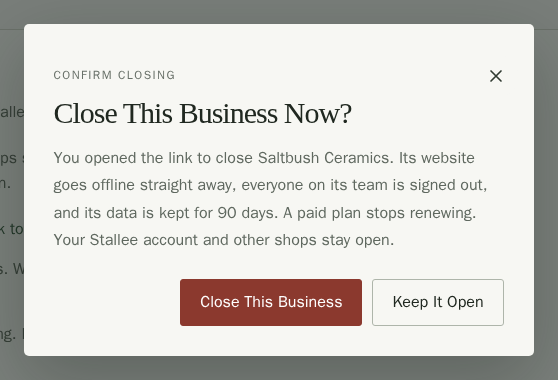
If the link has expired or been used, request a new one from the Close Business panel on Account. If you ask again too soon, Stallee asks you to check your inbox first.
What Happens When You Close
- Your website goes offline straight away and sales stop.
- Everyone on your team is signed out, including you.
- Shop emails that are still waiting to be sent stop when the business closes.
- A Basic or Pro plan stops renewing. It ends with the period you have already paid for, and nothing more is charged. See Plans and billing.
- We keep your data for 90 days in case you change your mind, then delete that shop's content. Your personal account and other shops are kept.
- Orders, payment records, stock records and records of changes to your shop are kept for seven years to meet tax record-keeping rules, even after your shop is deleted.
To reopen a closed shop within the 90 days, contact Stallee support (opens in a new tab).