Consignment is when a shop sells your products for you and pays you only for what sells, less their commission. The Consignment page keeps track of the stock each stockist holds, works out what they owe you from their sales, and records when they pay. The examples follow Mara Quinn of Saltbush Ceramics, who places vases and tea bowls with a Fremantle shop called Harbour Gifts.
Consigned stock is still yours. Each stockist has its own stock location, so you can always see what they hold, and it never counts towards what your website can sell. To sell to a shop outright instead, use Wholesale.
Choose a Stockist
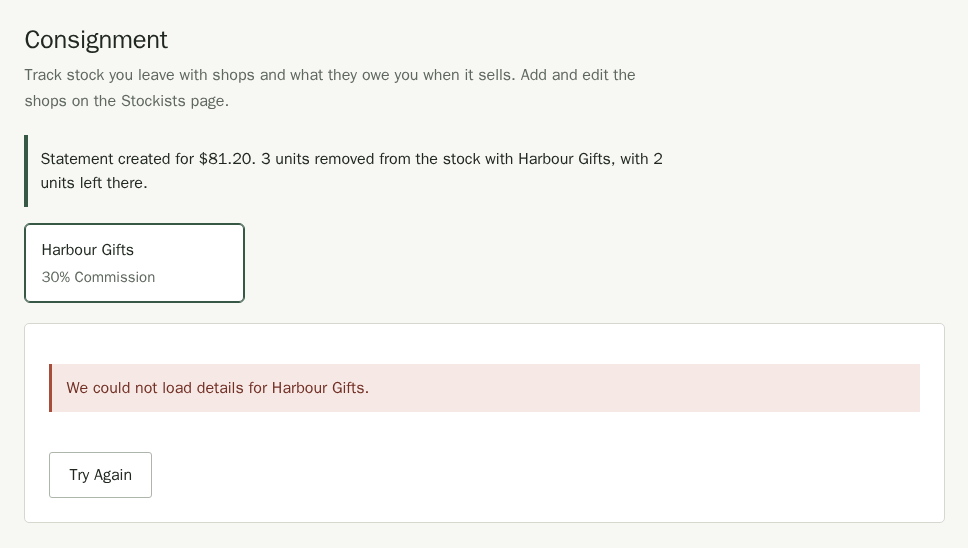
Stockists are added and edited on the Stockists page, with Sells on consignment ticked and their Commission (%) set. The Consignment page lists those stockists. Choose one to see what they hold and owe. If their details do not load, choose Try Again. Choose Stockist Details to edit them.
Send Stock to a Stockist
- Under Send Stock, choose the location the stock comes from in From location.
- Choose a Product and type the Units you are leaving with the stockist. Choose Add Another Product for each extra product.
- Choose Send Stock.
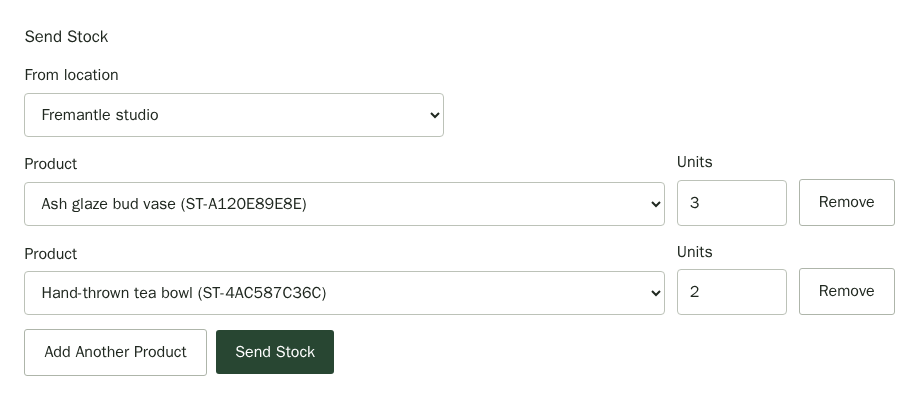
The units move from your location to the stockist's, and the stockist shows how many units they hold.

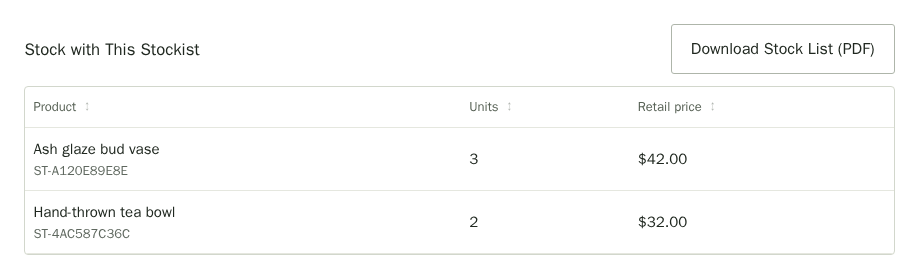
Stock with This Stockist lists each product the stockist holds and its retail price. Choose Download Stock List (PDF) for a PDF of that list for you and the stockist to sign when you drop the stock off.
Record What Sold
When the stockist sends their sales report, record it as a statement.
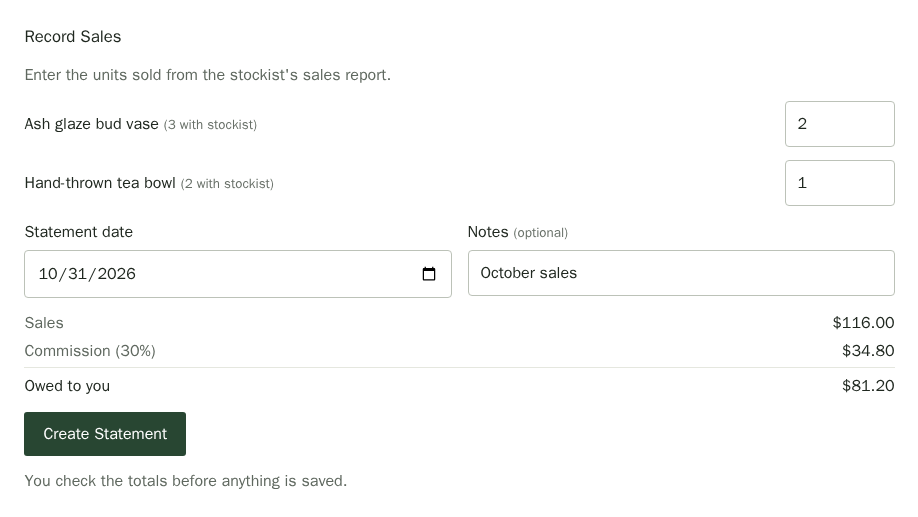
- Under Record Sales, type the units sold of each product. Leave the others blank.
- Check the Statement date and add any Notes, such as the month.
- Check the totals: the sales at your retail prices, the stockist's commission, and what is Owed to you.
- Choose Create Statement.
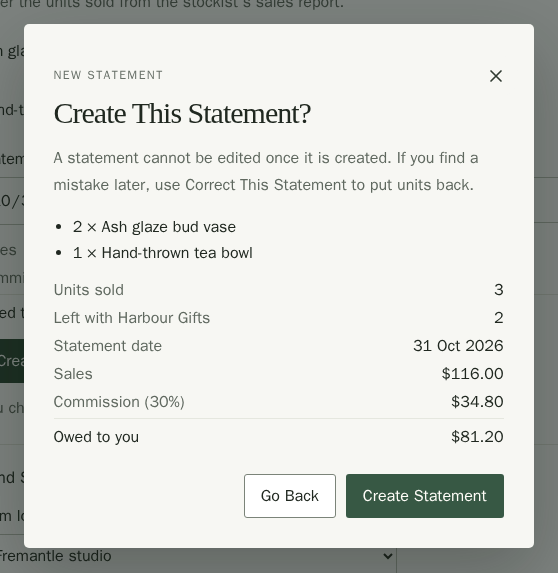
Choosing Create Statement does not save anything yet. Stallee shows Create This Statement? with each product, the units sold, the units left with the stockist, the sales, the commission and what you are owed. Check them, then choose Create Statement again, or Go Back to change the numbers. A statement cannot be edited once it is created.
The statement gets its own number, such as CS-0001, and the sold units come off the stockist's stock. The message at the top of the page says the statement's amount, how many units were removed and how many are left with the stockist. Commission is worked out on each line and rounded to the nearest cent. Choose Download PDF to send the statement to the stockist. It includes your bank details from your wholesale invoice settings.
If the statement is confirmed and the stockist details fail to load, choose Try Again to refresh the details. The statement is already saved. If Stallee could not confirm the save, retry from the current form with the same date, units and notes.
Mark a Statement Paid
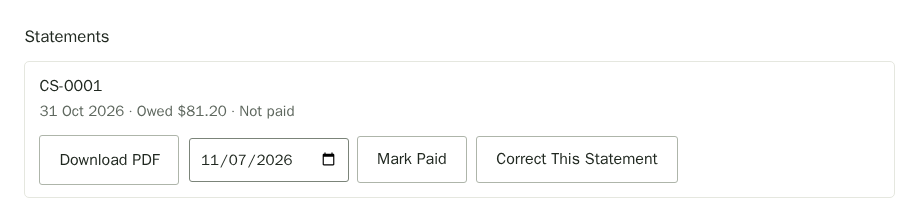
- Under Statements, set the date the payment arrived beside the statement.
- Choose Mark Paid. Stallee asks Mark CS-0001 as Paid? with the amount and the date.
- Choose Mark Paid again to confirm. A statement marked paid cannot be changed back, so check the date first.

Correct a Statement
A statement cannot be changed once you have created it. If units were recorded as sold by mistake, add a correction. It puts those units back on the stockist's stock and takes their value off what the stockist owes you. If the statement was already paid, you owe that amount back. Accountants call this a credit, and the PDF you download for it is titled Consignment Credit.
- Choose Correct This Statement on the statement.
- Type the units to put back for each product, up to what the statement sold.
- Choose Save Correction.
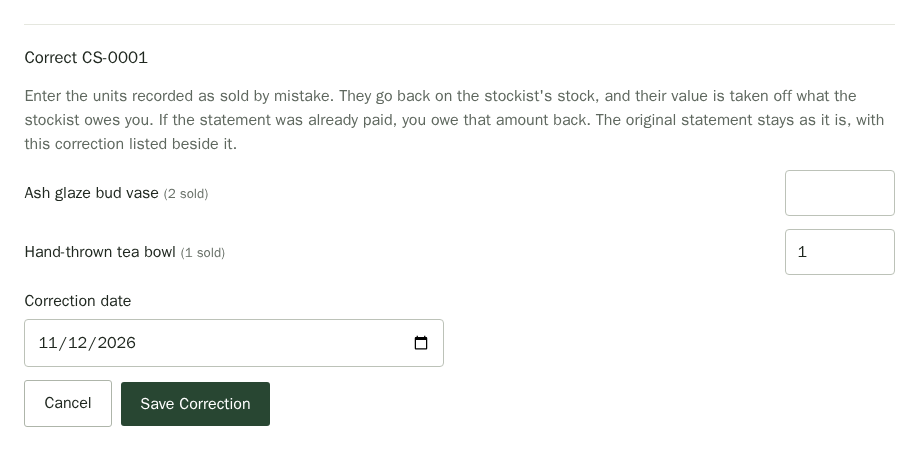
The correction has its own number and uses the original statement's prices and commission. It shows in the list as a Correction with the amount taken off, and the original statement stays as it was. The units go back on the stockist's stock. When the amount has been paid back or taken off a later payment, choose Mark Paid on the correction to record that it is settled.
Bring Stock Back
Under Return Stock, choose where the units go in To location, then the products and units, and choose Return Stock. When you stop working with a stockist, bring their stock back and choose End Stockist. Their statements are kept, and Reactivate brings them back.