A stockist is a shop that sells your work: one that buys from you at wholesale, one that holds your stock on consignment, or both. The Stockists page keeps them in one list, so the Wholesale and Consignment pages both use the same details. You can also show a stockist on your website, so customers can find the shops that sell your work. The examples follow Mara Quinn of Saltbush Ceramics.
Add a Stockist
- Choose Stockists in the menu, then Add Stockist.
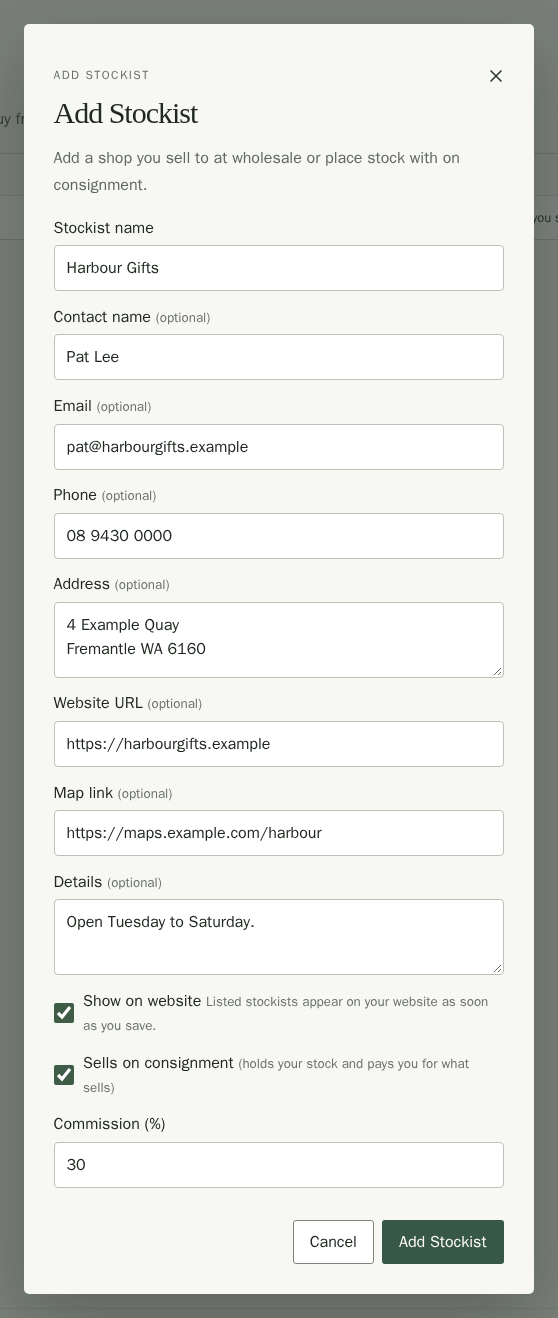
- Type the Stockist name. Their contact name, email, phone and address are optional; they fill in your wholesale invoices and appear on consignment statements.
- If the shop holds your stock and pays you for what sells, tick Sells on consignment and type the Commission (%) they keep from each sale, such as 30. Leave it unticked for a shop that only buys from you at wholesale.
- To show the shop on your website, fill in its Website URL, Map link and Details and turn on Show on website. See Show a Stockist on Your Website.
- Choose Add Stockist in the window. If something needs fixing, the window says what.
Each stockist gets a stock location with its name, so consigned stock always shows where it is. If you already have a stockist location with that name on the Stock locations page, it is used, with the stock already there.
See, Edit or End a Stockist
The list shows each stockist's Name, Relationship (wholesale, or consignment with the commission they keep), contact name, email, phone, Status and Website (Listed when the stockist shows on your website, Hidden when it does not). Details you have not filled in show a dash. On a phone, each stockist is a card. Choose Name or Status in the heading, or the Sort by menu on a phone, to reorder the list.
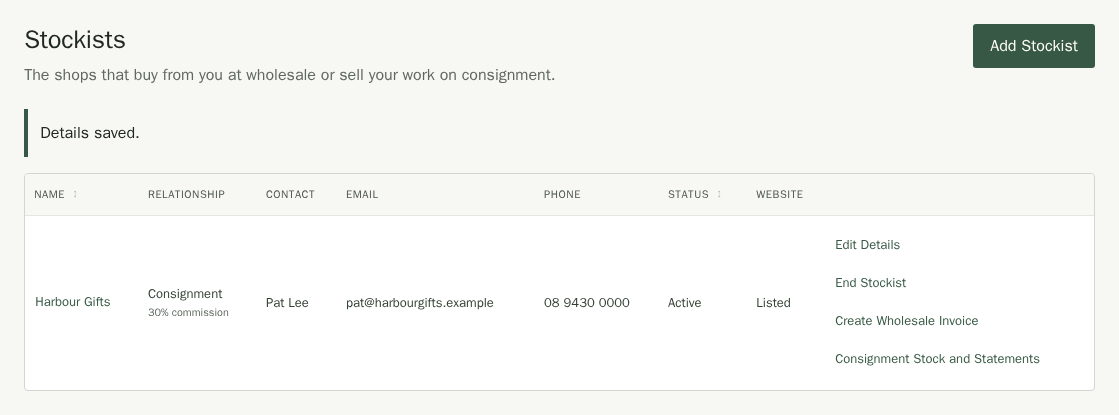
On each row, Create Wholesale Invoice starts an invoice with the stockist's details filled in, and Consignment Stock and Statements opens what they hold and owe. The consignment button appears only for consignment stockists.
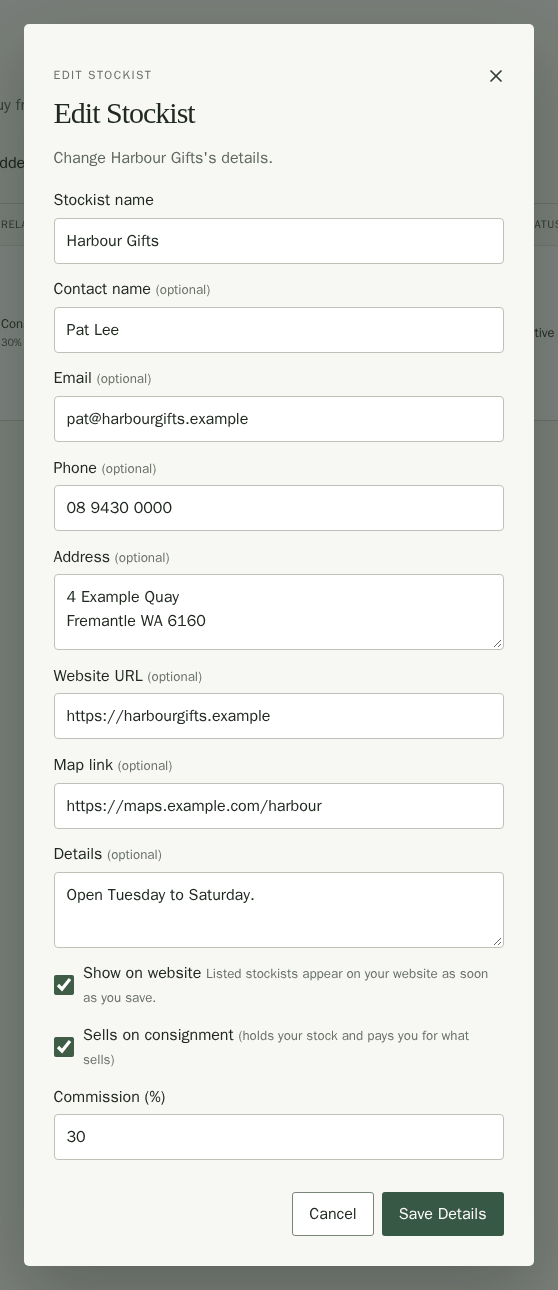
Choose Edit Details (or the stockist's name) to change anything, then Save Details. A new commission applies to statements you create from then on; statements already created keep their rate. Invoices already created keep the customer details they were created with.
Show a Stockist on Your Website
Turn on Show on website for a stockist and it appears in the Stockists section of your site as soon as you save. You do not need to publish your site. Turn it off, or end the stockist, and it disappears the same way. A new stockist stays hidden until you turn the box on.
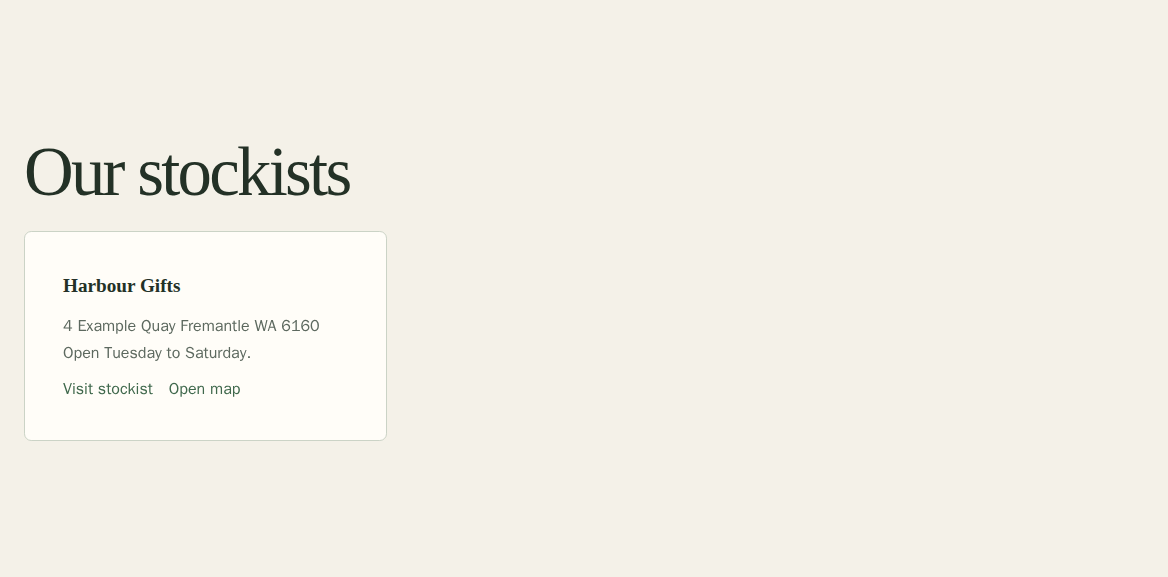
Customers see the name, address, details and the two links. Your contact name, email, phone and commission never show. Both links must start with https://. If a page has no Stockists section yet, add one in Page Settings: see Pages. The section shows nothing while no stockist is listed. To change the heading or introduction, use Site Design.
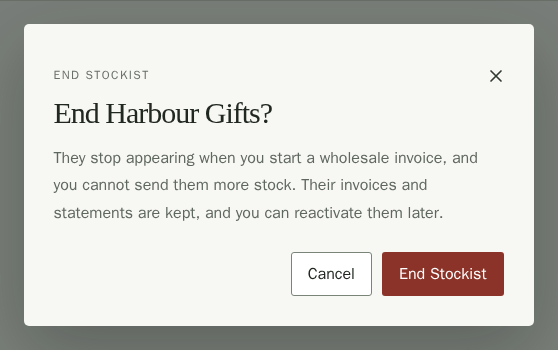
Choose End Stockist when you stop dealing with a shop, then confirm. It drops off the wholesale invoice picker and takes no new consignment stock, but its invoices, statements and any stock it still holds stay where they are. Its row then shows Reactivate, which brings it back.