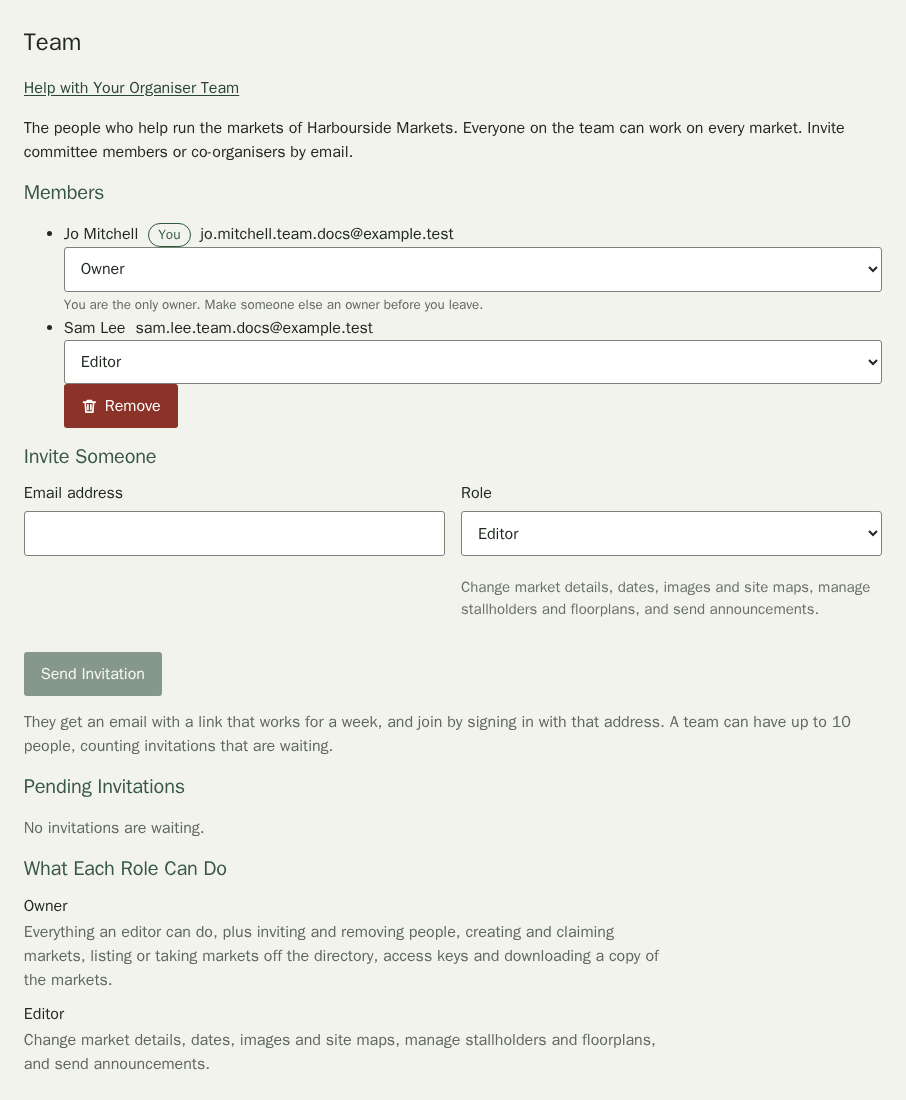
Most markets are run by more than one person. The Team page of your organiser workspace lets you share your markets with committee members and co-organisers, so you are not the only one who can update dates, stallholders or floorplans. This guide follows Jo Mitchell, who runs Harbourside Markets and brings in Sam Lee from the committee.
Owners and Editors
- Editors change market details, dates, images and site maps, manage stallholders and floorplans, and send announcements.
- Owners can do everything an editor can, and also invite and remove people, change roles, create and claim markets, list a market in the directory or take it off, set up access keys, download a copy of your markets and manage the organiser's plan. The plan covers everyone on the team, so nobody pays to join.
If you are an editor and find an unclaimed directory listing, ask an owner to claim it for your organiser.

Your organiser always has at least one owner. If you are the only one, make someone else an owner before you leave.
Before You Can Invite People
You can invite people once Stallee has verified one of your markets. This keeps listings safe while we check who runs them. Until then, the Team section shows a note instead of the invite form.
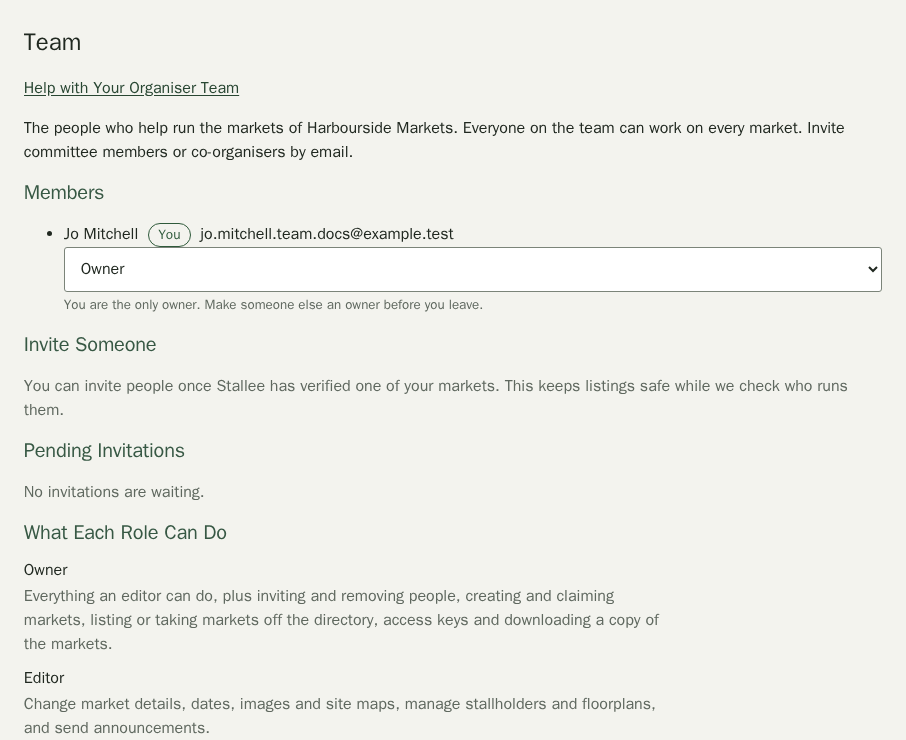
Invite Someone
- In your organiser workspace, choose Team in the menu.
- Under Invite Someone, type their email in Email address.
- Choose a Role. The line under the box says what that role can do.
- Choose Send Invitation.
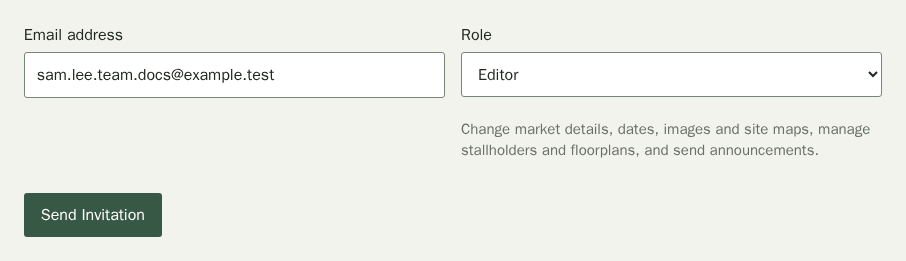
Stallee emails them a link that works for a week. Until they join, the invitation is listed under Pending Invitations with the date it expires. Choose Withdraw if you change your mind or typed the wrong address. A team can have up to 10 people, counting invitations that are waiting.
Accept an Invitation
This is what the person you invite does.
- Open the email and choose Accept invitation.
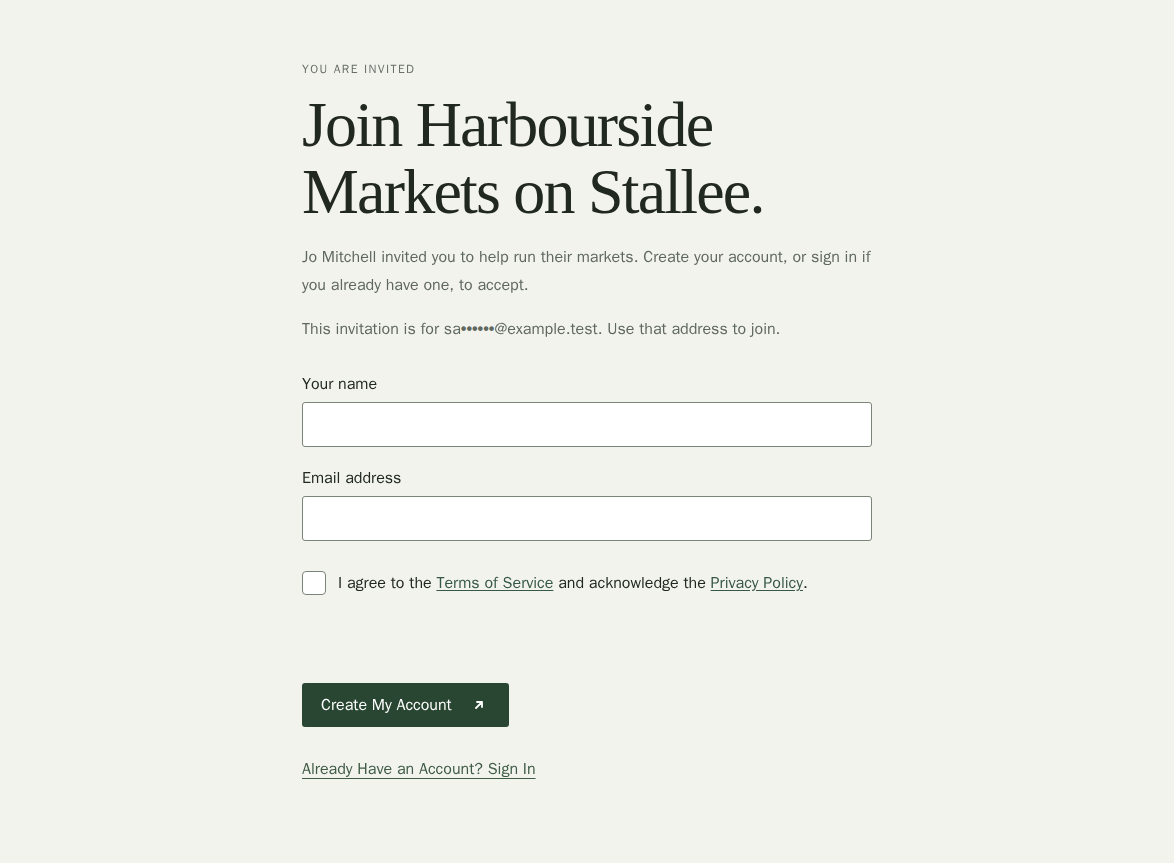
- Create a free account, or sign in, with the address the invitation was sent to.
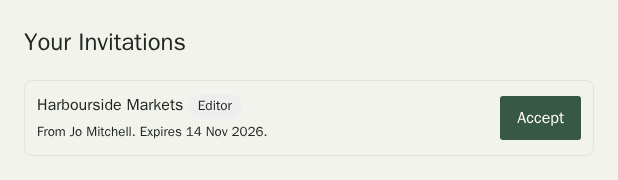
- Under Your Invitations, choose Accept. Your organiser workspace opens.
Change Roles or Remove Someone
Owners see a role box next to each person. Choose a different role and confirm it. To take someone off the team, choose Remove and confirm. They lose access straight away, and any access keys they made stop working. Anyone can choose Leave This Organiser to remove themselves.