The Online Sales page, after Orders in the menu, is where you control how your website sells. You can pause sales while you trade at a market, see stock that customers are in the middle of buying, and choose delivery, pickup and GST registration. The examples follow Mara Quinn, who runs Saltbush Ceramics.
Pause Online Sales
Pause online sales when you are at a busy market, or away, and cannot keep stock accurate. Customers can still browse your website but cannot buy online, and they see your message at the top of every page. Pausing also closes payment pages that customers already have open, within about a minute. Anyone who already paid keeps their order, and a balance payment on a custom order is not affected.
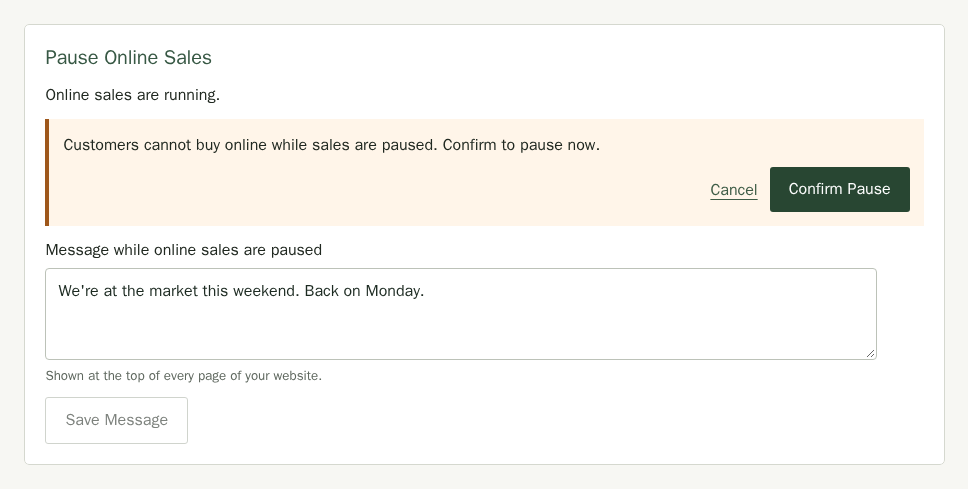
- Choose Online Sales in the menu. The Pause Online Sales card is first, and says whether sales are running or paused.
- To change what customers read, edit Message while online sales are paused and choose Save Message. It has its own button, so it does not wait for the settings further down.
- Choose Pause Online Sales.
- Read the note, then choose Confirm pause. Choose Cancel if you change your mind.
- To start selling again, choose Resume Online Sales and confirm.
If you take payments through Stripe, you can also pause them from the Payments page.
See Stock Held at Checkout
When a customer starts to pay, Stallee holds their items so nobody else can buy them. If a product shows fewer available than you expect, look at the Held at Checkout card. It lists each hold: the product, how many, where it is held and when it ends. It never shows who the customer is.
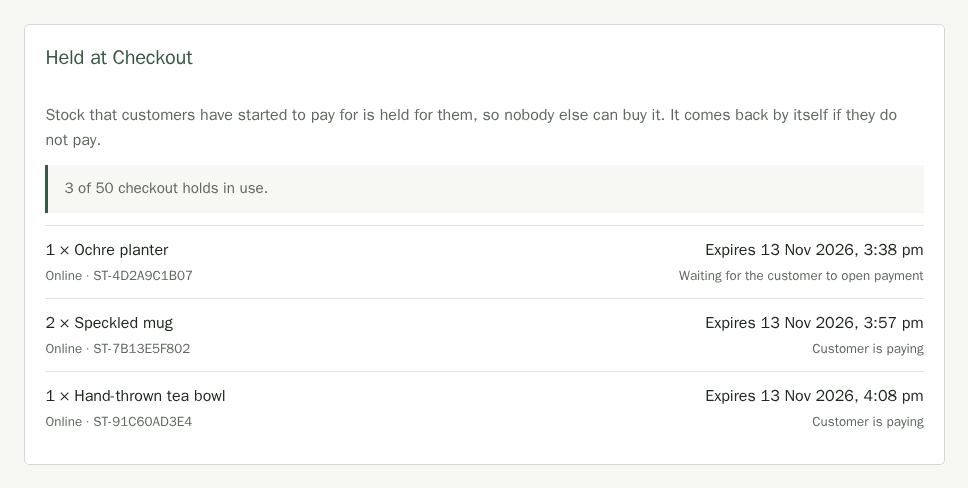
- A hold ends by itself. If the customer pays, the stock is sold. If they do not, it goes back on sale. There is nothing for you to clear.
- A customer has about 35 minutes to pay once they open the payment page. If they never open it, the hold ends after 10 minutes and the line reads Waiting for the customer to open payment.
- Your shop can have up to 50 holds at once. When all 50 are in use, the next customer sees "This shop is very busy right now. Please try again in a few minutes." until one ends. This stops someone who is not going to buy from tying up all your stock.
Help a Customer Return to Checkout
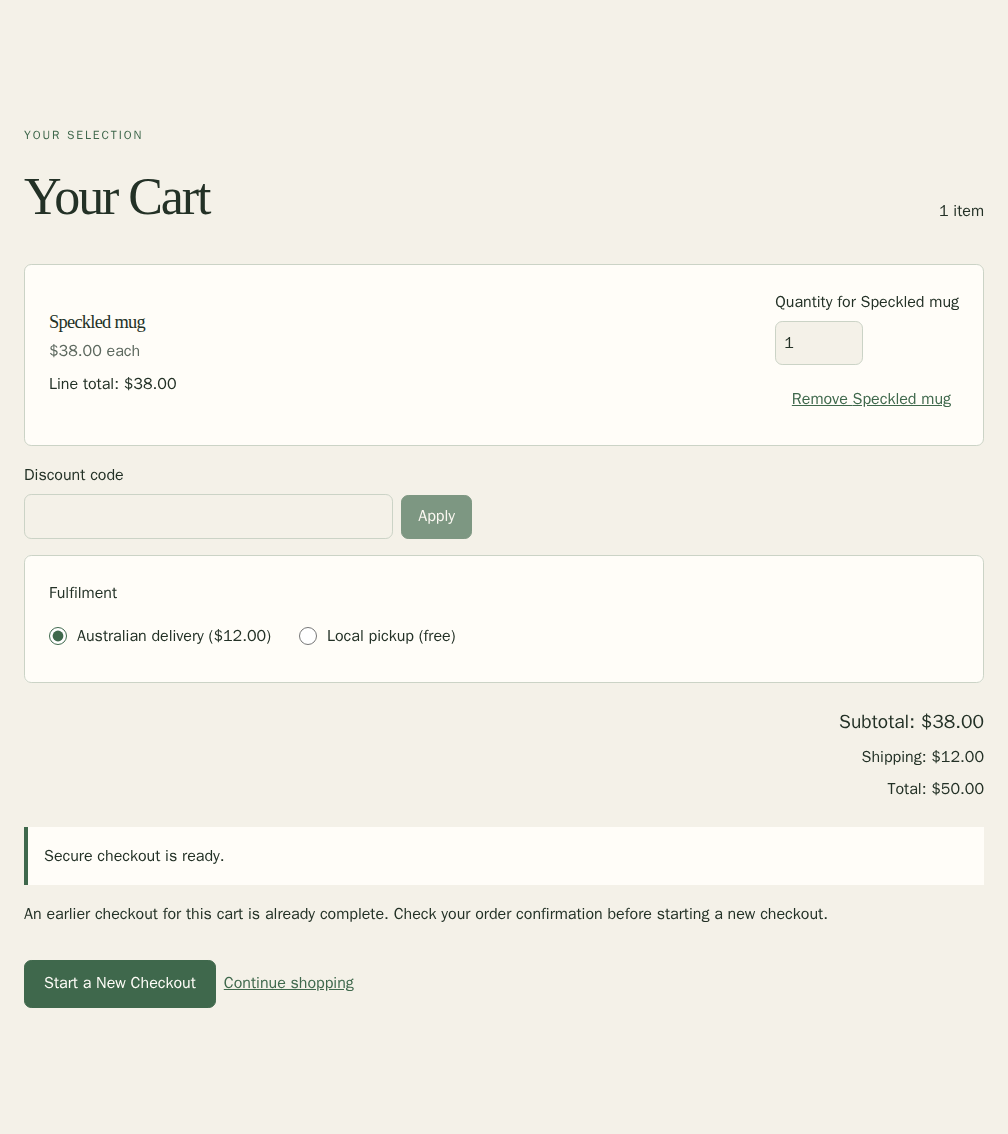
If a customer returns to a cart whose earlier checkout is already complete, the cart asks them to check their order confirmation first. They can choose Start a New Checkout to buy the same items again. If the cart says their earlier checkout is still being confirmed, ask them to check their confirmation or try again shortly. You can check the payment in Orders before they start another purchase.
Remind Buyers Who Leave Without Paying
The Abandoned Checkout Emails card lets your shop send one friendly reminder to a buyer who started to pay and left. It is off until you turn it on.
- Tick Send a reminder to buyers who leave without paying.
- Set Hours to wait before the reminder, from 1 to 72. 24 is a good start.
- Choose Save Reminder Settings. It has its own button, so it does not wait for the settings below.
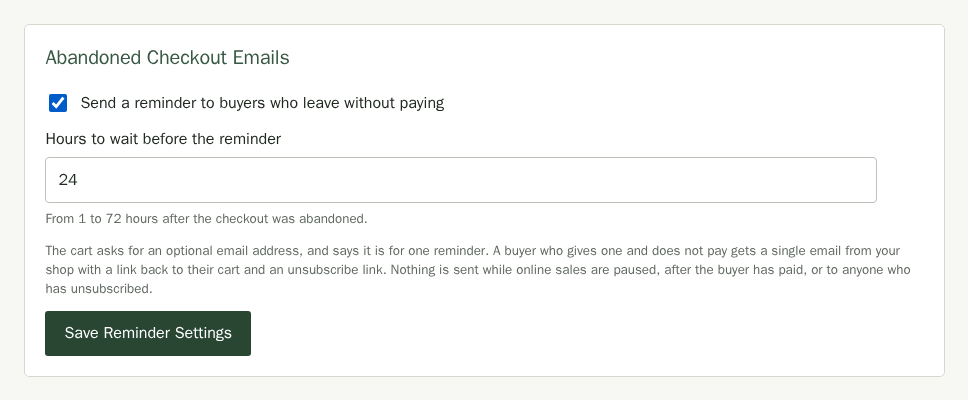
Once it is on, your cart asks buyers for an email address if they would like a reminder. It is optional, and the cart says the address is used for one reminder and nothing else. If a buyer gives one and does not pay, they get a single email from your shop after the wait, with a link that puts their items back in the cart and a link to unsubscribe.
- Nothing is sent if the buyer paid in the meantime, if online sales are paused, or to anyone who unsubscribed. A buyer never gets a second reminder for the same cart.
- Items that are no longer for sale are left out of the restored cart, and the buyer is told. Stock is not held for them.
- Checkouts that were abandoned before you turned reminders on are never emailed, and neither are checkouts more than a week past their reminder time.
- The restore link in the email needs an active shop address, so a reminder waits until your shop has an active domain. It does not hold up reminders for other shops, and it is sent once an address is active.
- When a buyer comes back through the link and pays, the order is marked Recovered on the Orders page, and the Unfinished Checkouts tab shows how many reminders were sent and how many orders were recovered.
Choose Delivery, Tax and Stock Settings
The Delivery, Tax and Stock card holds the settings for online sales. Change what you need and choose Save Website Settings. Prices use your shop's currency, which you can see in Settings.
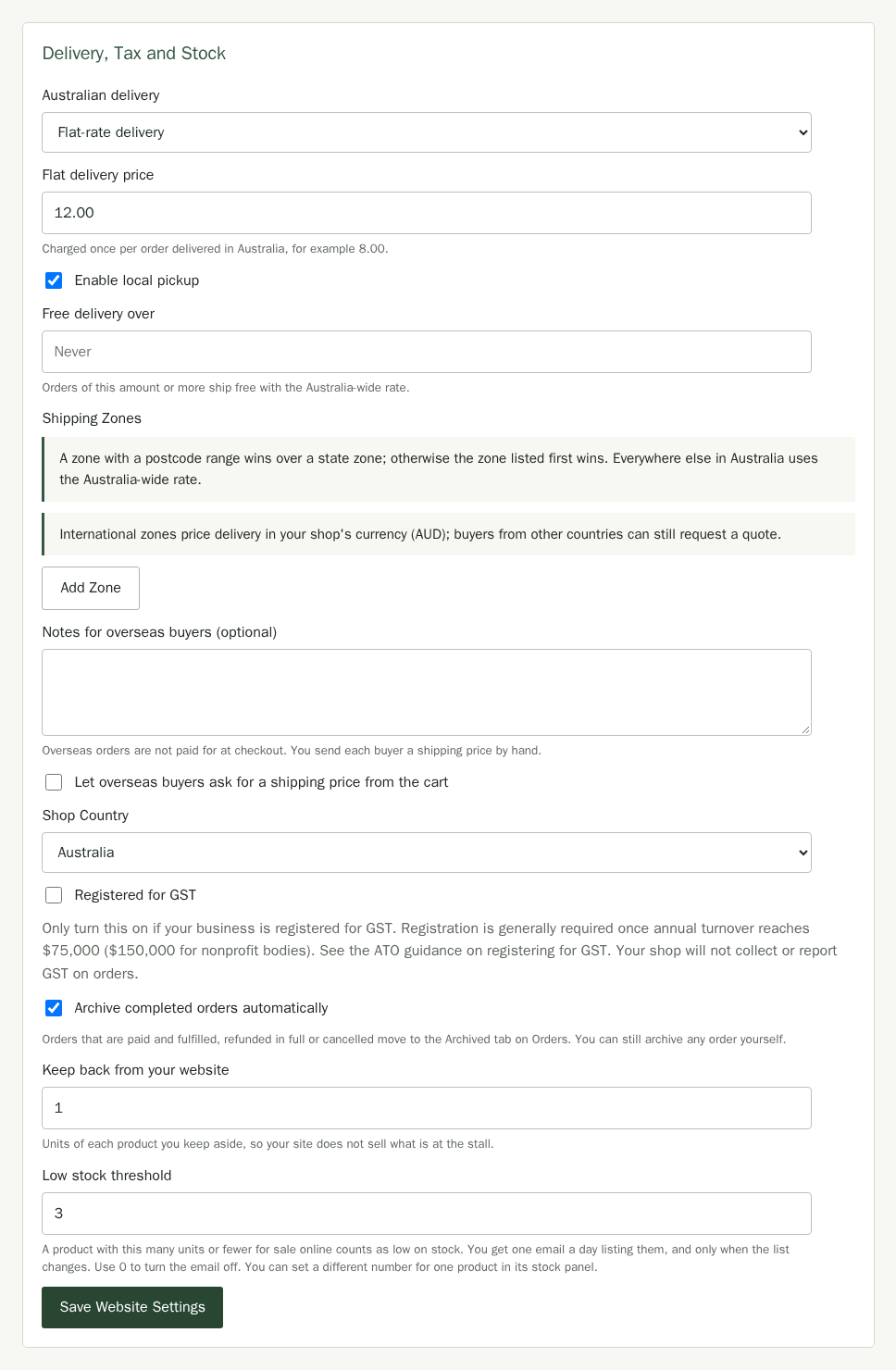
- Australian delivery is either Free delivery or Flat-rate delivery. For a flat rate, type the price in Flat delivery price, for example 12.00.
- Enable local pickup lets customers collect their order from you instead of having it posted.
- Free delivery over makes delivery free once an order reaches that amount, for example 80.00. Leave it empty to never give free delivery. It applies to the Australia-wide rate; each zone has its own.
- Countries that you have not given a zone (see Price Delivery to Other Countries) do not go through checkout. Tick Let overseas buyers ask for a shipping price from the cart to let them ask you for a quote, and use Notes for overseas buyers (optional) to tell them what to expect.
- Archive completed orders automatically is ticked by default. Orders that are paid and fulfilled, refunded in full or cancelled then move to the Archived tab on Orders. Untick it to archive only the orders you choose.
- Shop Country sits above the registration switch and says where your business is. It starts as the country you chose when you created your shop, and you can also change it in Settings. It is Australia for most shops, and the words on your products, orders and Sales page follow it. Choose New Zealand if your business is there: GST is 15 percent, your prices include it, and the registration switch works the same way. Choose United Kingdom or one of the countries under European Union and the tax is VAT: the switch reads Registered for VAT, prices include VAT, and the Sales page reports it in calendar quarters. If you take payments through Square, it applies your country's standard VAT rate to every item that is not zero-rated or exempt, so an item that carries a reduced rate needs Stripe. Choose United States and the tax is sales tax: the switch reads Registered for sales tax, your prices are listed without tax, and the payment page adds the sales tax for the buyer's address. Choose Somewhere else and pick your country for any other place. Stallee does not collect or report tax for other countries yet, so the registration switch is for shops in the countries listed.
- A New Zealand shop also sees a GST period choice under the registration switch. Choose Every month, Every two months or Every six months to match how you file your GST return; it starts at every two months. The GST Summary on Sales groups its figures by that period, in a financial year that runs from April to March. Australian shops report in quarters and do not see the choice.
- A United States shop sees a Sales tax period choice: Every month, Every quarter or Every year, to match how your state asks you to file. It starts at every quarter, and the Sales Tax Summary on Sales groups its figures by that period across the calendar year.
- Once a United States shop is registered, a Square sales tax rate (%) box appears if you can take payments with Square. Square cannot look up sales tax for each buyer, so a Square checkout adds the rate you enter, such as 8.25, to the price of every taxable item. It does not tax postage, and leaving it at 0 adds no sales tax. Stripe works out the rate for each buyer itself, so the box only applies to payments taken with Square. Custom orders are charged without sales tax for now.
- Leave Registered for GST off unless your business is registered. Only a registered business may collect GST. Registration is generally required once annual turnover reaches $75,000 ($150,000 for nonprofit bodies); in New Zealand it is once turnover reaches $60,000 in 12 months; in the United Kingdom it is once taxable turnover passes £90,000 in 12 months. The setting links to the registration guidance of the ATO, Inland Revenue or HMRC, and for the EU to the European Union's VAT guidance.
- If you are registered, turn on Registered for GST. Your prices already include GST, so turning it on does not raise customers' totals. The cart says Total (incl. GST)and GST-free options appear on Products. With the switch off, the cart says Total and does not show GST wording. Turn on Stripe Tax in your Stripe account if you need Stripe to report the included GST. A custom order's deposit and its balance both include GST in the same way, so the GST on the order covers both payments.
- A United States shop that is registered for sales tax lists its prices without tax. The cart says Total (plus sales tax at checkout), the payment page adds the sales tax for the buyer's address, and the order, the buyer's confirmation email and the Sales page show it as its own line. Turn on Stripe Tax in your Stripe account and add the states where you collect sales tax, or Stripe will add none. If you refund items, the refund includes their share of the sales tax. Registration for a state sales tax permit is generally required once your sales in a state pass that state's threshold; the setting links to SBA guidance.
- Keep back from your website holds back that many units of every product from online sale. With a buffer of 1, a product with 3 available shows 2 to customers. It covers you if a count is slightly off.
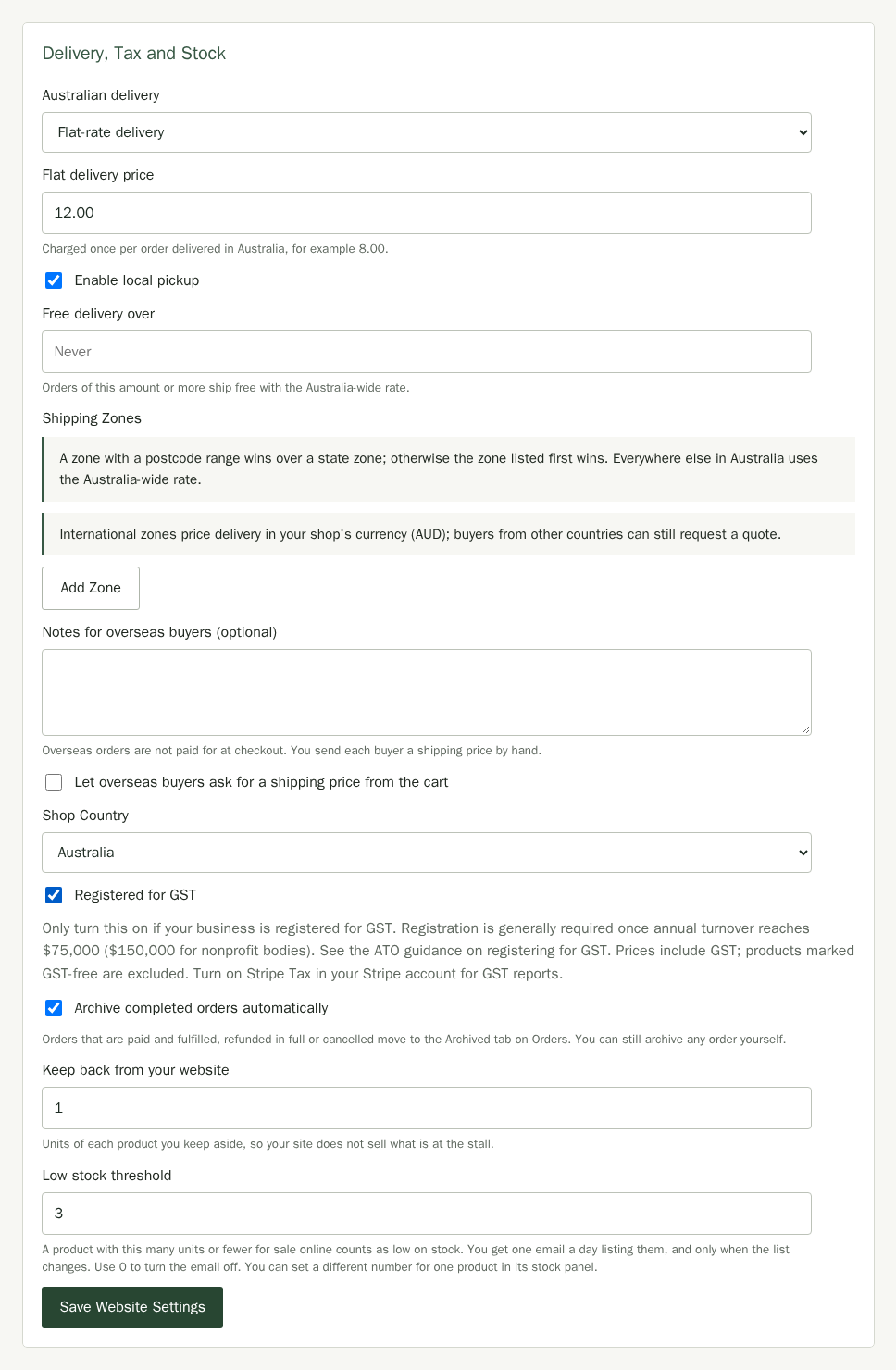
If you use Square at markets, a reader that is offline keeps selling from its last known count, so an in-person sale can briefly oversell an item the website also holds. Keep some stock back from your website, move only what the website should sell into Online (see Stock levels and locations), or pause online sales while you trade.
Charge Delivery by Zone
If one price for the whole country does not suit you, add Shipping Zones in the same card. A zone covers some states and territories, or a postcode range, and has its own delivery rates. Customers type their postcode in the cart and see only the rates for their zone. Anywhere that no zone covers uses the Australia-wide rate above.
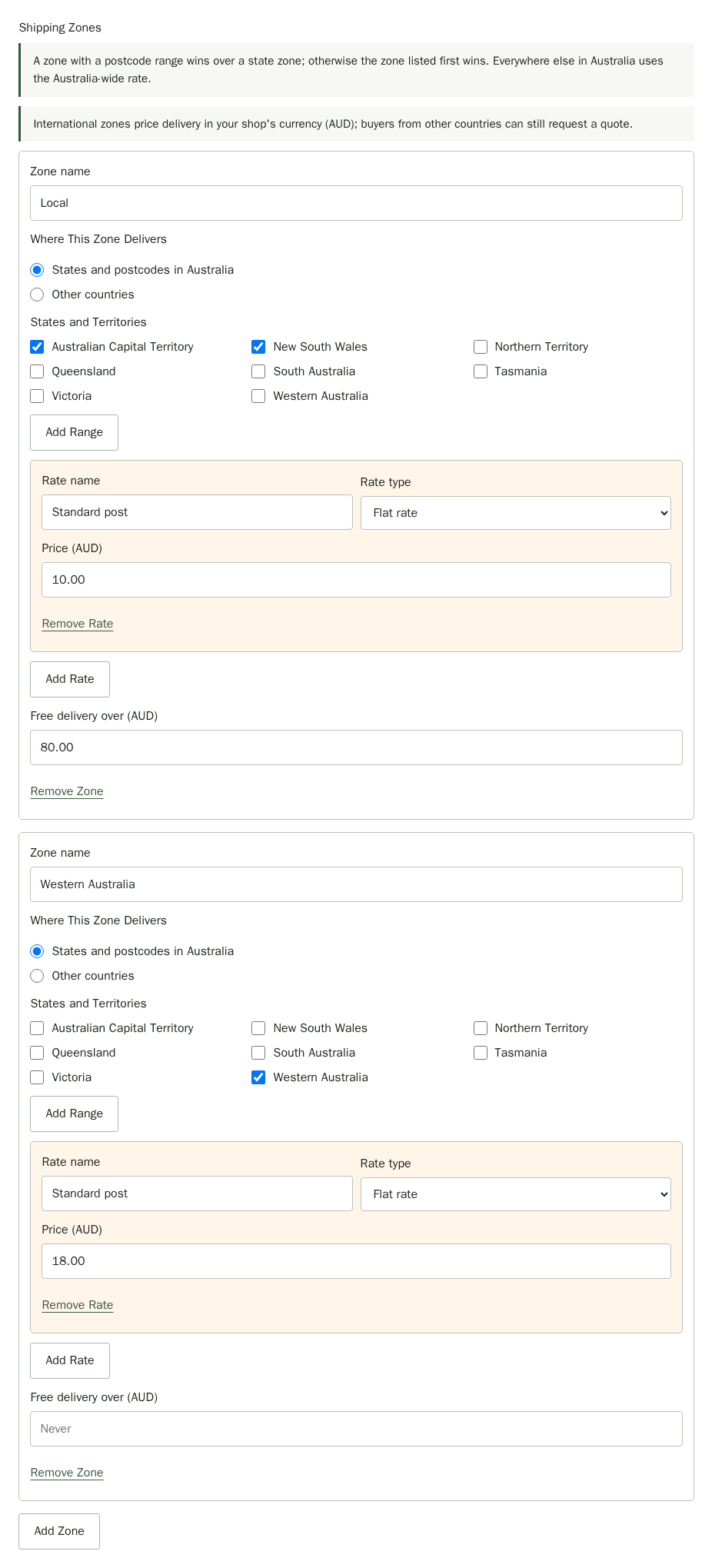
- Choose Add Zone and give it a Zone name, for example Local. Customers see the rate names, not the zone name.
- Leave Where This Zone Delivers on States and postcodes in Australia. Tick the States and Territories the zone covers, or choose Add Range and type a Postcode from and Postcode to. A postcode range wins over a state, so you can give one town its own price inside a state zone. When two zones cover the same place, the one listed first wins.
- Type a Rate name, such as Standard post. A new zone starts with one rate; choose Add Rate for another, such as Express, and the customer picks one in the cart. Choose a Rate type:
- Flat rate charges the same Price (AUD) for every order.
- By order value charges a price for each order total up to a limit, for example 10.00 up to 50.00 and 6.00 above it. Choose Add Tier for each step; the last tier has no limit.
- By weight works the same way with the order weight in grams. Give each product a Weight (grams) in Products first. A product without a weight counts as nothing.
- Type a Free delivery over (AUD) amount for the zone if you want, then choose Save Website Settings.
Each product also has a Shipping setting on its edit page. Ships free leaves the product out of the postage calculation, and Pickup only means an order with that product cannot be posted at all, so turn on local pickup for it. A customer with a postcode that is not Australian is asked to choose pickup instead.
Price Delivery to Other Countries
A zone can cover other countries instead of Australian states. Customers in those countries pay your price at checkout, in your shop's currency (AUD for Saltbush Ceramics), without waiting for a quote. Stallee does not convert currencies, work out duties or customs, or group countries into regions: you list the countries and set the price.
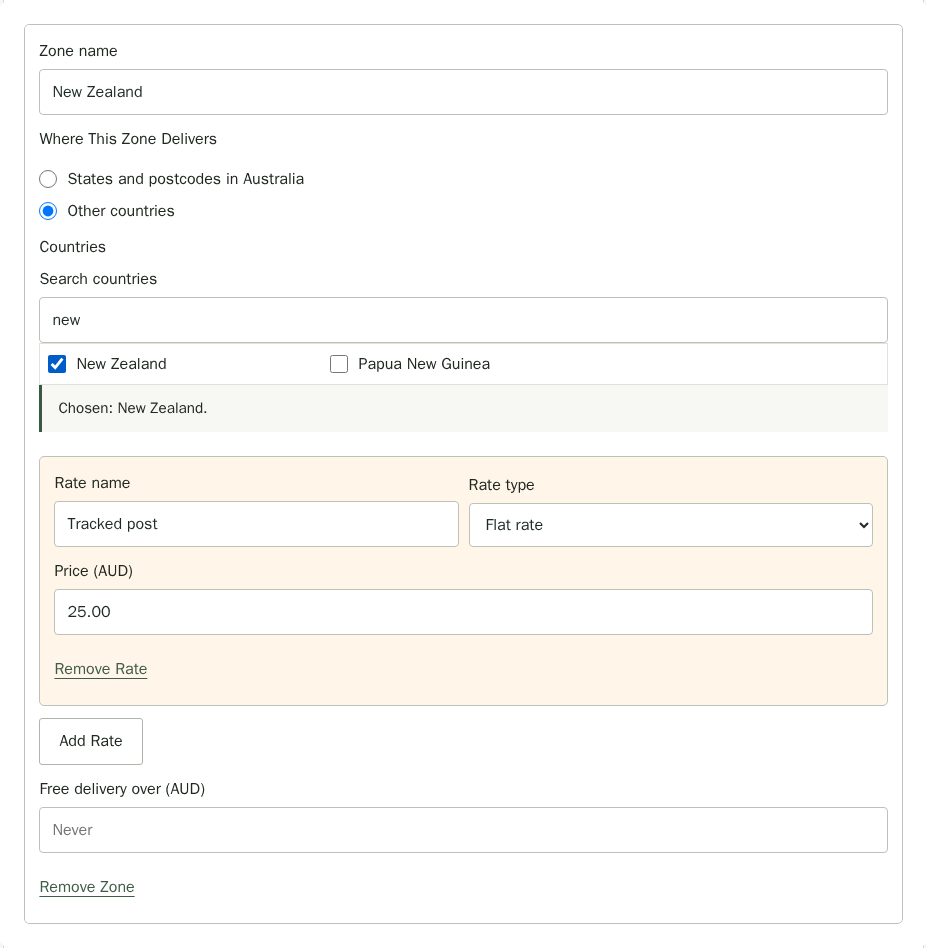
- Choose Add Zone and give it a Zone name, for example New Zealand.
- Under Where This Zone Delivers, choose Other countries. The state and postcode choices give way to a list of Countries. Type in Search countries to find one, then tick each country the zone covers. A zone covers either Australian places or other countries, never both.
- Set the Rate name, rate type, prices and Free delivery over (AUD) as for any other zone, then choose Save Website Settings.
In the cart, customers see a Deliver to list once you have a zone for another country. It starts at Australia, then lists the countries your zones cover, then Somewhere else. The postcode box only appears for Australia. Choosing a country you cover shows your rates and lets them pay. Choosing Somewhere else shows the quote request instead, if you turned that on. When two zones list the same country, the one listed first wins.
At payment, Stripe and Square let the customer give an address in Australia or in any country you cover. If the address is in a different country from the one they chose in the cart, the order is put on hold; see When an Order Is Put on Hold for Postage. The order page shows Shipping to the country, and the packing slip and label show the address as the customer typed it.
Let Customers Collect at a Market
If you trade at a market, customers can pay online and pick their order up from your stall. Their items are held from your online stock the moment they pay, so nothing they ordered can sell twice before market day.
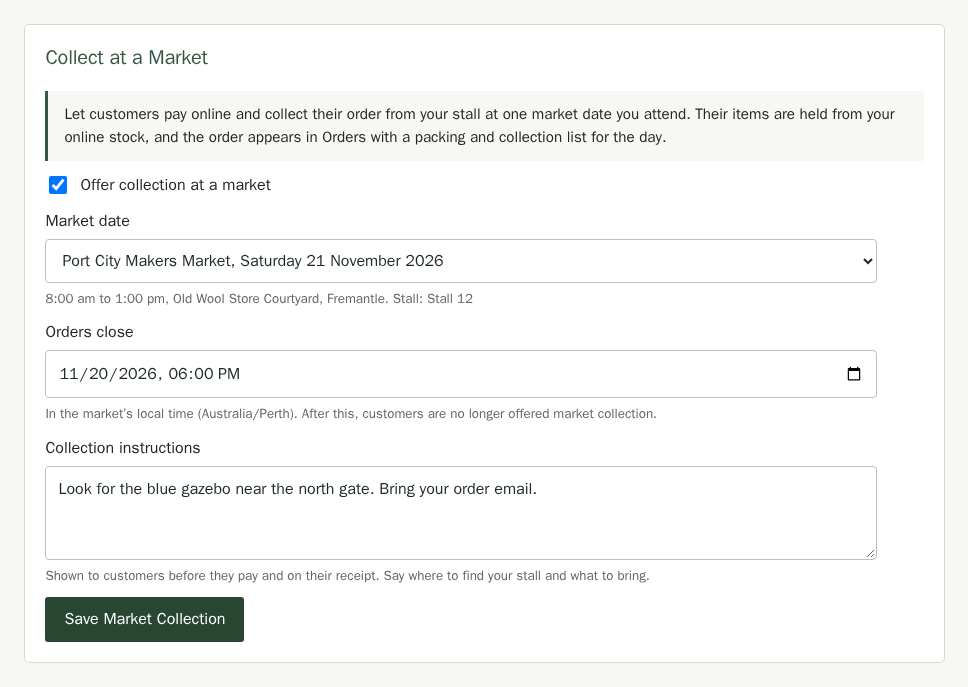
You offer one market date at a time. The dates come from the markets you have said you attend on the Markets page, and market collection needs Enable local pickup turned on above.
- In the Collect at a Market card, tick Offer collection at a market.
- Choose the date under Market date.
- Set Orders close. This is in the market’s local time, and starts at 6pm the evening before so you have time to pack. It cannot be later than the market’s closing time.
- Write Collection instructions, such as where your stall is and what to bring.
- Choose Save Market Collection.
Customers then see a third choice in the cart beside delivery and local pickup, with the date, the market’s hours, where it is, your stall and your instructions, and the time orders close. Collection is free. The same details are on their order confirmation and in their receipt email.
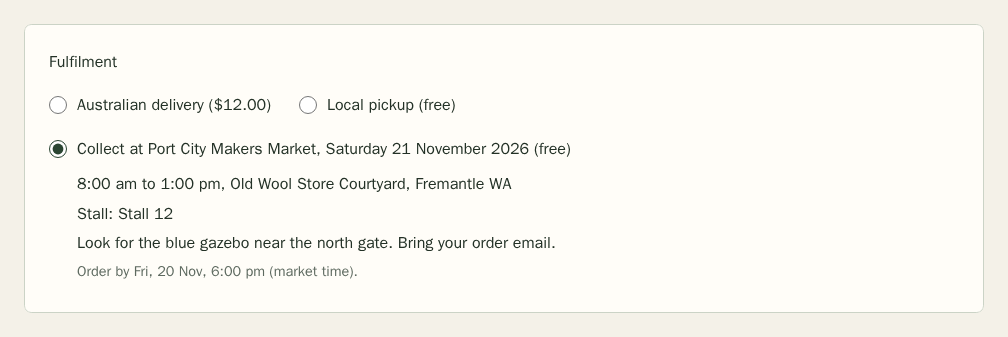
The choice disappears from the cart once orders close. It also disappears if the organiser cancels the date, if you stop attending it, or if you turn local pickup off. The card then tells you why, and you can choose your next date. A cart with a digital download is not offered market collection. Orders that were already paid keep the details the customer was shown; see Orders for packing them and handing them over.
Ask Customers Questions at Checkout
The Checkout Questions card chooses what the cart asks before the customer pays. Tick what you want and choose Save Checkout Questions. The answers appear on the order page in Orders.
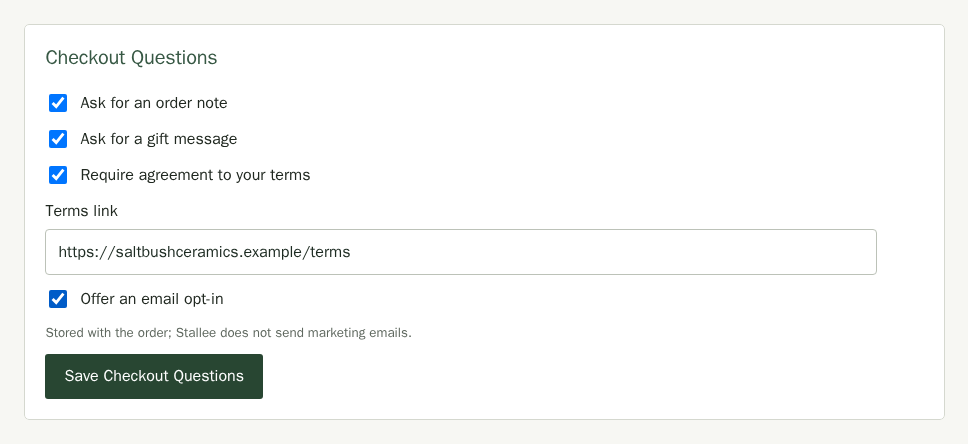
- Ask for an order note adds a box for special requests, such as a safe place to leave the parcel.
- Ask for a gift message adds a message box. The message prints on the packing slip so you can include it in the parcel.
- Require agreement to your terms adds a box the customer must tick, with your Terms link beside it. The link must start with https. The order records when they agreed.
- Offer an email opt-in adds a box the customer can tick to hear from you. The order records their choice; Stallee never sends marketing for you, so keep your own list from the orders that opted in.