The Customers page lists everyone who has bought from your shop online. Each person appears once, however many orders they have placed, with how many orders, what they have spent and when they last bought. Customers come from paid orders; nobody needs an account with your shop. The examples follow Mara Quinn of Saltbush Ceramics.
Find a Customer
- Choose Customers in the menu.
- Type part of a name or email address in Search customers and press Enter.
- Choose a column heading to sort by orders, total spent or last order.
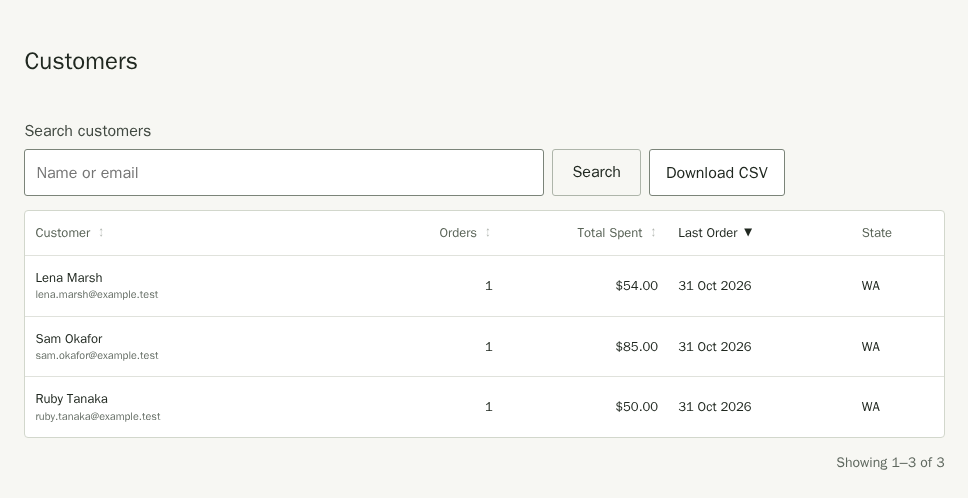
Two orders count as the same customer when they were placed with the same email address. The name and state shown are from their latest order. A cancelled order is not counted in a customer's order count; what they spent still nets out through refunds.
See a Customer's Orders, Address and Messages
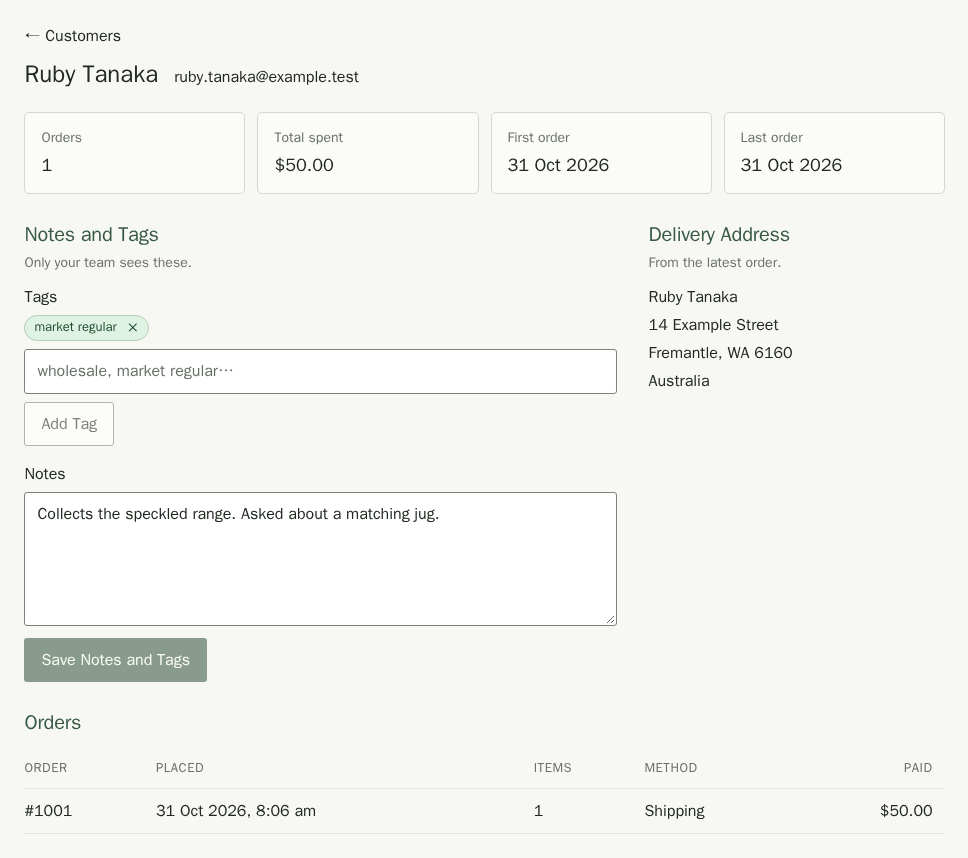
Choose a customer's name to open their page. It shows their orders, with a link to each one, the delivery address from their latest order, and any messages they have sent through your contact form from the same email address. An order's page links back here too. On a phone, swipe across the orders table to see every column.
You can bookmark a customer's page without putting their email address in the page address. Only your shop's owner and admins can open it.
Keep Notes and Tags
- On a customer's page, type a tag such as wholesale or market regular and choose Add Tag. Tags show on the Customers list.
- Write anything your team should know in Notes.
- Choose Save Notes and Tags.
Notes and tags are private to your team. Customers never see them, and they are not included in emails. If you leave the page before saving, Stallee asks first: choose Stay to go back and save, or Discard Changes to leave without them.
Download Your Customers
Choose Download CSV to save every customer with their orders, total spent, first and last order dates and tags as a spreadsheet. Treat the file as personal information: keep it somewhere safe and only use it in ways your customers would expect, such as contacting them about an order.