Team is where you share your shop with the people who help run it. You choose what each person can do, and you can change or remove their access at any time. The examples follow Mara Quinn, who runs Saltbush Ceramics and brings in Ari to help.
Invite Someone
- Open Settings in the menu.
- Under Workspace Menu, choose Team.
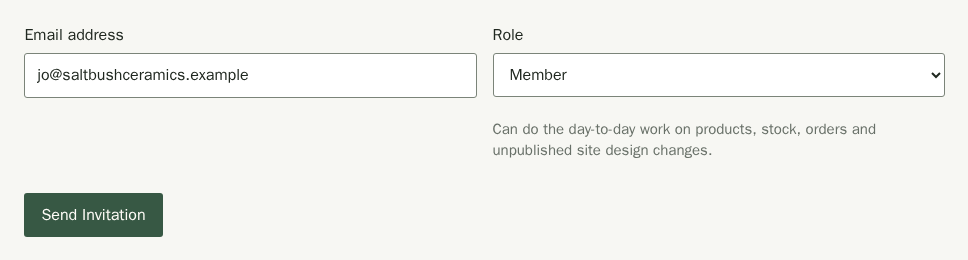
- Under Invite Someone, type their email in Email address.
- Choose a Role. A line under the box explains what that role can do.
- Choose Send Invitation.
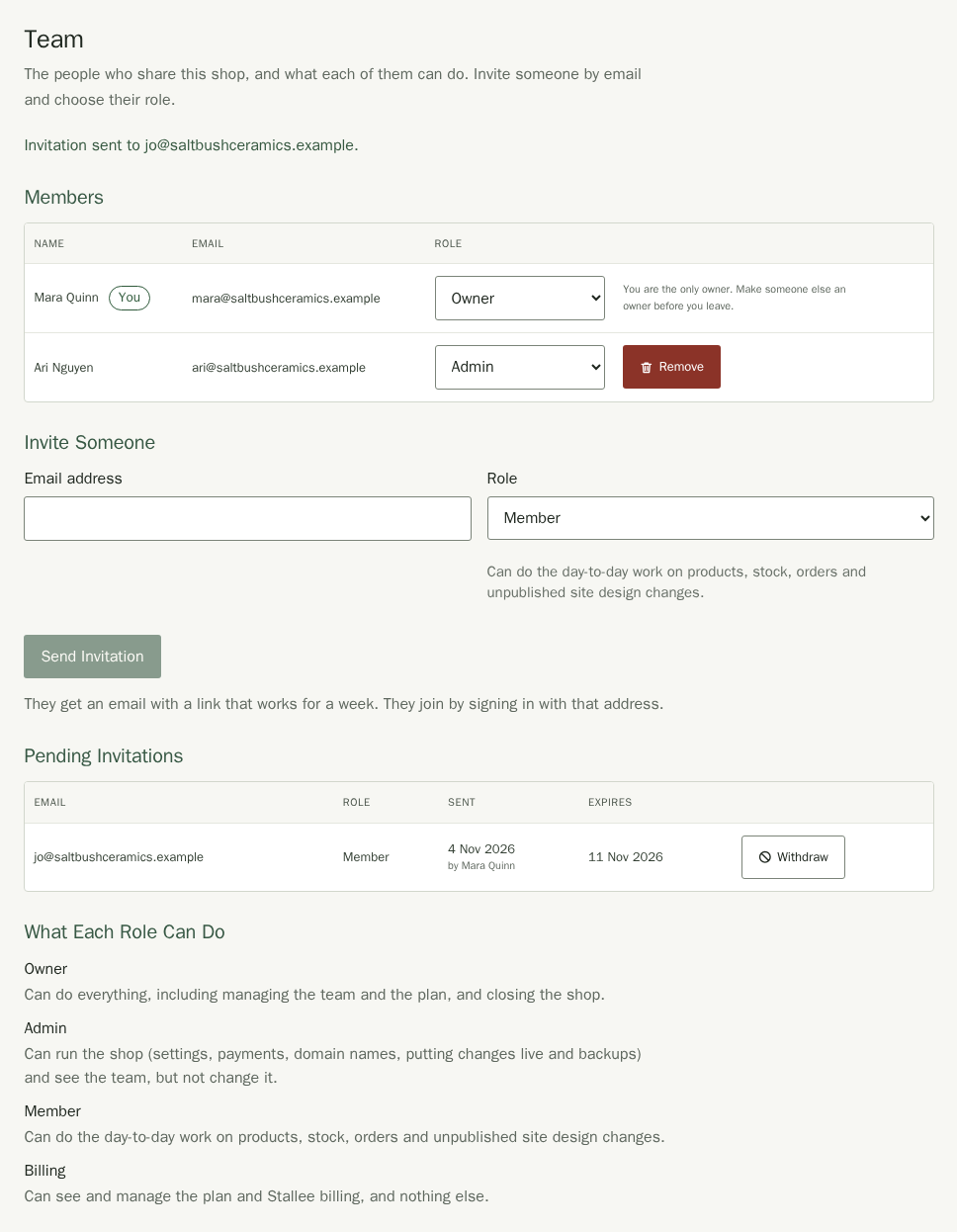
Stallee emails them a link that works for a week. They join by signing in with that same address. Until they do, they appear under Pending Invitations with who sent the invitation and the date it expires. Choose Withdraw if you change your mind or typed the wrong address.
Accept an Invitation
This is what the person you invite does.
- Open the email and choose the link.
- Sign in, or create a free account with the address the invitation was sent to.
- Choose Accept Invitation.
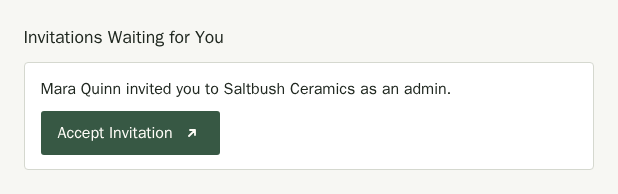
They land on the shop's Home page and see the pages their role allows. A person who belongs to more than one shop can switch between them; see Account and security.
Change Someone's Role
- Under Members, find the person and open the menu in the Role column.
- Choose the new role.
- Read the message and choose Change Role, or Cancel to leave things as they are.
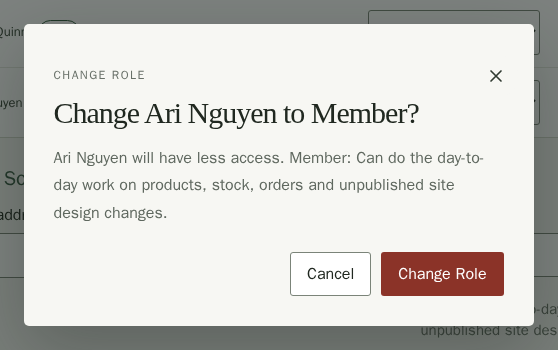
The change takes effect straight away. Making someone an Owner lets them manage the team and billing and close the shop, so only do that for someone you trust completely. Every shop needs at least one owner, so you cannot step down until another owner exists.
Remove Someone or Leave the Shop
- To remove someone, choose Remove in their row. They lose access straight away, and you can invite them again later.
- To leave a shop yourself, choose Leave This Shop in your own row. An owner can invite you back. If you are the only owner, Stallee tells you that you cannot leave yet.
- Confirm in the message that opens.
What Each Role Can Do
- Owner can do everything, including managing the team and the plan, and closing the shop.
- Admin can run the shop (settings, payments, domain names, putting changes live and backups) and see the team, but not change it.
- Member can do the day-to-day work on products, stock, orders and unpublished site design changes. Members do not see Messages, Wholesale, Markets, Website address, Payments, Settings, Team or Backups. Only owners see the closing controls on Account.
- Billing can see and manage the plan and Stallee billing, and nothing else. See Plans and billing.