Policies are the pages customers look for before they buy: how you ship, how returns and refunds work, how you handle their personal information, and your terms of service. Stallee gives you an Australian starter template for each one, then publishes the ones you choose at /policies/shipping, /policies/returns, /policies/privacy and /policies/terms on your site. Only owners and admins can open this page. It is on every plan. This guide follows Mara Quinn setting up the policies for Saltbush Ceramics.
Publish a Policy from a Template
- Open Policies in the menu, under Shop Website.
- Choose Edit beside the policy you want, such as Returns and Refunds.
- Choose Load Starter Template. The text fills in with your shop name and contact email. The contact email is the address in your Messages settings, or in your site's contact section.
- Read the text and change it to suit your shop. The editor fills the policy card and adjusts to your screen. The box works like the editor for your site pages, so you can use headings, lists, bold text and links.
- Fill in anything in square brackets, such as [your state or territory]. A note under the box lists any that are left.
- Tick Published on your site and choose Save Changes. The tick takes effect when you save, not before.
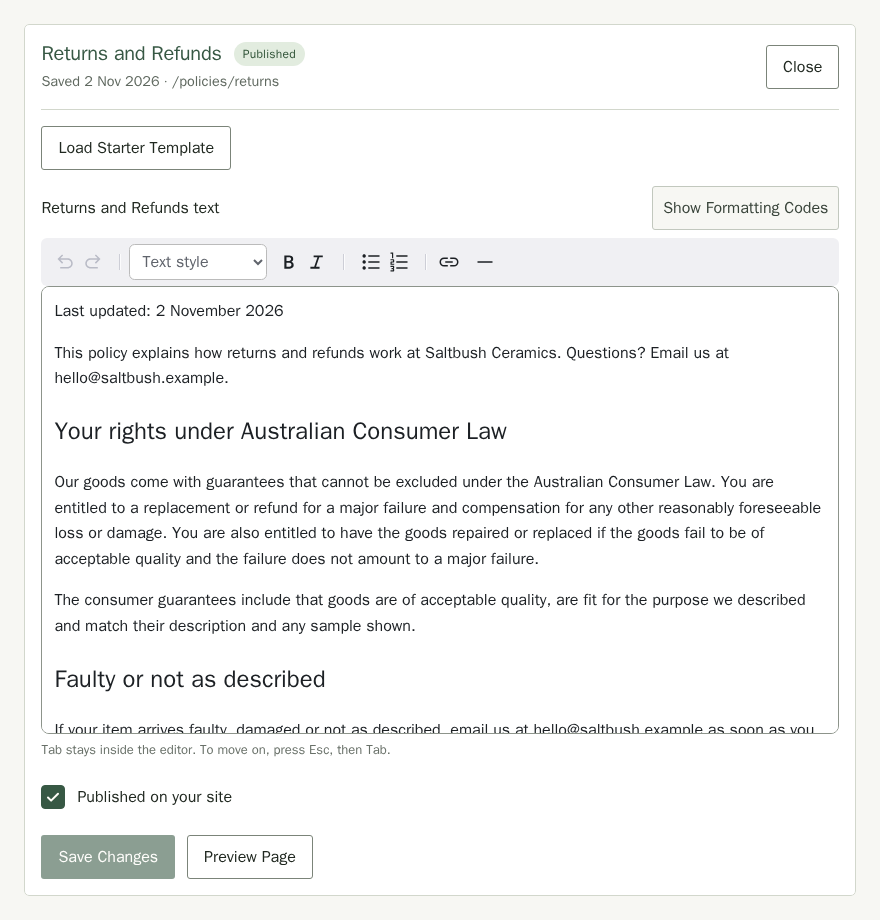
Repeat for the other three policies. Loading a template over text you already wrote asks you first, and nothing changes until you choose Save Changes. While a policy has changes you have not saved, Unsaved changes shows beside the button, and Stallee asks before you leave the page. Choose Stay to go back and save, or Discard Changes to leave without them.
Where Customers See Your Policies
Once a policy is published, customers can find it in these places:
- In the footer of every page on your site.
- On the cart page, under the checkout button. This is the only place the links appear for shops that take payments through Square.
- At the bottom of your order emails, such as the order confirmation and the dispatch email.
- On the Stripe checkout page, under the Pay button, as a line that starts with Our policies.
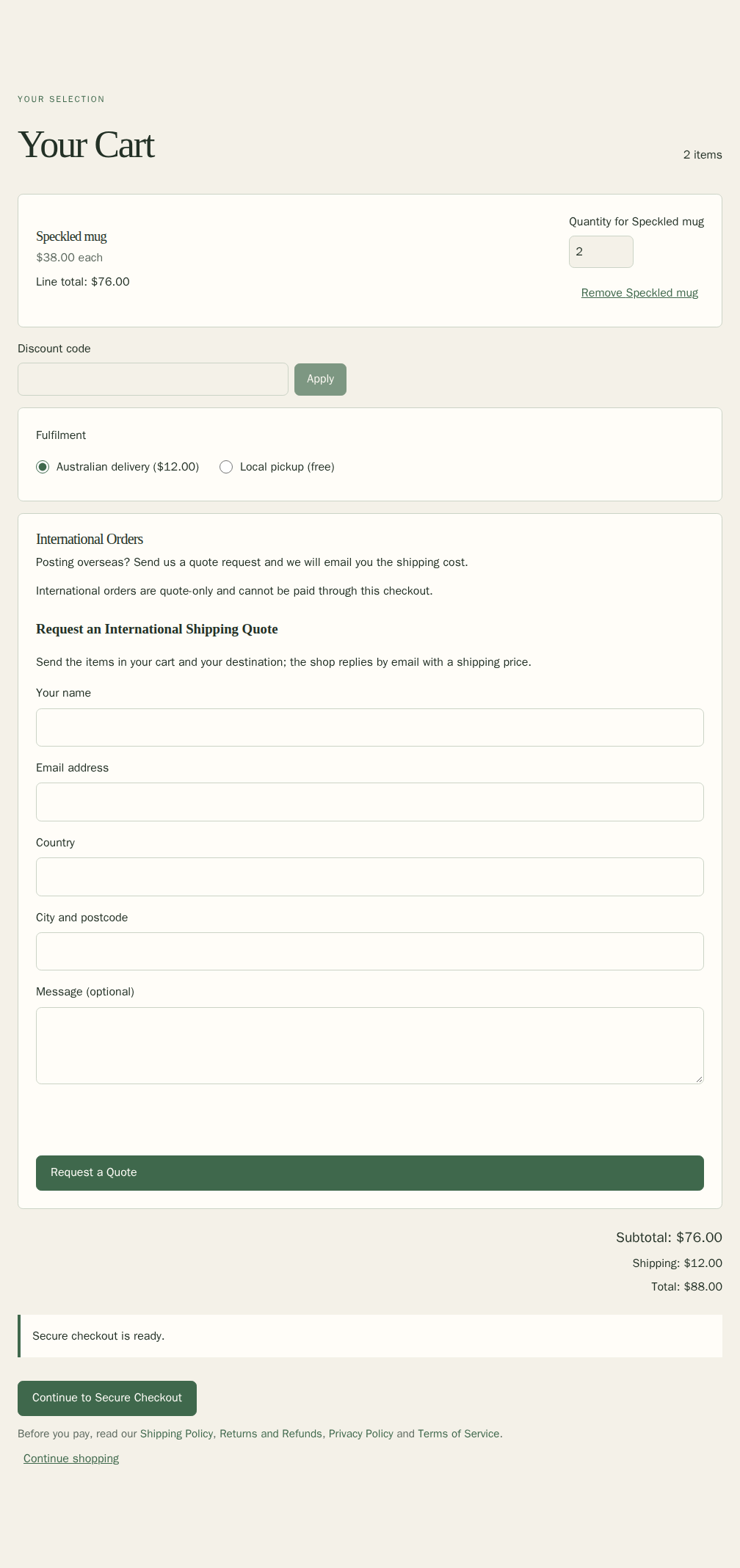
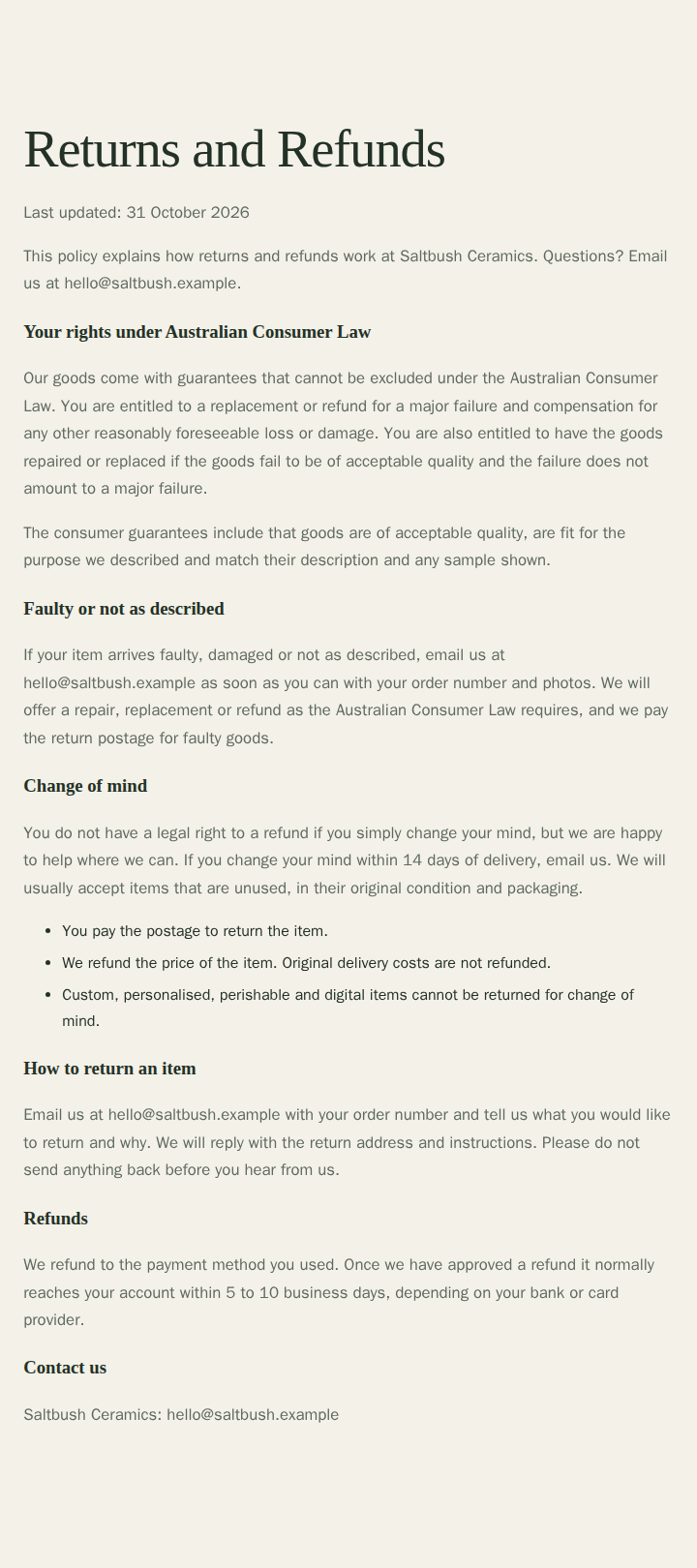
Choose Preview Page beside a published policy to open it on your site. Each page has its own title and description for search engines. Take a policy down by clearing Published on your site and saving; its page then shows Page Not Found and its links disappear everywhere.
Keep Your Policies Up to Date
Open a policy, change the text and choose Save Changes. A published policy changes on your site straight away. The first line of each template says when it was last updated, so change that date when you edit the wording. If you set a link to your terms under Online Sales for the checkout tick box, that link is separate; point it at /policies/terms on your site if you like.