Your organiser workspace is where you run your markets on Stallee: their details and dates, stallholders, floorplans and team. This guide follows Jo Mitchell, who runs Harbourside Markets, around the workspace.
Find Your Way Around
Go to markets.stallee.xyz and choose Organiser Sign In at the top of the page. Once you are signed in, that link reads Your Markets and brings you back here. The menu on the left lists every part of the workspace, and Home shows your markets with a button for each part.
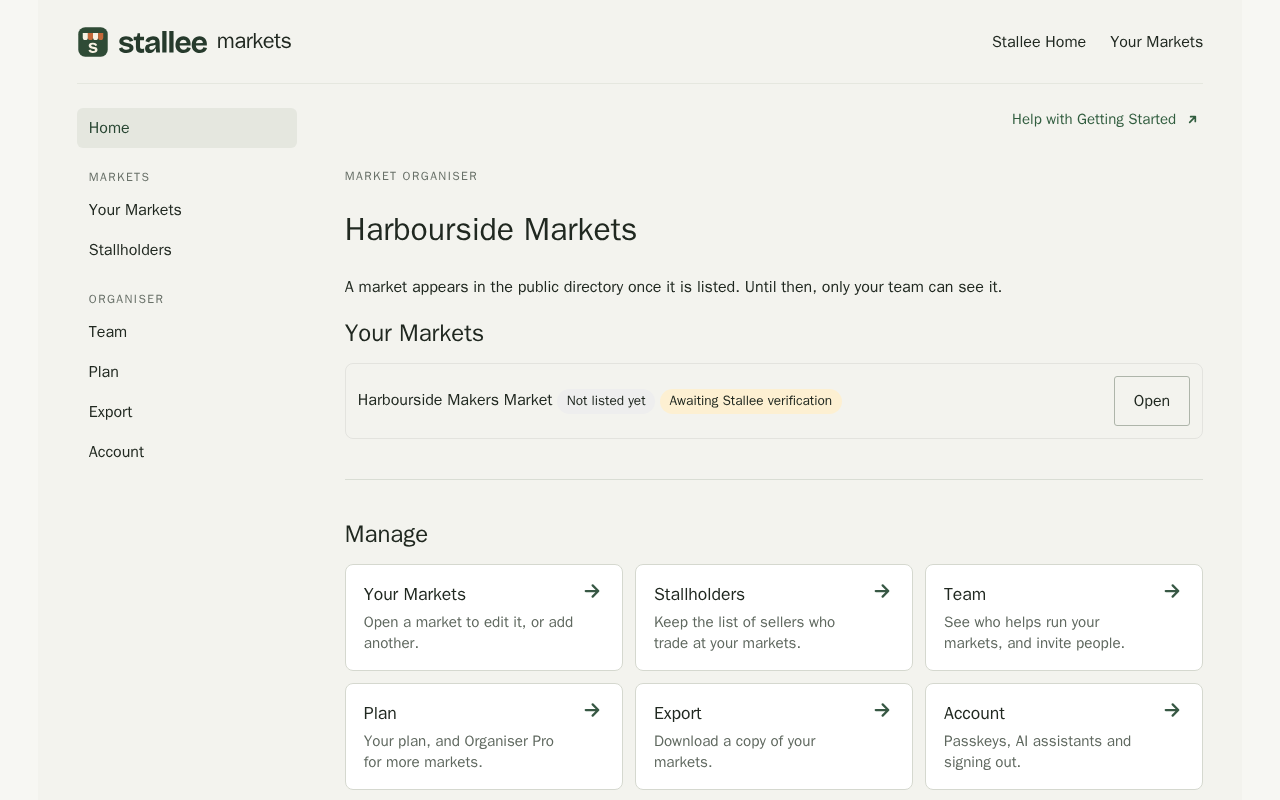
- Your Markets lists your markets, lets you create a market and shows any market you have asked to claim.
- Stallholders keeps the list of sellers who trade at your markets. See Market stallholders.
- Team shows who helps run your markets. See Market organiser team.
- Plan shows your organiser plan. See Organiser plans and Organiser Pro.
- Export downloads a copy of your markets.
- Account is where you add a passkey, connect an AI assistant and sign out.
On a phone, the menu folds away. Choose Menu at the top of the page to open it.
Create a Market
- Choose Your Markets.
- Under Create a Market, type the market's name and choose Create Market.
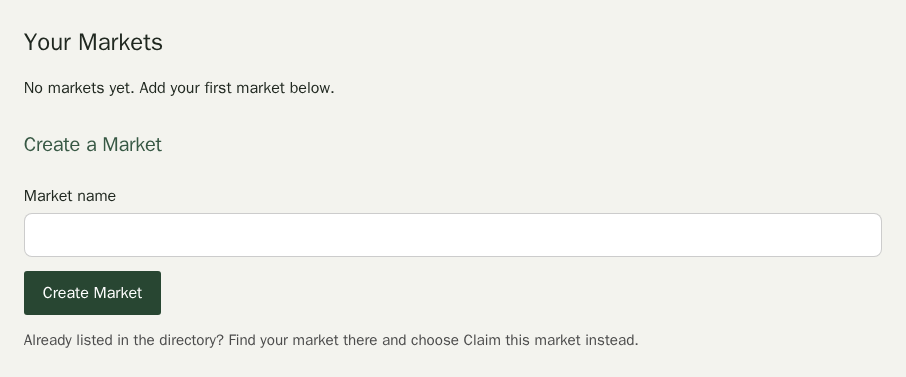
If your market already has an unclaimed listing, open its page in the directory. An organiser owner can choose Claim This Market. If you are an editor, ask an owner to submit the claim.
Work on a Market
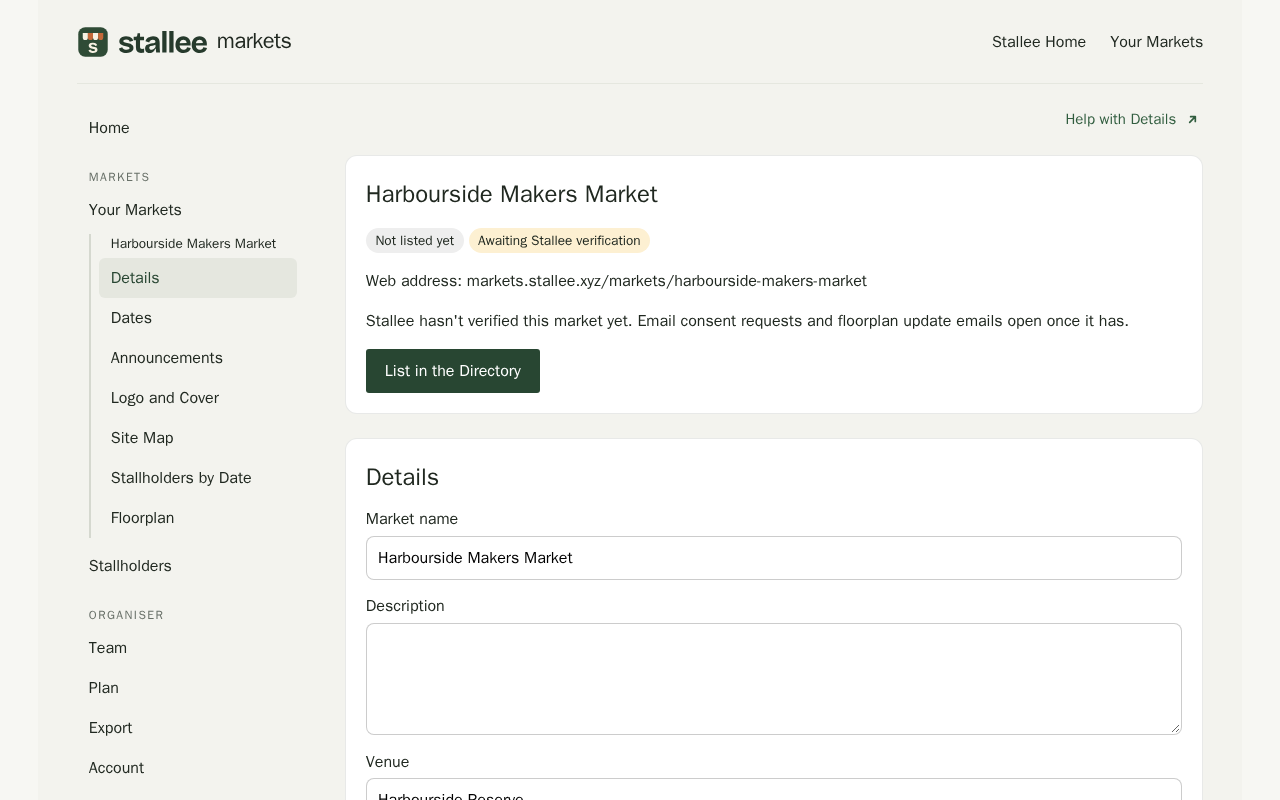
Choose Edit next to a market. Its pages appear in the menu under the market's name, and each one opens on its own:
- Details: name, description, venue, address and stall information.
- Dates: how the market runs, its dates and the upcoming dates.
- Announcements: news emailed to sellers and shown on your market page.
- Logo and Cover and Site Map: the pictures on your market page.
- Stallholders by Date and Floorplan: who is trading on each date and where. See Market floorplans.
Fill in the Address
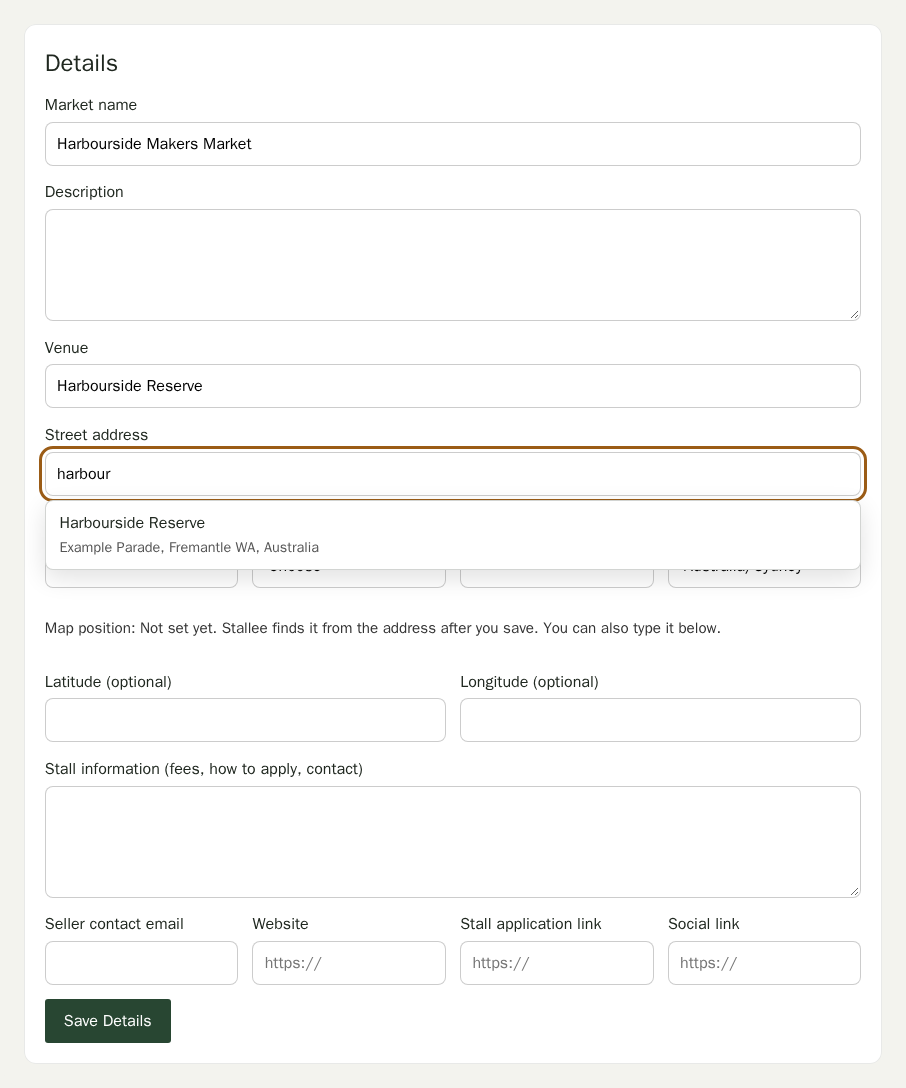
On Details, start typing the venue's name or its street address in Street address. Stallee suggests matching places as you type. Choose one to fill in the street address, suburb, state, postcode and time zone, then check them and choose Save Details. You can always type the address yourself instead.
Set the Dates
- Choose Dates under the market's name.
- Under How Does This Market Run?, choose the answer that fits:
- On a regular schedule for a market that runs every week, every fortnight or every month. Choose Add a Repeat and set the day, the date it starts from and the opening and closing times. Use Add Date Change for a cancelled day, different hours or an extra day.
- One-off event for a market that runs once. Set its date and its opening and closing times. For an event over a few days in a row, also set Last day.
- On set dates for a market that runs a few times a year, or once a year, on dates you choose. Choose Add Event Dates for each one.
- Dates not set yet for a new market, or one whose next dates you do not know. You can tick the months it usually runs and add a short note about dates.
- Choose Save Dates. Upcoming Dates below the form shows what visitors will see.
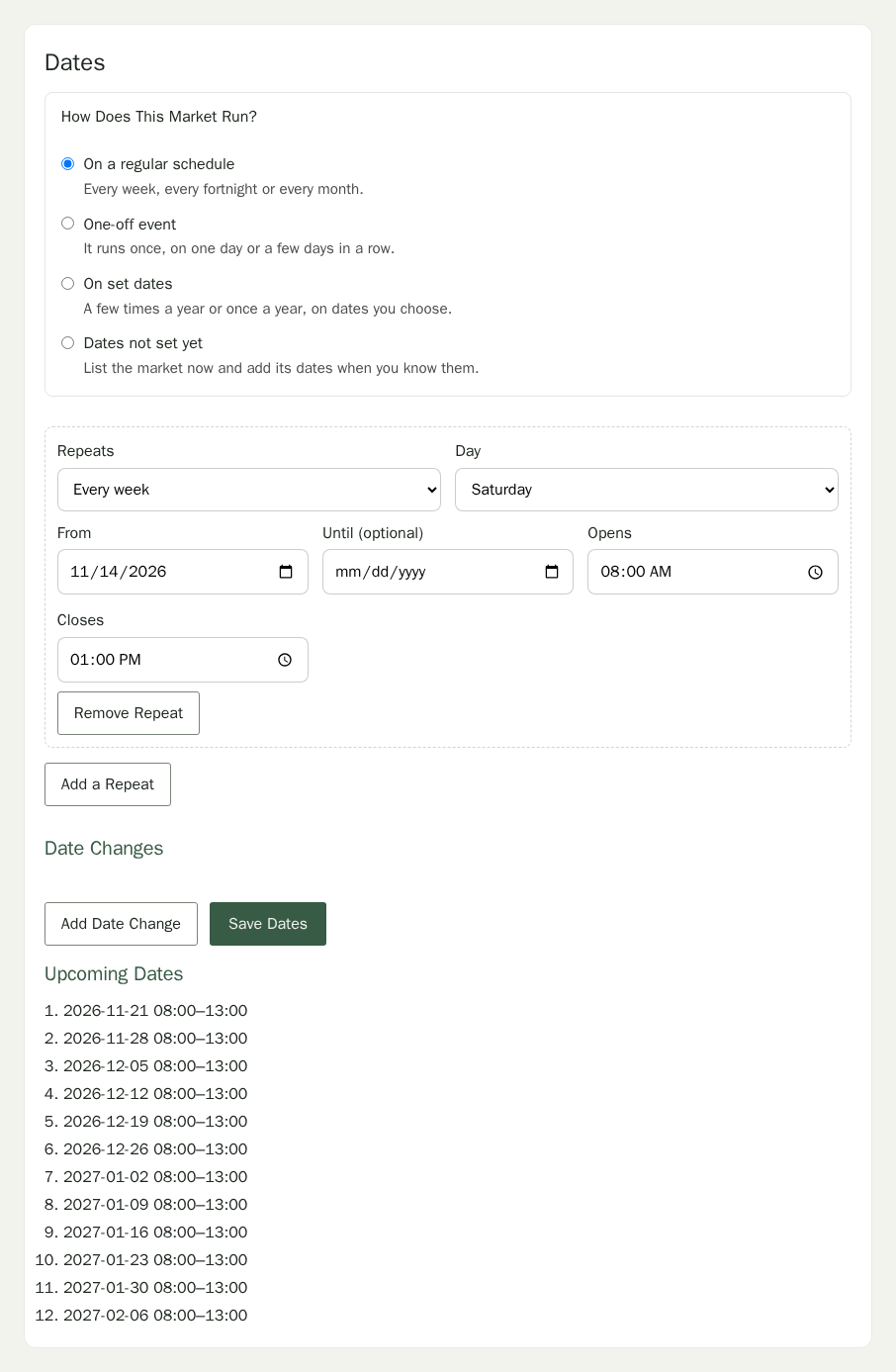
A market with no dates still appears in the directory, marked Dates to be announced. When you save the first dates of a market that runs on set dates, sellers who attend it and asked for emails get one Dates announced email.
The top of every market page shows whether the market is listed. When its details and dates are ready, an owner chooses List in the Directory to show it to the public.
Visitors to markets.stallee.xyz can see search results as a List or as a Calendar of the month. On the calendar, each of your dates appears on its day. A date you cancel stays on its day, crossed out and marked Cancelled, and a market with no dates yet appears under Dates to Be Announced.