Your journal is a place for dated stories, studio news and updates. It is available on every plan and does not count towards your page limit. This guide follows Mara Quinn writing about a new batch of Saltbush Ceramics mugs.
Name Your Journal
- Open Site Design under Shop website, then choose Site Settings.
- Choose Announcement and Journal under Jump to.
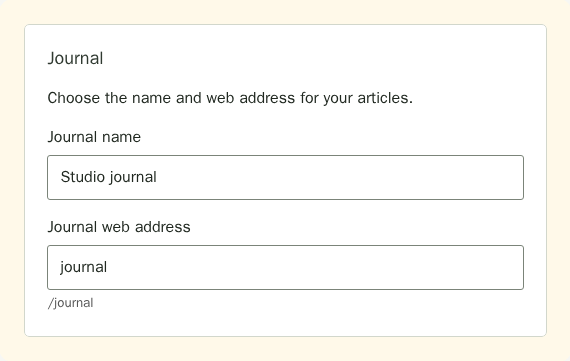
- Under Journal, enter the Journal name customers will see and the Journal web address.
- Wait for Changes saved in the corner. The journal details become public when you publish your site.
Write an Article
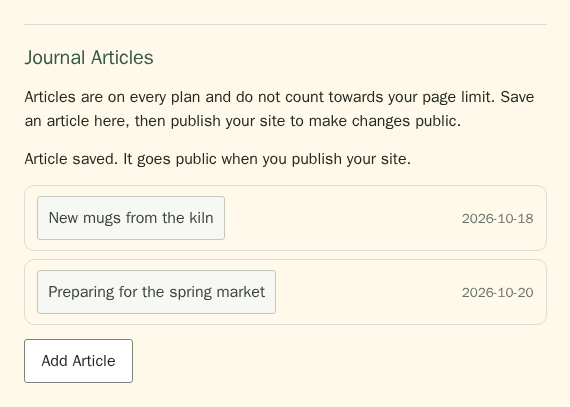
- In Site Settings, under Journal Articles in Announcement and Journal, choose Add Article.
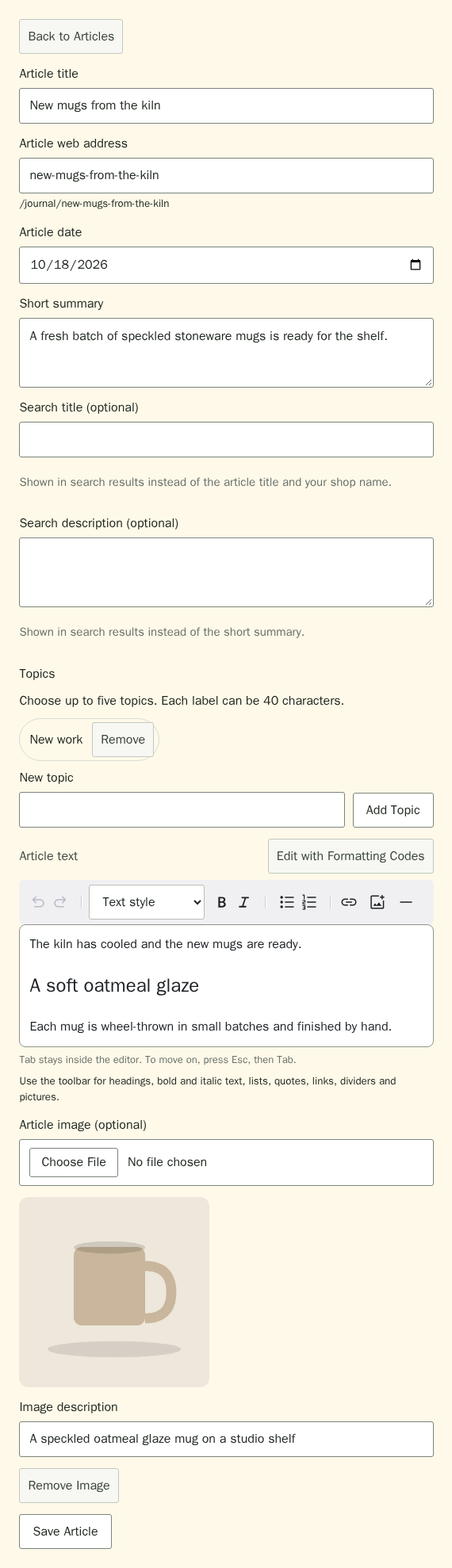
- Enter an Article title and an Article web address. The address appears after the journal address, such as
/journal/new-mugs. - Choose the Article date. Customers see the newest dated articles first.
- Add a Short summary. Customers see it in the journal and RSS feed.
- If you want search results to say something different, fill in Search title (optional) and Search description (optional). Left blank, search results use the article title with your shop name and the short summary.
- Under Topics, enter New work in New topic.
- Choose Add Topic. You can add up to five topics per article. Each label can be up to 40 characters long.
- Write the Article text. Format it with the toolbar above it, as you would the text on a page: headings, bold and italic words, lists, quotes, links, dividers and pictures. See Site Design for editing page content, or Site Pages for managing pages.
- Add an Article image (optional), or put a picture within the text with Add a Picture in the toolbar. Write an Image description for the article image. People who use a screen reader hear it, and it shows if the image cannot load.
- Choose Save Article. The article stays private until you publish your site.
Publish Your Changes
Saving an article or changing its topics keeps those changes private. To publish a new article, an update or a removal, choose Publish Site and confirm. Until then, customers see the last version you published, including its topics.
Help Customers Find Your Journal
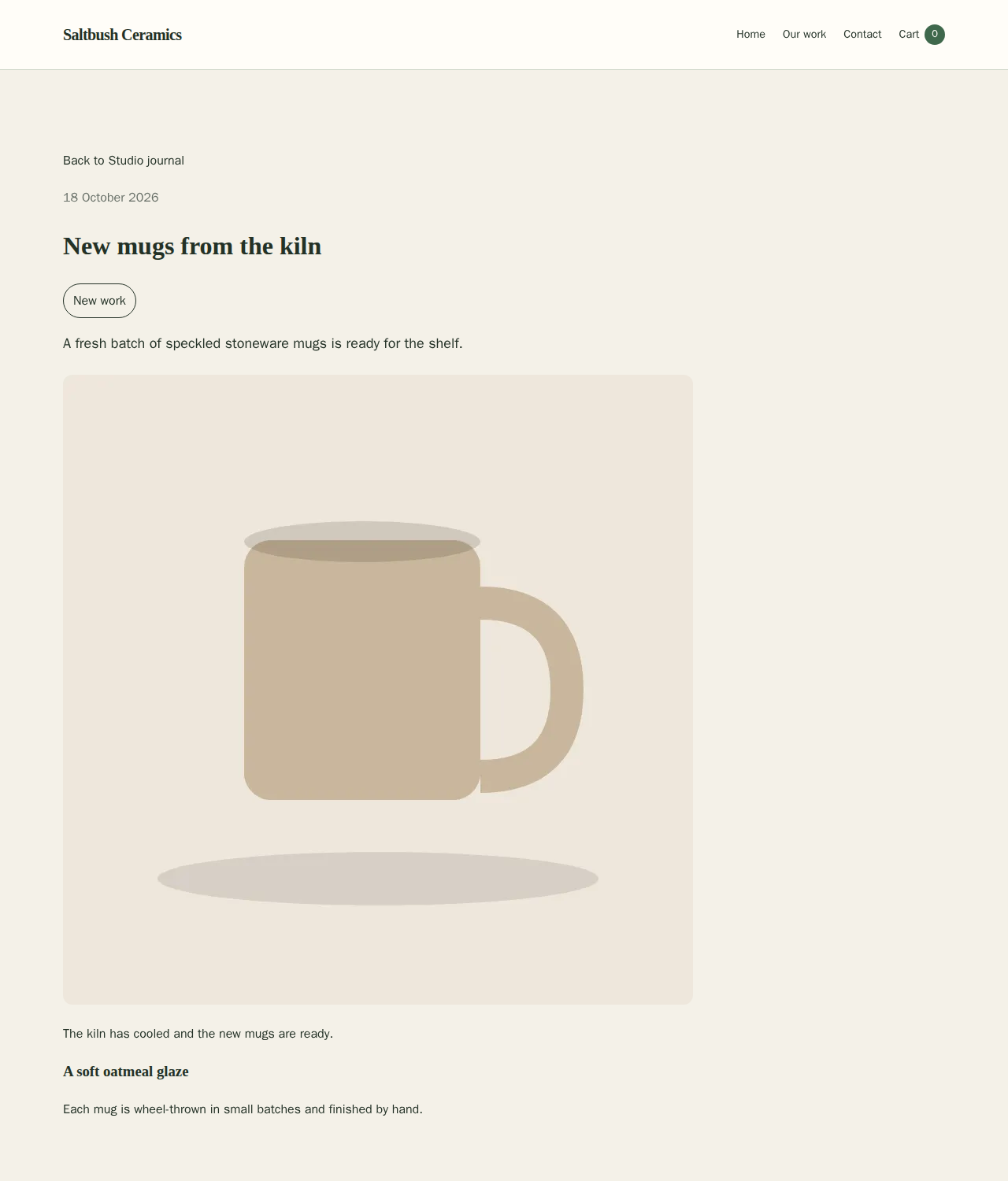
Your journal lives at the address shown in its settings. Add that address to your site's menu links so customers can find it from every page. Each article has its own web address.
For help with pages and your site's navigation, read the Site Pages guide.
Browse by Topic
- On your journal, choose a topic to see articles with that label.
- If your topic is not shown, choose More Topics to show more labels.
- Choose All articles to return to the full journal. A topic link on an article also opens the matching list.
- When there are more articles, choose More Articles to show the next group.
Topic labels match exactly, including capital letters: New work and new work are different topics.
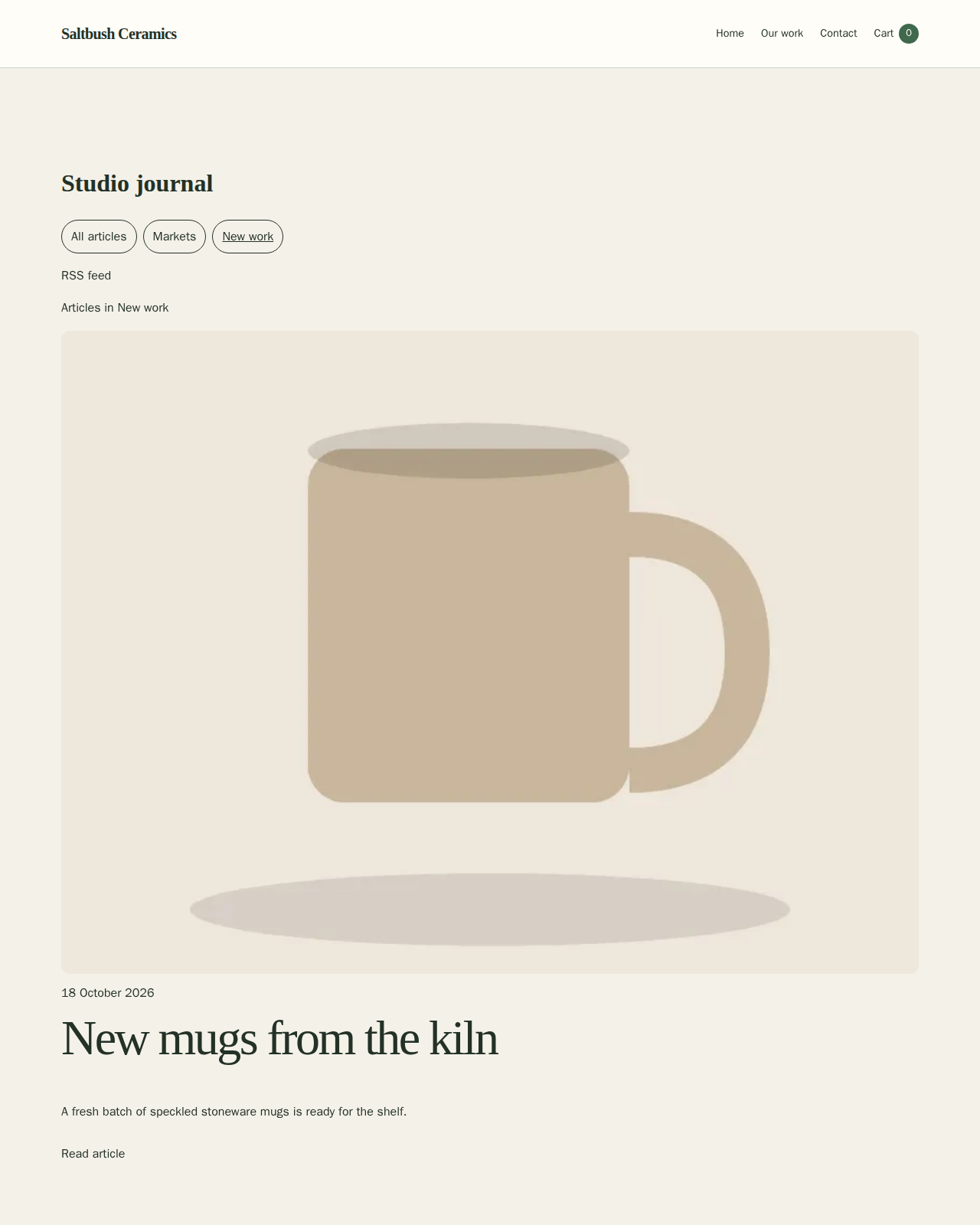
Offer an RSS Feed
- On your journal, choose RSS feed to open the address your customers can add to a feed reader.
The feed shows summaries and links for your 20 newest published articles, without article photos or full stories. It does not send emails or campaigns. The feed always covers the full journal, even when a customer is viewing one topic.