Publishing a floorplan makes the stall layout visible to visitors and stallholders at a stable link. You choose exactly which business names and links are public; notes, contact emails, and organiser stock/supply commitments stay private. This guide follows Mara Quinn, organiser of the Saltbush Weekend Market.
Choose What to Make Public
Save the floorplan for the date you want to publish. Scroll past the canvas to the Publish this event’s floorplan section. Each stallholder who has a space allocation appears with a checkbox.
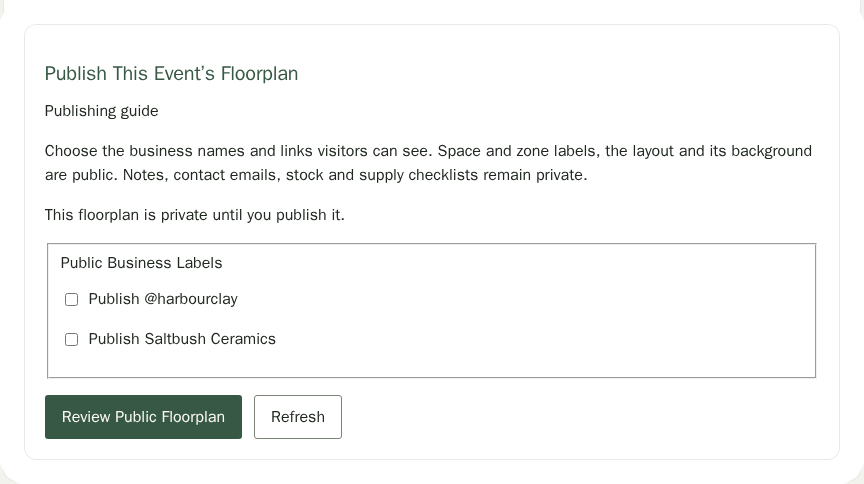
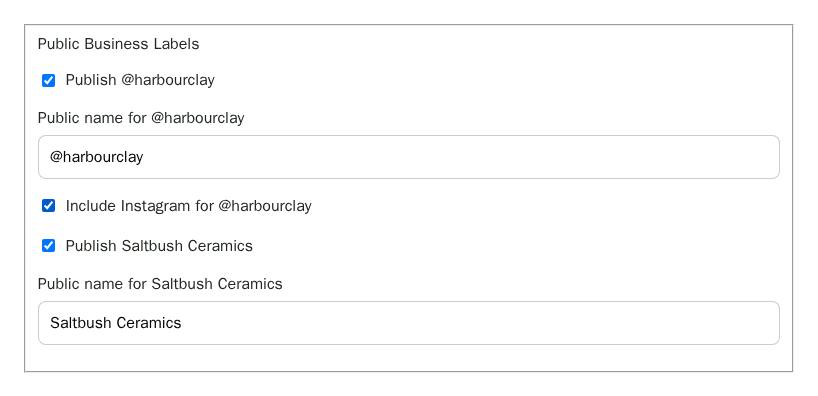
- Tick Publish [name] for each stallholder whose details you want to include.
- Edit the Public name field if you want to show a different label than the default.
- If the stallholder has an Instagram handle or website, tick Include Instagram or Include website to add the link.
Space and zone labels, the layout image, and any background map are always public in the published plan. Only the explicit selections above are shared.
Review the Public Floorplan
Choose Review Public Floorplan to see a preview of the public version. The preview shows the layout diagram and the stallholder list that will appear on the public page; the published page and its image and PDF downloads are generated when you publish, so their styling can differ slightly from this preview. No email is sent and nothing is published yet.
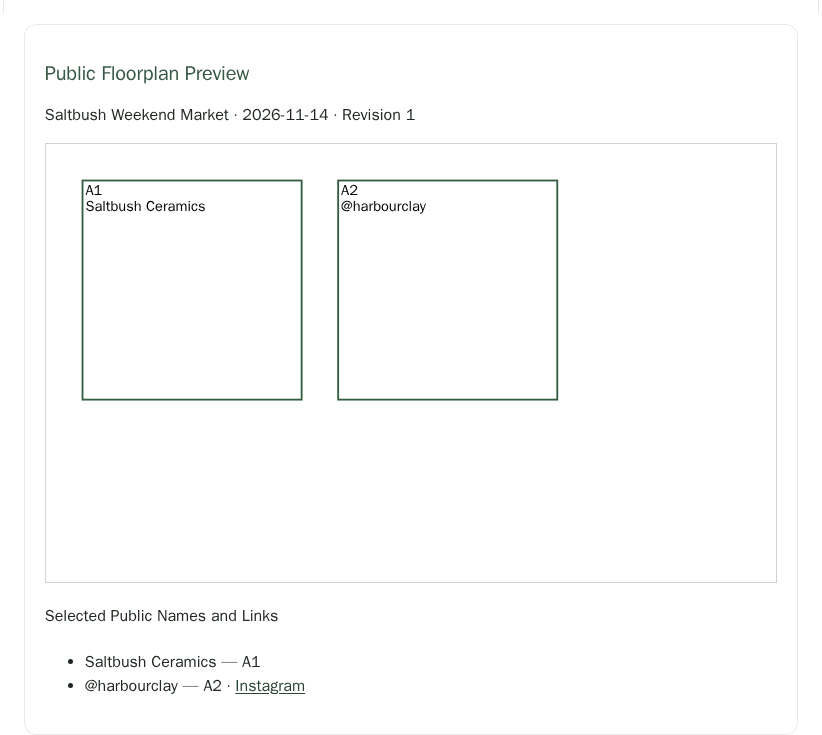
If the preview looks wrong — a name is missing or a link is incorrect — change the selections and choose Review again before publishing.
Publish and Notify Stallholders
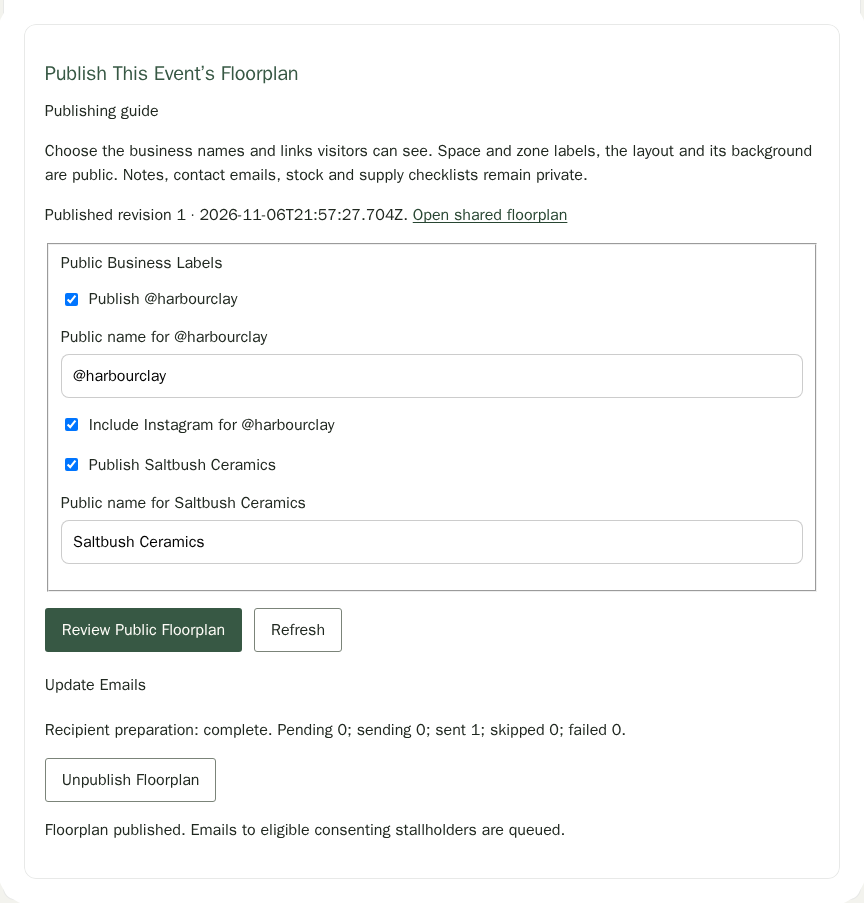
Once you are satisfied with the preview, choose Publish and Email Consenting Stallholders. This creates an immutable revision and queues an email to every stallholder on this date who has given explicit consent to receive floorplan updates.
The Shared Floorplan Page
The shared link opens a page that works in any browser without JavaScript or a Stallee account. It shows the layout image, a list of stallholders and their spaces, a link that opens the layout image (an SVG that scales to your screen) and a link that downloads the PDF. The URL is stable — share it in announcements, emails, or on your market’s page.
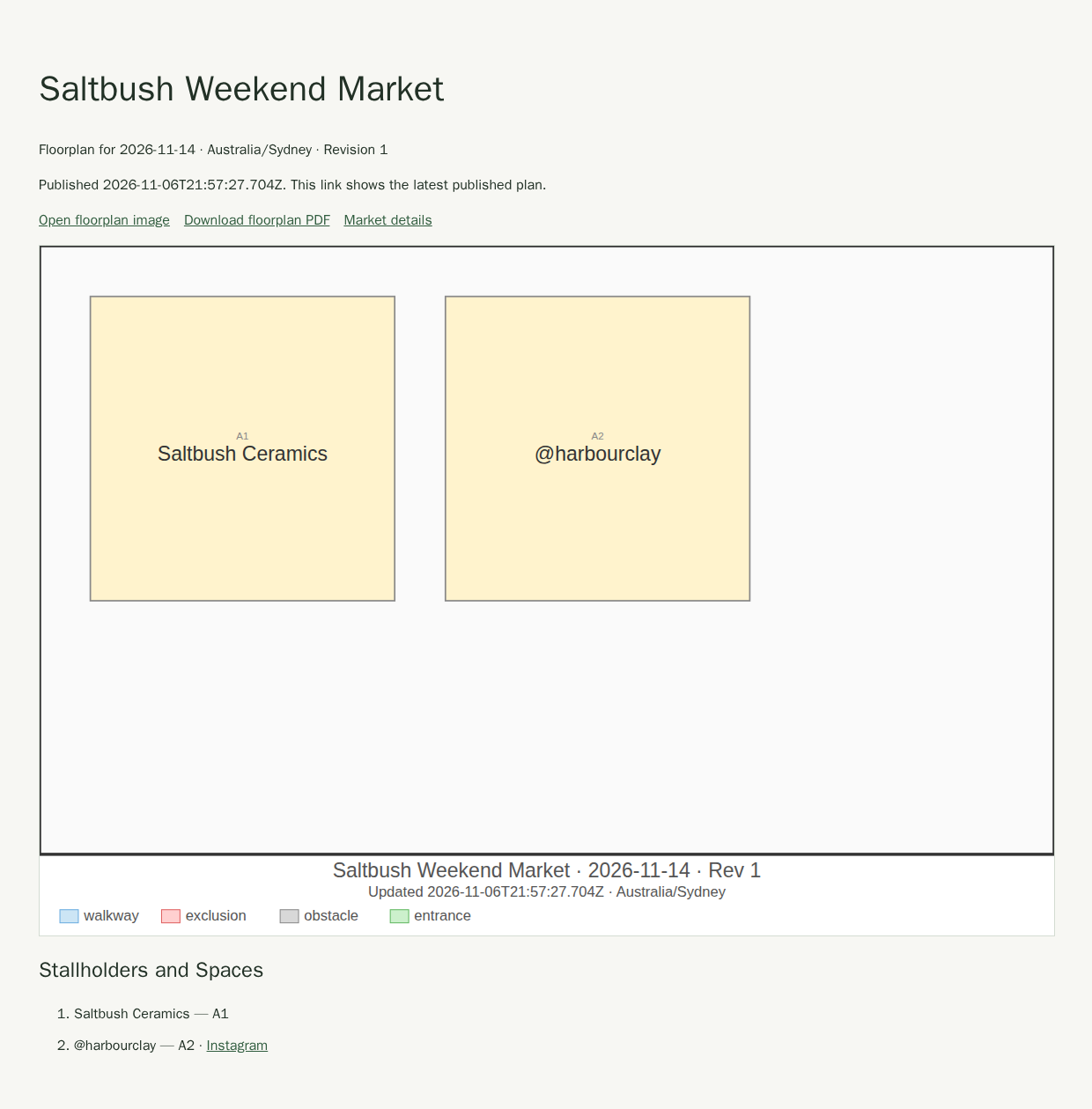
The link always shows the most recently published revision. If you republish after making changes, the same URL updates automatically.
Update the Published Plan
A page that a visitor loaded before you republished still shows its layout image and PDF from the new revision: the old image and PDF links forward to the current ones. After you unpublish, those links stop working.
After publishing, saving the floorplan creates a new private draft. The shared link continues to show the last published revision until you publish again. When the draft has unsaved changes, the publish controls are disabled — save first, then choose Review Public Floorplan and Publish to update the public version.
If a Stallholder Withdraws After You Publish
The published plan is a fixed snapshot, so withdrawing a stallholder does not remove them from it. When the published revision names someone who has since been withdrawn, the panel shows a warning such as “The published plan still lists Saltbush Ceramics, who has been withdrawn. Republish or unpublish to remove them.” It also warns when a business’s Instagram or website link that the plan shows has changed. Save the floorplan, review it, and republish to remove or update them, or choose Unpublish Floorplan.
If the Panel Says Details Changed
Editing a stallholder’s details or notes, or a stallholder confirming email consent, changes what the publication was reviewed against. If you publish and the panel says it was refreshed, review the public floorplan again and publish. You can also choose Refresh at any time to reload the latest details and email delivery counts; your tick boxes for stalls still on the plan are kept.
Unpublish the Floorplan
To remove the shared plan, choose Unpublish Floorplan, then Confirm Unpublish, which appears next to the button. The public page and its download links return a “not available” message immediately. Copies already downloaded or saved by visitors cannot be recalled.
If the event occurrence is cancelled, Stallee removes the shared plan automatically. Rescheduling a cancelled date does not republish the floorplan — open the publication panel and publish again when you are ready.

Stop Floorplan Update Emails
Each update email contains an unsubscribe link. The stallholder can open that link and choose Stop Emails for This Event to opt out. No Stallee account is required. Opening the link alone does not change their preference — they must click the button.
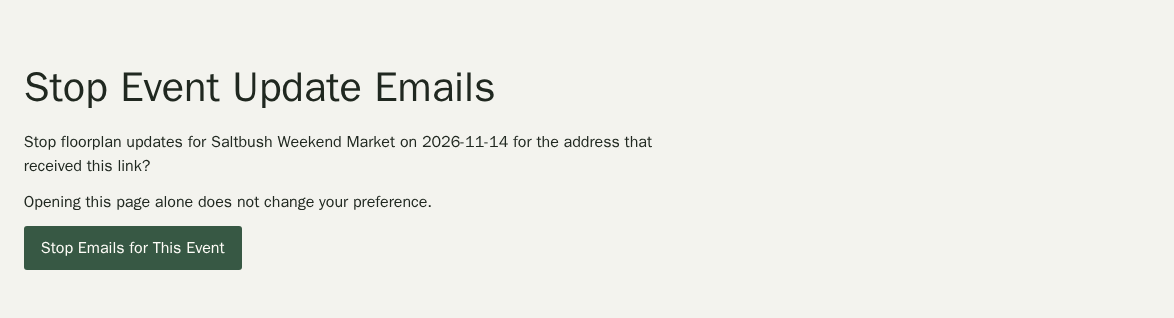
The preference applies to this event date only. If a stallholder attends a different date and you request new consent for that date, it is independent.