A backup is a file with a copy of your shop's data. Download one before you make big changes, keep one somewhere safe, or restore one if something goes wrong. The examples follow Mara Quinn, who runs Saltbush Ceramics.
Download a Backup
- Open Settings in the menu.
- Under Workspace Menu, choose Backups.
- Choose Download Backup for a complete copy of your shop in one file. This is the file you use to restore.
- Or choose Download as Spreadsheets for the same information as spreadsheets you can open in Excel or Numbers.
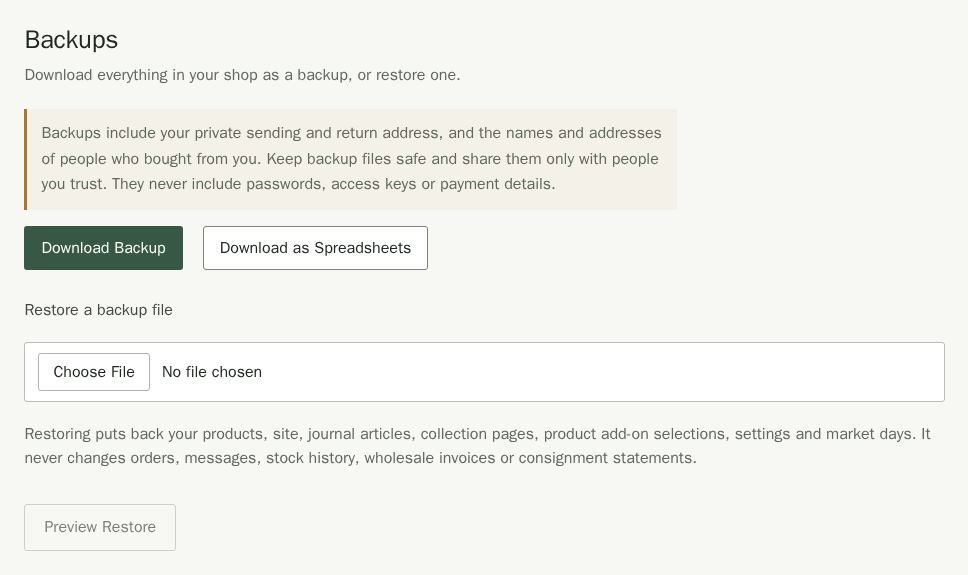
If a download fails, stay on Backups and choose Try Again. Stallee retries the same format and keeps any file you selected for a restore.
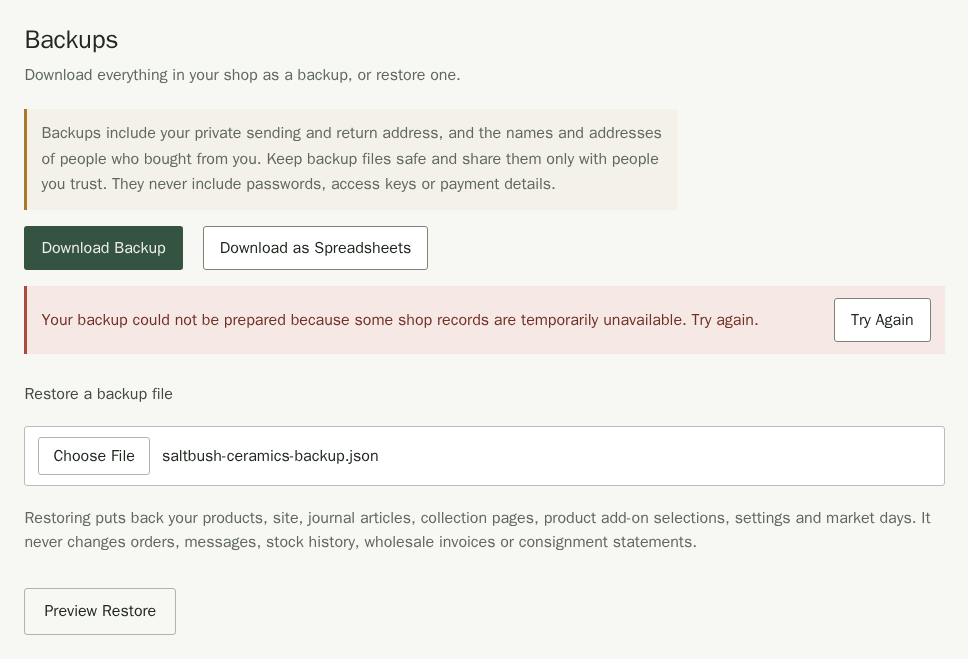
A version 11 backup includes your products, site, journal articles, collection pages, product add-on selections, settings and market days. It also saves your workspace menu choices. It keeps draft articles and collection pages separate from published ones, including their collection rules. It also holds your private sending and return address, and the names and addresses of the people who bought from you. It never includes passwords, access keys or payment details. Keep the file somewhere secure and share it only with people you trust. The spreadsheet download includes separate collection and product add-on sheets; existing product collection labels keep their original meaning.
Restore a Backup
Restoring puts your products, site, settings and eligible market days back from the file. Attendance reconnects only to markets that are currently published. For selected dates, Stallee keeps dates that still exist and are not cancelled; it skips markets and dates that are no longer available. Products that are not in the backup stay as they are. The journal is replaced completely: articles added after the backup are removed, and a backup made before journals were available clears the journal. When the file contains a site to restore, its collection pages replace your current draft and published collection pages, including removing pages added after the backup. If the file has no site to restore, your collection pages stay as they are. Add-on selections are always replaced, so selections added after the backup are removed. Restored private collection drafts stay private; published pages keep the published version in the file. A version 10 backup also restores your workspace menu choices, or returns to defaults if none were saved. Older versions 1–9 are accepted and leave your workspace menu unchanged. Versions 1–6 clear all add-on selections. They also clear collection pages when the file contains a site to restore; otherwise collection pages stay unchanged. Preview Restore explains what will be replaced or cleared before you continue. Orders, messages, stock history, wholesale invoices and consignment statements are in the file as records for your own copy; restoring never changes them. Image files, including product photos and collection covers, and your own domain names are not restored. Keep your original image files so you can upload them again if needed. The preview tells you how many images and domain names are skipped.
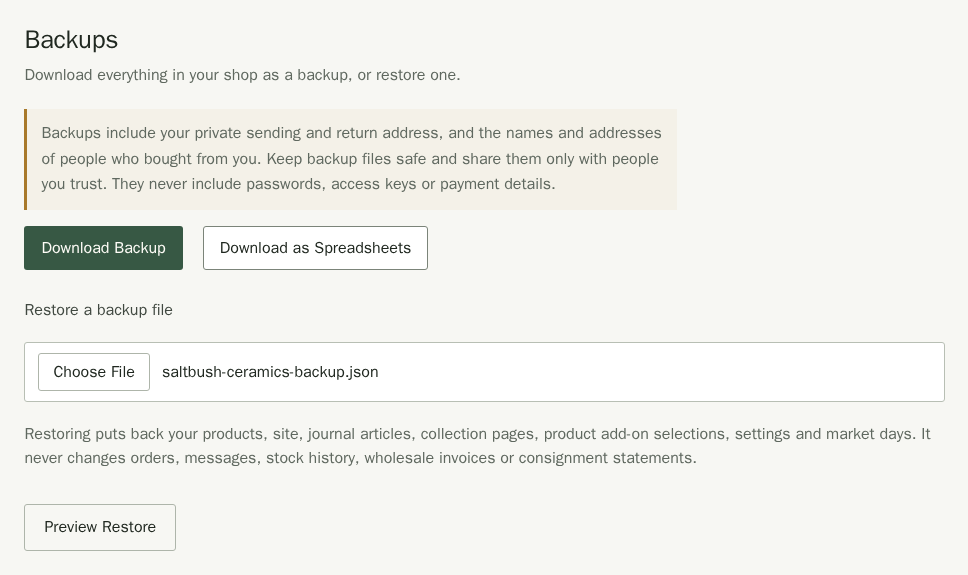
- Under Restore a backup file, choose a backup file you downloaded earlier. It must be a backup file (.json) no larger than 5 MB. Products, journals and collection pages share this limit; an export that exceeds it is refused rather than leaving data out.
- Choose Preview Restore. Nothing changes yet.
- Read Review Before Restoring. It says how many products will be created or updated, whether your site and sending address will be replaced, how many draft and published collection pages and add-on selections will replace the current ones, and how your workspace menu choices will change. It also says how many images and domain names will not be restored. If Stallee lists product codes that other products in this shop already use, fix them first by editing the codes in the backup file, or restore into an empty shop. You cannot restore until they are fixed.
- Choose Email Confirmation Link. Stallee emails you a link that works once and expires in 10 minutes, so a restore cannot happen without you.
- Open the link in the email. You return to Backups, which says the email is confirmed. Choose the same file again and choose Preview Restore.
- Now Confirm Restore is available. Choose it to apply the backup. Your shop reloads.
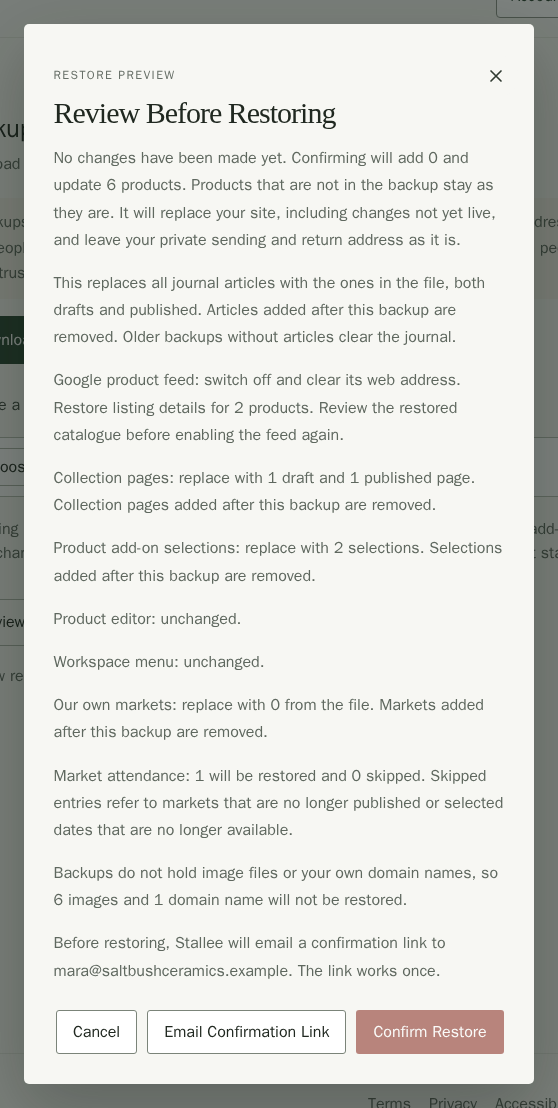
To stop at any point, choose Cancel or close the message. Stallee says Restore cancelled. No changes were made.