Discounts take money off an order. You can give customers a code to type in their cart, or let a discount apply on its own when a cart qualifies. You manage them on the Discounts page. The examples follow Mara Quinn, who runs Saltbush Ceramics.
Create a Discount Code
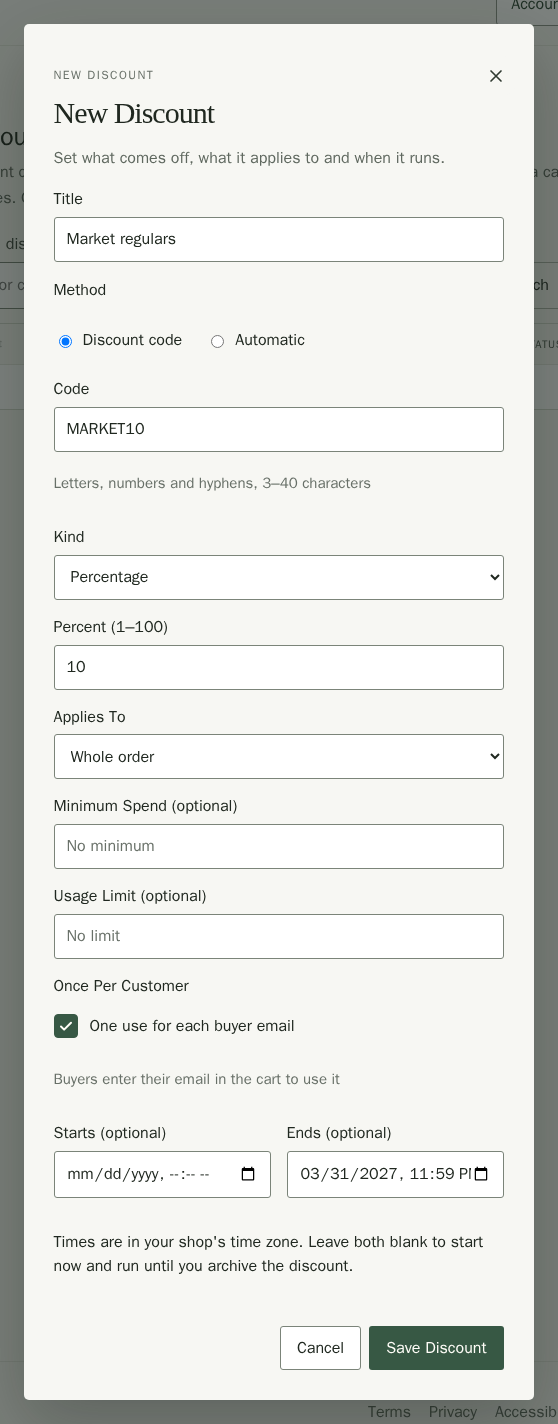
Mara wants to thank her market regulars with 10% off, once for each customer, until the end of summer.
- Choose Discounts in the menu, then New Discount.
- Type a Title. Only you see it, in your list.
- Under Method, choose Discount code and type the Code customers will enter, such as MARKET10. Use 3 to 40 letters, numbers or hyphens.
- Choose the Kind: Percentage (type the Percent, from 1 to 100), Fixed amount (type the Amount in your shop's currency),Free shipping or Buy X get Y, which has its own steps below.
- Under Applies To, choose Whole order, A collection (pick it from the collections your products are in) or One product (pick it from your published products). Free shipping always applies to the whole order.
- Optionally set a Minimum Spend, and a Usage Limit, the total number of orders that can use the discount.
- Tick Once Per Customer so each buyer can use the code one time. Buyers enter their email in the cart so Stallee can tell. Stallee matches the email entered in the cart. On Square, the buyer can still change the email on the payment page, so the match is only as strong as the email they gave in the cart.
- Set when it runs with Starts and Ends. Both are optional and use your shop's time zone. Leave both blank to start now and run until you archive the discount.
- Choose Save Discount.
Offer Free Shipping Automatically
An automatic discount needs no code. Mara offers free postage on orders over $80.
- Choose New Discount and type a Title, such as Free postage over $80.
- Under Method, choose Automatic.
- Set Kind to Free shipping and type 80.00 as the Minimum Spend.
- Choose Save Discount.
When a cart qualifies, the discount applies and the cart shows Free shipping.
Offer Buy X Get Y
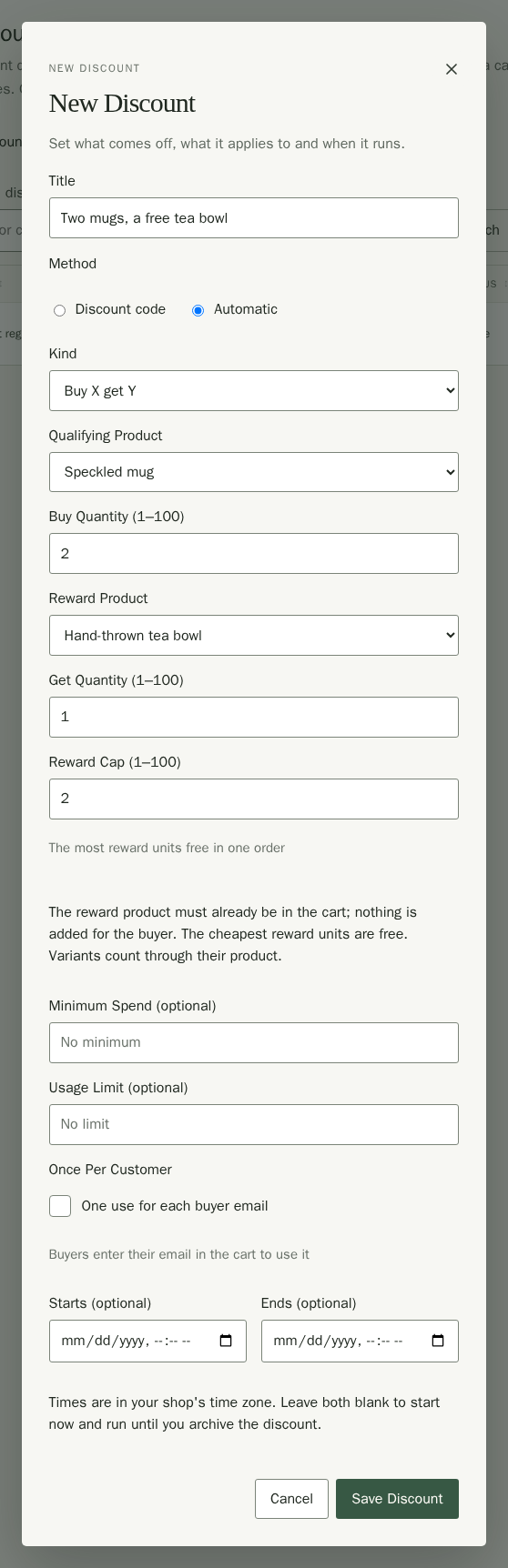
A Buy X get Y promotion rewards customers who buy enough of one product with free units of another. Mara offers a free tea bowl when someone buys two Speckled mugs, up to two tea bowls in an order.
- Choose New Discount and type a Title, such as Two mugs, a free tea bowl.
- Choose Discount code or Automatic under Method.
- Set Kind to Buy X get Y.
- Choose the Qualifying Product the customer buys and type the Buy Quantity, such as 2.
- Choose the Reward Product that comes free and type the Get Quantity, such as 1. It can be the same product, so Mara could also offer a third mug free.
- Type the Reward Cap, the most reward units that can be free in one order.
- Optionally set a Minimum Spend, a Usage Limit, Once Per Customer and when it runs, as for any discount, then choose Save Discount.
The customer has to put the reward product in their cart themselves. Stallee never adds anything for them. For every 2 mugs in the cart, 1 tea bowl in the cart is free, up to the cap. If the cart holds tea bowls at different prices, the cheapest ones are free first, using the sale price when a sale is on. Every variant of a product counts towards the buy quantity, and any variant can be the free one. When the reward is the same product as the one bought, the free units come out of the same pile, so with Buy 2 get 1 a customer needs 3 mugs for 1 to be free.
If a customer enters the code before their cart qualifies, the cart tells them what to add, for example “Add 2 of Speckled mug and the Hand-thrown tea bowl to get this offer.” An automatic promotion simply applies once the cart qualifies.
See and Change Your Discounts
The list has the same search, filters and sorting as your products. Each row shows the discount's Title, Code (or Automatic), Value (a Buy X get Y promotion reads like “Buy 2 of Speckled mug, get 1 of Hand-thrown tea bowl free”), Applies To, Status and Uses. Status is Scheduled, Active or Ended. Uses counts paid orders, and shows it against the limit if you set one, such as 4 / 50. An order you cancel gives its use back, so the code can be used again. Refunding an order does not. On a phone, each discount is a card with its details under their labels.
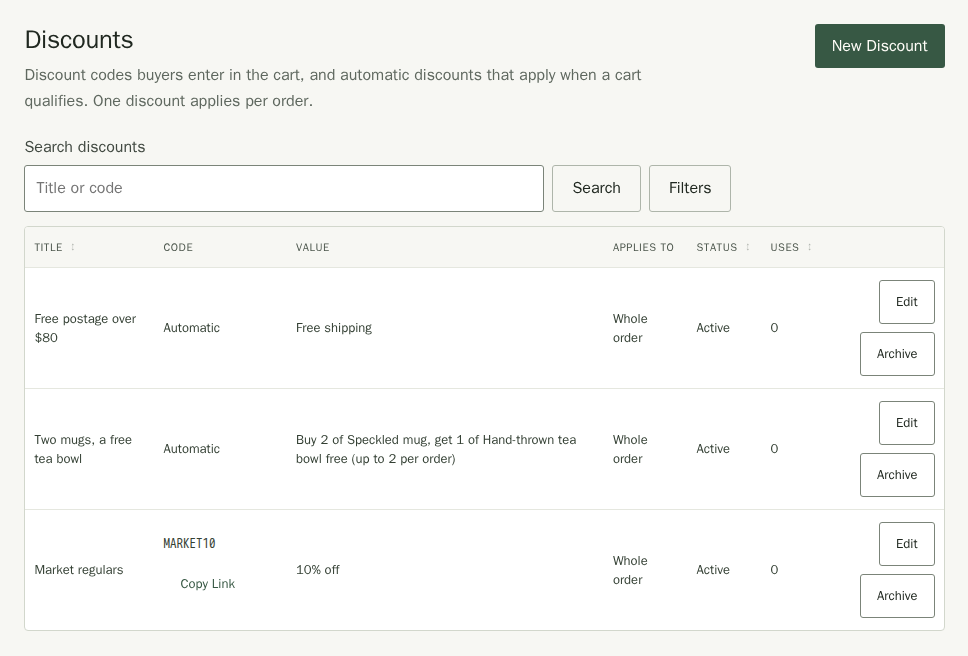
- Type a title or code in Search discounts and choose Search to find one. Clear Search shows them all again.
- Choose Filters, then a Status(Active, Scheduled, Ended or Archived) to see only those. Choose a column heading, such as Uses, to sort by it.
- Choose Edit to change a discount.
- Choose Archive to stop it. Buyers can no longer use it, and its code is free to use again. Orders that already used it keep it. Archived discounts are hidden until you choose Archived under Status in the filters, which also shows how many there are.
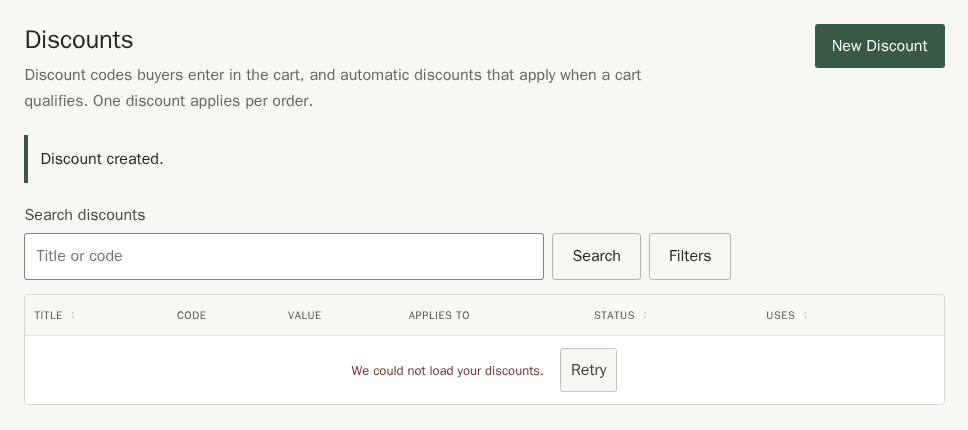
After you save or archive a discount, Stallee confirms the change and closes the dialog. If the list cannot load, choose Retry to see the latest discounts. Your change has already been saved.
Share a Link That Fills in the Code
An active code has a Copy Link button. It copies an address such as https://saltbushceramics.example/cart?discount=MARKET10. When a buyer opens it, their cart already has the code filled in. Put it in a newsletter, a social post or a QR code on your market stall.
How Discounts Combine
Only one discount applies to an order. If the buyer enters a code, the code wins. Otherwise Stallee applies the automatic discount that saves the buyer the most. Discounts take money off the price customers pay, including a sale price you have set. A Buy X get Y promotion counts like any other discount: it is compared by how much it saves, and it cannot be combined with a code or another automatic discount on the same order.
What Customers See
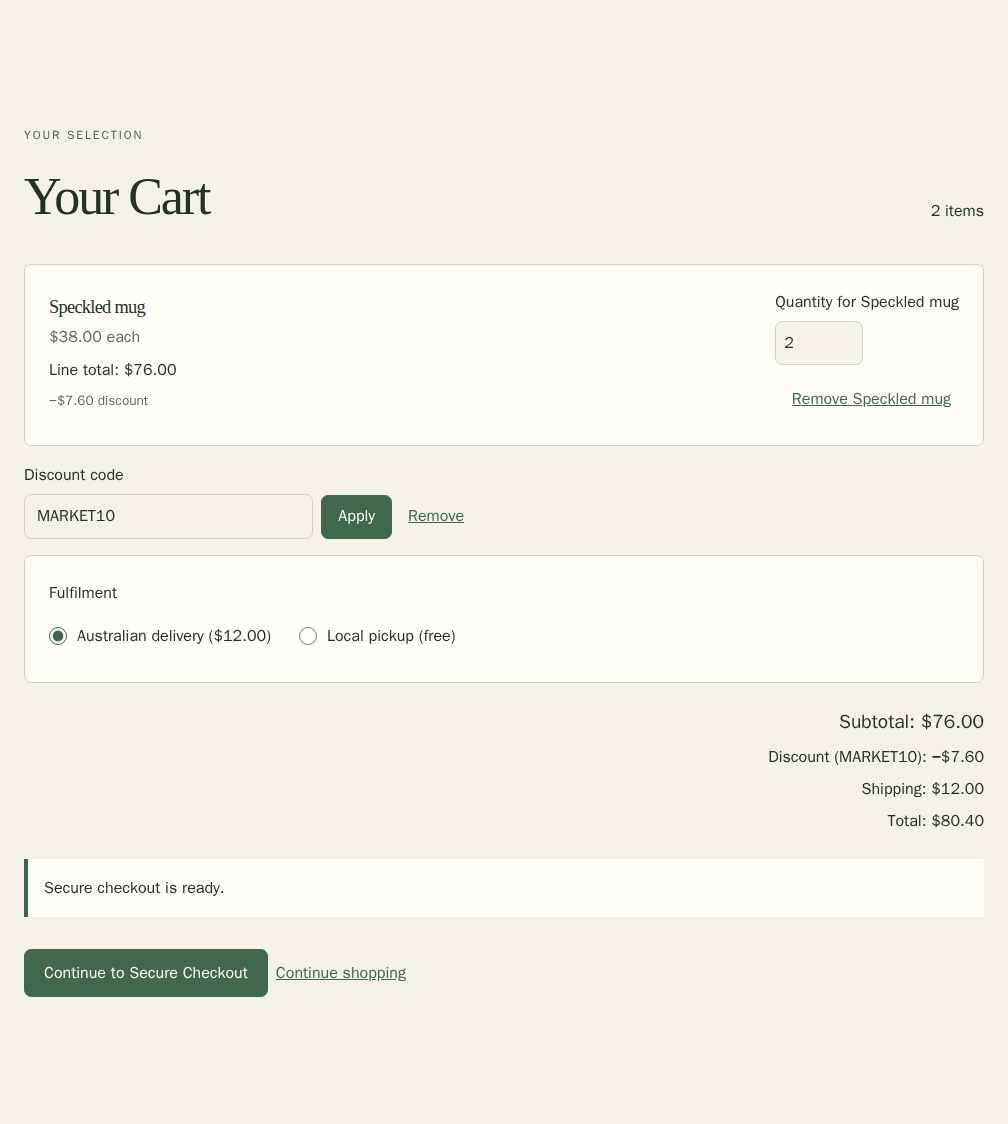
- In the cart, a buyer types the code in Discount code and chooses Apply. Remove takes it off again.
- For a once-per-customer code, an Email field appears. They enter the email they will check out with.
- The cart totals then show a Discount row, and Free shipping if postage is waived. For a Buy X get Y promotion the free items show Buy X get Y with the amount taken off, and the row carries the promotion's title.
A code cannot bring the order below the smallest amount Stripe and Square can charge (50 cents in Australian dollars). If it would, for example a 100% code on an order with free pickup, the cart says so and the buyer adds more or uses a different code. If the last use of a code is taken while a buyer is checking out, they see that the code has been used up.
Checkout charges the discounted total, whether the customer pays with Stripe or Square, and the discount shows on the payment page too.
Discounts on Orders
On the Orders page, an order's totals show the Subtotal before the discount, then a Discount · MARKET10 row. The customer's confirmation email and their private order page show the discount too. If you refund an item from a discounted order, the customer gets back what they paid for it, with its share of the discount taken off.