Your shop takes online payments through one provider at a time: your own Stripe account or your own Square account. Customers do not choose. They pay on a secure payment page from the provider you pick, and the money goes into your account, not to Stallee. Stallee takes nothing from each sale. The examples follow Mara Quinn, who runs Saltbush Ceramics.
Choose Stripe or Square
Set up the provider first. For Stripe, see Payments. For Square, see Turn on Square payments. Then choose which one takes your online payments.
- Choose Payments in the menu.
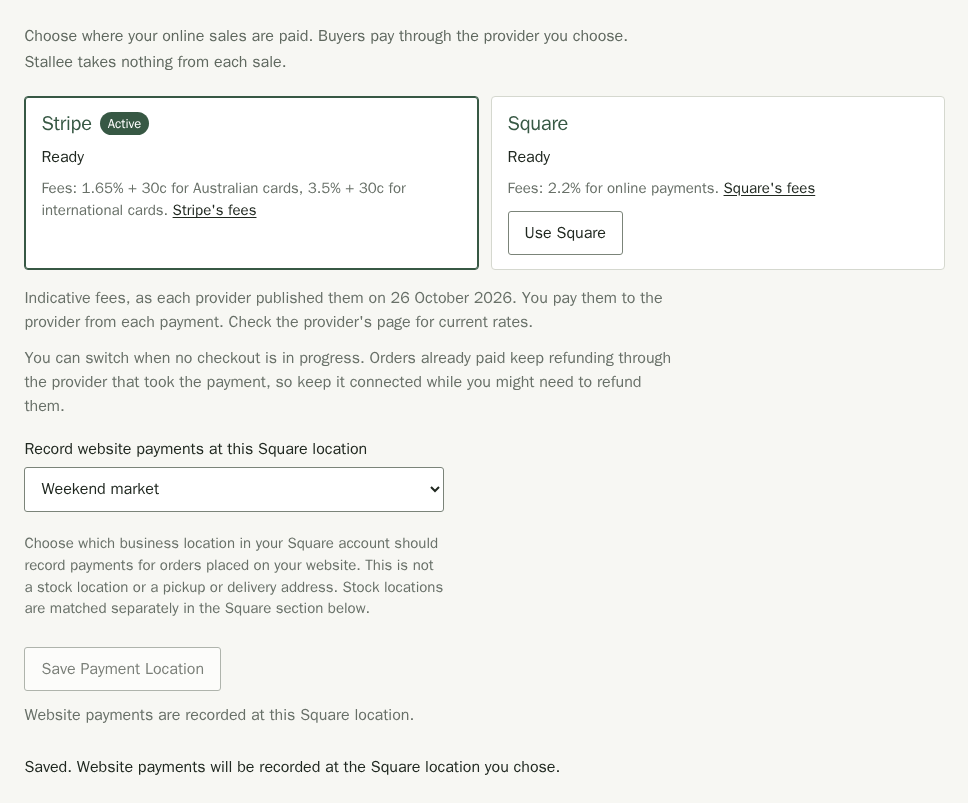
- At the top of the page, under the introduction, find the Stripe and Square cards. The one in use says Active.
- Each provider says Ready or Not ready yet, with the next step if something is missing.
- When the provider you want says Ready, choose Use Square or Use Stripe.
- The page confirms Online payments now go through Square. New customers pay through that provider from then on.
Get Stripe Ready for Online Checkout
The Stripe Payments panel shows whether your Stripe account can take card payments. The Stripe card at the top of the page also checks what your shop needs to start checkout. Stripe can be connected and ready for cards while online checkout still needs a stock location.
- Read the next step beside Not ready yet on the Stripe card.
- If it says Set up one active Online stock location in Products., follow the Online stock location link. Keep exactly one active location with the type Online (for your website). See Stock levels and locations for the steps to add a location and move stock into it.
- Return to Payments. Stripe shows Ready when all checkout requirements are met.
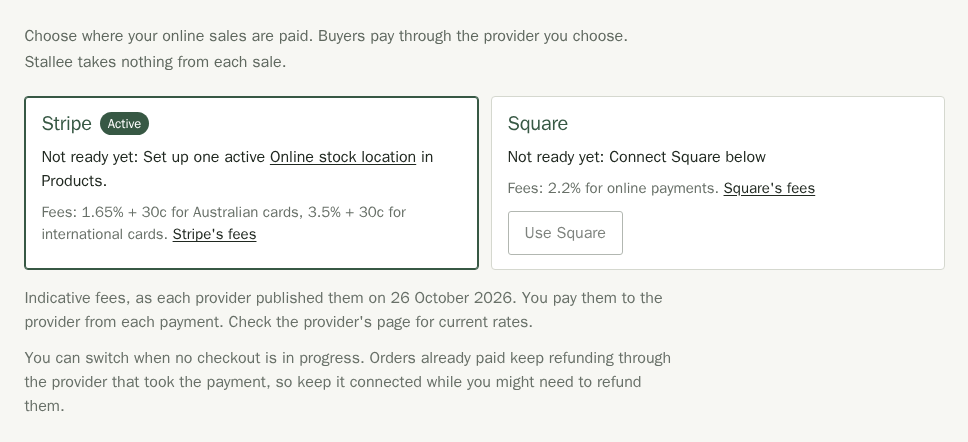
For other next steps, connect Stripe, finish its setup or resume checkout in the Stripe Payments panel below. If Stripe checkout is unavailable, try again shortly.
Fees
You pay the provider's own fees, taken from each payment. Each provider card at the top of the page shows the provider's published Australian rate and links to its fees page: on 26 October 2026, Stripe charged 1.65% + 30c for Australian cards and Square charged 2.2% for online payments. Check the provider's page for current rates. Stallee charges for your plan, never per sale.
Pause New Square Checkouts
While Square is active, you can stop new customers starting a checkout without changing provider. Payments already in progress carry on.
- Under the provider cards, choose Pause New Square Checkouts.
- The page confirms New Square checkouts are paused. Square then shows Not ready yet until you resume.
- To start taking payments again, choose Resume New Square Checkouts. The same button stays there if you switch to Stripe while Square is paused.
To pause Stripe instead, see Payments.
When Square Takes Payments and Stripe Stays Connected
Switching to Square does not disconnect Stripe. The Stripe Payments panel says Stripe is connected and ready, but not taking new checkouts because Square is your active provider. Keep it connected so you can refund orders customers already paid through Stripe, and so you can switch back whenever you choose.
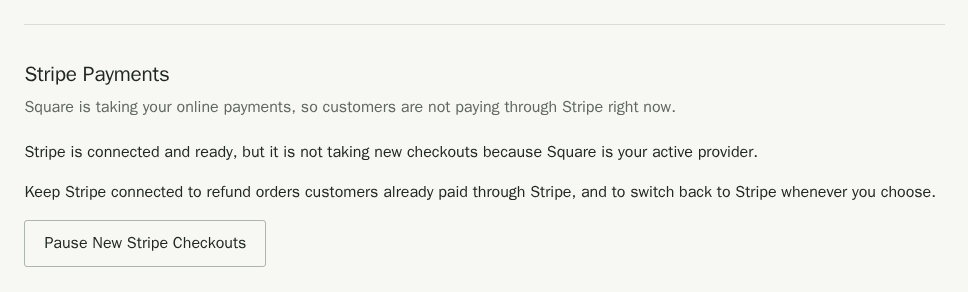
If you pause new Stripe checkouts here, Stripe will not take payments when you switch back until you choose Resume New Stripe Checkouts. Square's stock sync keeps working while Stripe is active, and its Square panel says whether Square is also taking your online payments.
Switch Provider Later
You can switch whenever no checkout is in progress. If a customer is part way through paying, the page says a checkout is in progress. Try again when it has finished.
- Orders already paid keep refunding through the provider that took the payment, even after you switch. Keep that provider connected while you might still need to refund them.
- If you disconnect a provider, refund its older orders in that provider's own dashboard.
- A custom order's balance is also collected through the provider that took its deposit.
See Refunds and Custom order balances for Square orders.