The stallholder roster lets you keep a private record of every trader who attends your markets. You can search the roster, note who came to each event, add private notes, record a contact email, and ask for explicit consent for floorplan update emails. Notes and contact details stay private; the roster does not create a public line-up. This guide follows Jo Mitchell, organiser of the Harbourside Makers Market.
The Stallholder Roster
Your roster holds all the stallholders across every market you organise. One record is reusable across events and dates. In your organiser workspace, choose Stallholders in the menu.
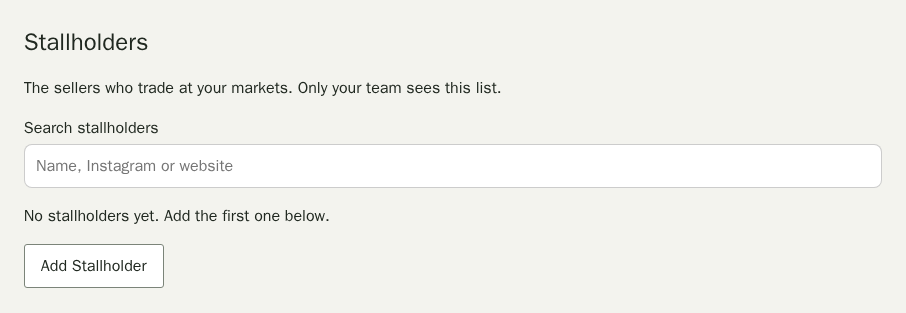
Add a Stallholder
- Choose Add Stallholder.
- Fill in the stallholder’s name, Instagram handle, or website. At least one is required. For Instagram you can type
@handleor paste a profile link such asinstagram.com/handle, including a link copied from the Instagram share button. A website can be a bare address likeexample.comor a fullhttporhttpslink. - Choose Add Stallholder to save.
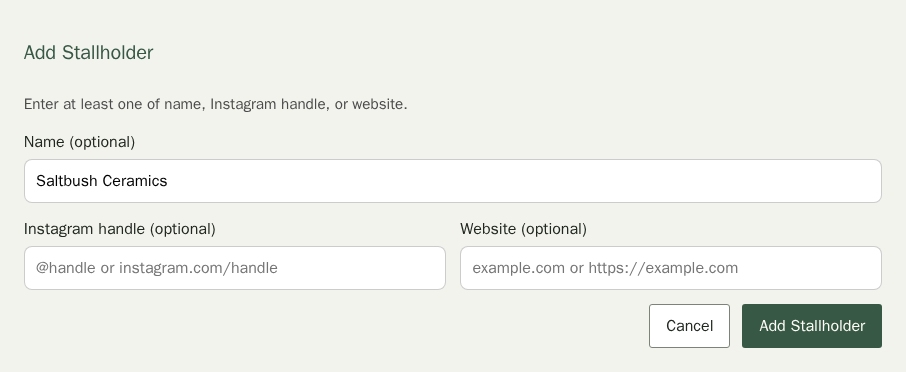
If a field is not valid, the message names it, for example “That Instagram handle or link isn’t valid”. Fix that field and save again.
If the name or Instagram handle looks similar to an existing stallholder, a warning appears after saving. The system never merges records automatically — you decide whether they are the same person.

Edit a Stallholder’s Identity
Search by name, Instagram handle (with or without the @), or website. Choose Edit next to any stallholder to update their name, Instagram handle, or website. The same duplicate check runs when you save.
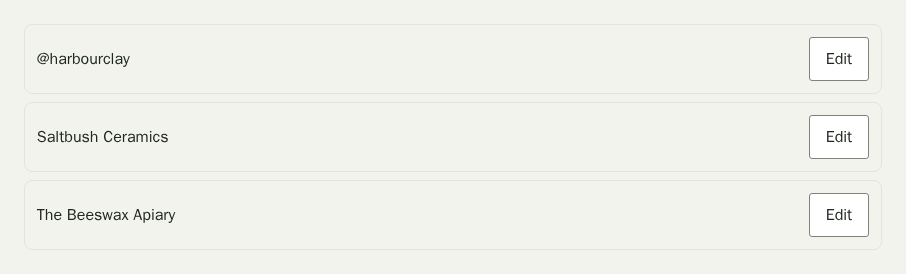
Stallholders by Date
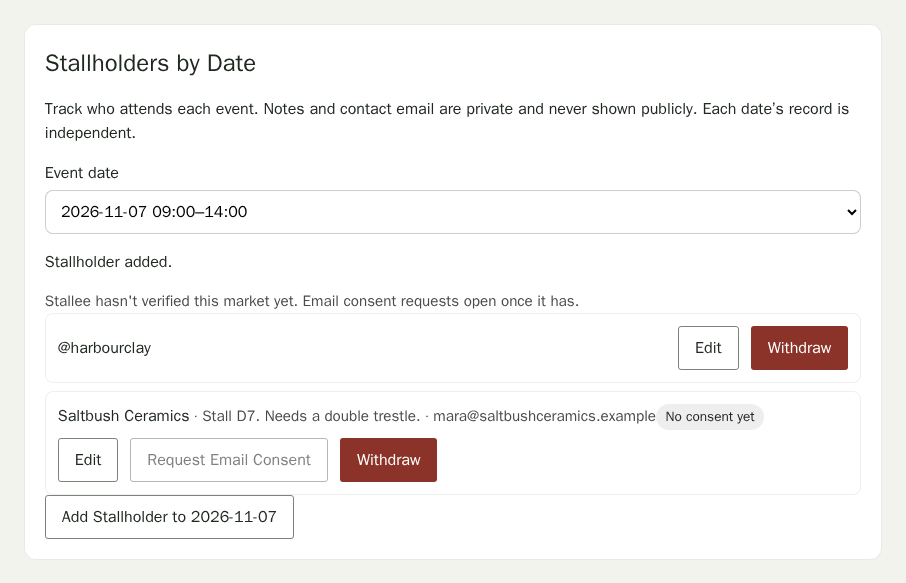
Inside each market’s editor, Stallholders by Date tracks who came to a particular event day. Notes and contact email are private. Each date’s record is independent.
Add a Stallholder to a Date
- Open a market from Your Markets and choose Stallholders by Date in the menu under its name.
- Choose the date from Event date.
- Choose Add stallholder to [date].
- Search your roster by name or Instagram handle and choose Select.
- Optionally add private notes and a contact email.
- Choose Add to Date.
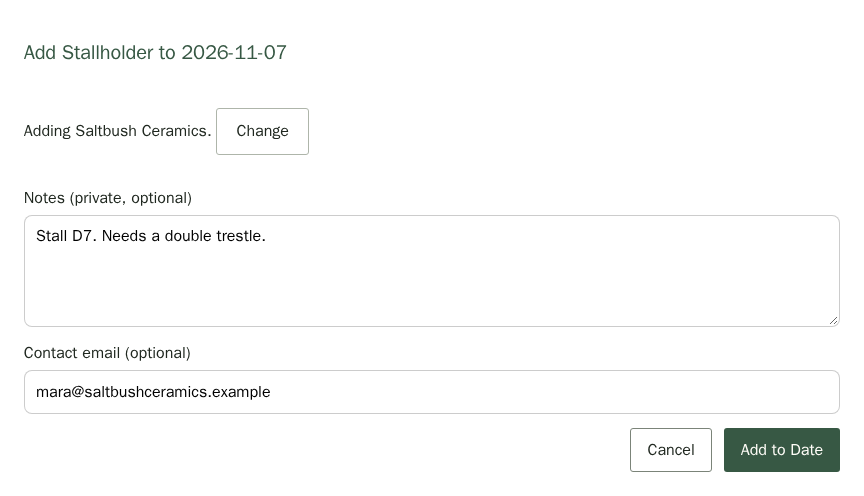
Edit Notes and Contact Email
Choose Edit beside any stallholder on the date. Change the notes or contact email and choose Save. Each date’s notes are independent: editing notes for one date does not affect the same stallholder on another date.
Withdraw a Stallholder
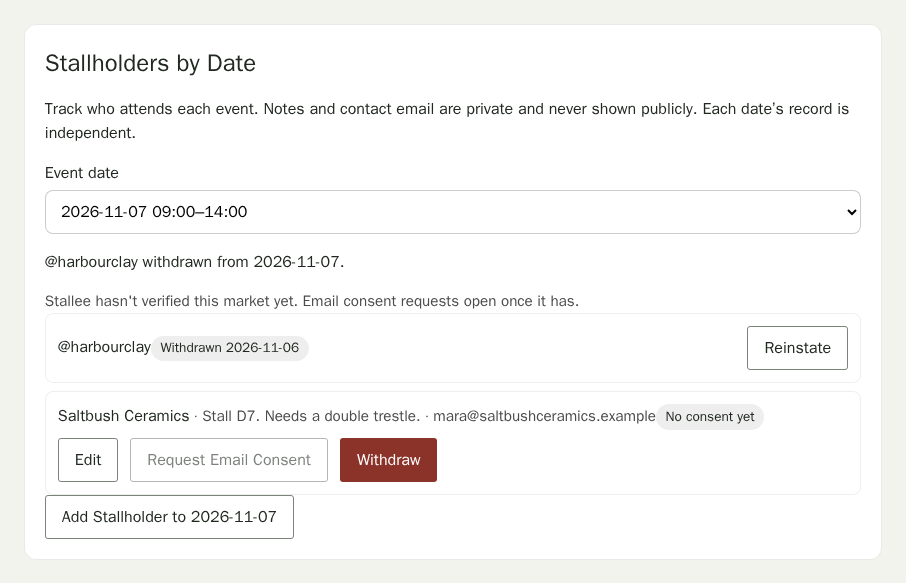
If a stallholder cancels after you have added them, choose Withdraw and confirm. Their record stays with the withdrawal date shown.
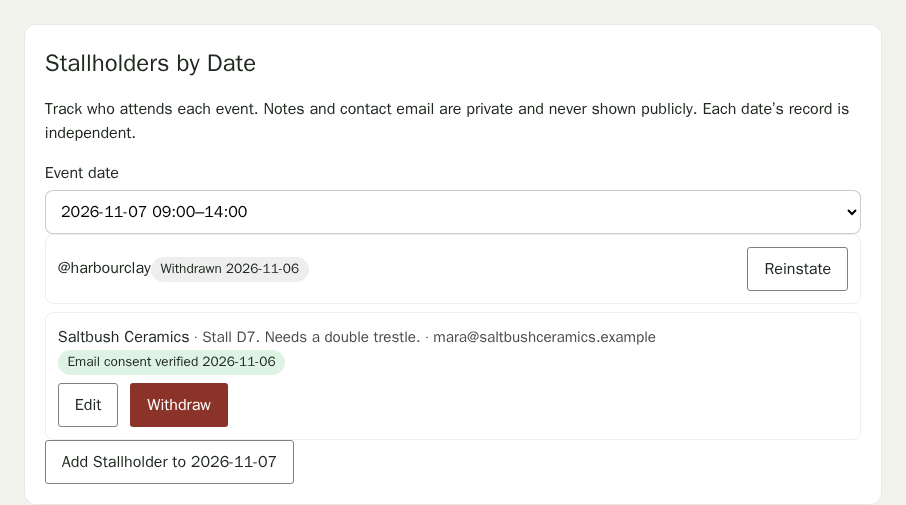
If they are coming after all, choose Reinstate beside the withdrawn entry, or add the same stallholder to the date again. They return to the active list with their private notes and contact email kept, but email consent is not restored: request it again, because consent applies to one event at a time. A reinstated stallholder has no floorplan placement, so allocate them again.
Email Consent
Stallee sends email for a market only once it has verified the market. Until then, Request Email Consent is switched off and the date list says so. Markets you create show Awaiting Stallee verification beside their name, and the Stallee team checks them. Nothing else is held back: you can still build your roster, notes and floorplans.
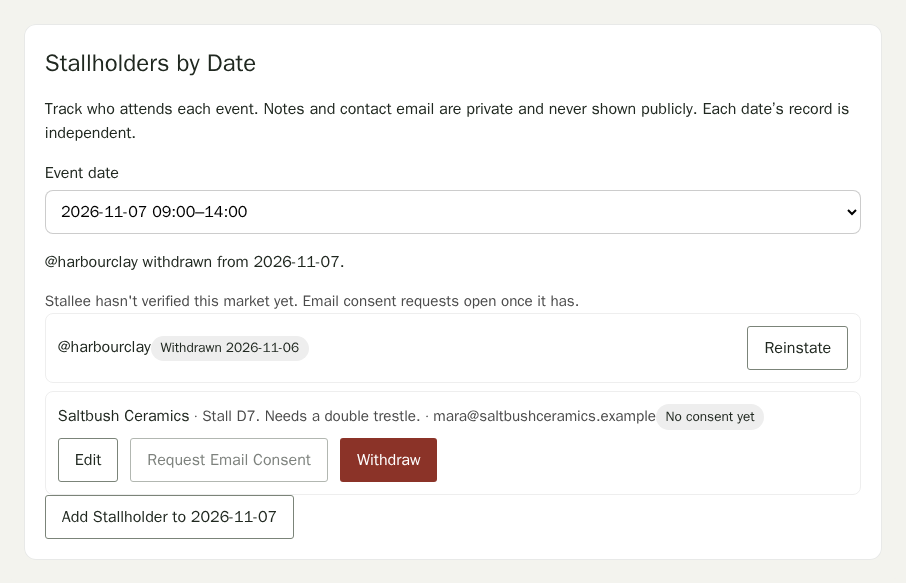
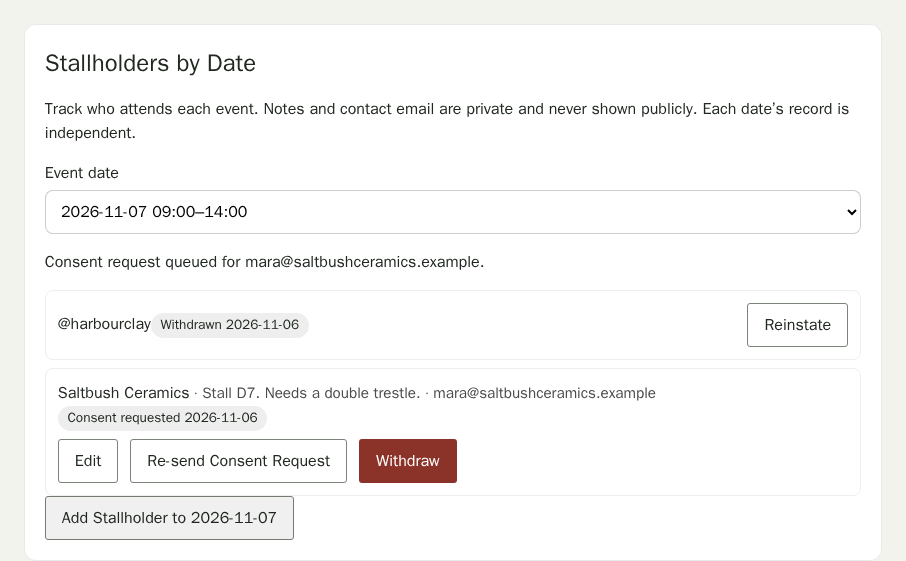
Once the market is verified, they must click an explicit consent link before you can email them. Add a contact email to the stallholder’s record for a date, then choose Request Email Consent. A link goes to the stallholder by email.
If a stallholder later uses the unsubscribe link in an update email, the badge changes to Unsubscribed with the date, and the button reads Ask for Consent Again. Only ask again if they have told you they want the emails.
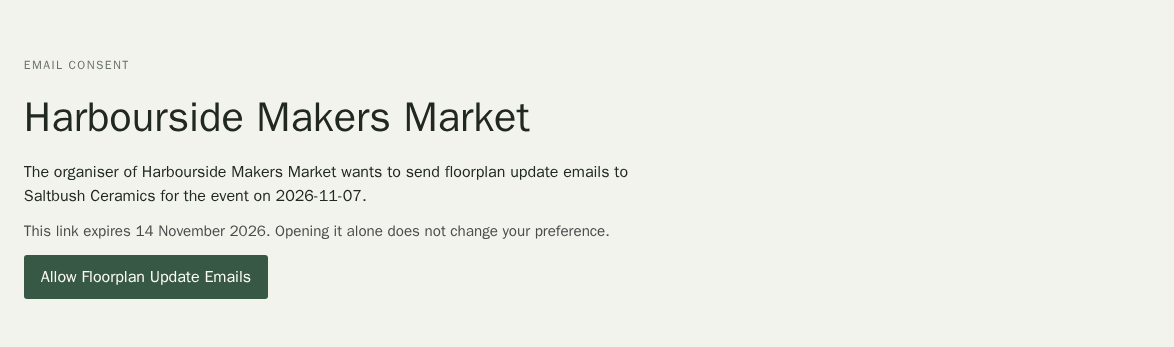
The stallholder opens the link and sees who is asking and for which date. Opening the link alone does not change their preference. They must choose Allow Floorplan Update Emails to give explicit consent.
Once they agree, the badge changes to Email consent verified.
Sending a Request Again
Stallee sends at most one consent request an hour for each stallholder on a date, so repeated clicks do not flood their inbox. If you choose Re-send Consent Request or Ask for Consent Again inside that hour, nothing is sent and the date list tells you when the last one went out and when you can send another, for example: “A consent request went to this address at 3:12 pm. You can send another after 4:12 pm.” Times use your device’s time zone.